
If you are using a Windows Home Server to keep all of your computers backed up then you definitely need to have a Windows Home Server (WHS) Restore CD handy should a computer on your network go South. The WHS restore CD walks you through the process of restoring the backup files stored on your server to your computer in the event of a mishap.
Before proceeding, make sure you download the Restore CD image from Microsoft – WHS Home Computer Restore CD Download.
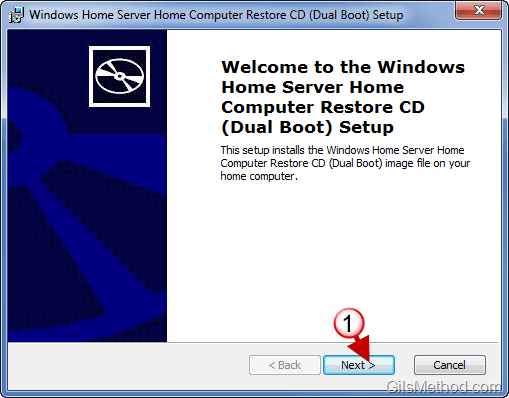
1. Click Next to start the installation of the Windows Home Server Restore CD on your computer.
Note: All the installation does is extract the necessary image file so that you can burn the image to a disc.
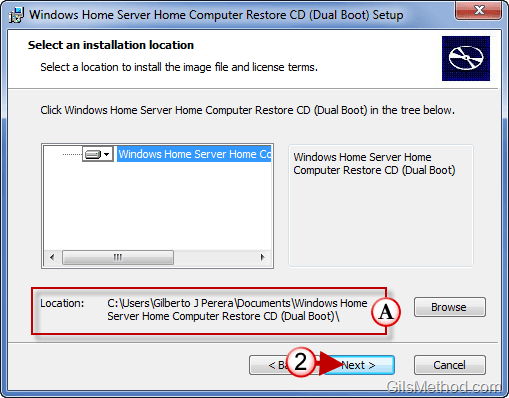
A. Take note of the installation location, this is where you will find the image files we will be burning in the steps below.
2. Click Next to proceed with the installation.
When the installation is completed we need to locate the image files.
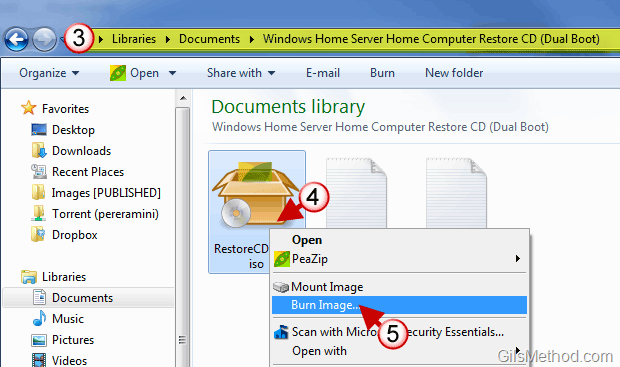
3. Locate the image files on your computer (Step 2 and A above).
C:\Users\[User Name]\Documents\Windows Home Server Home Computer Restore CD (Dual Boot)
4. Right-click on the Image file named RestoreCD_dual.iso.
5. In Windows 7 you should see the option to Burn Image (natively) or use a third-party application like Gizmo Drive to burn the image.
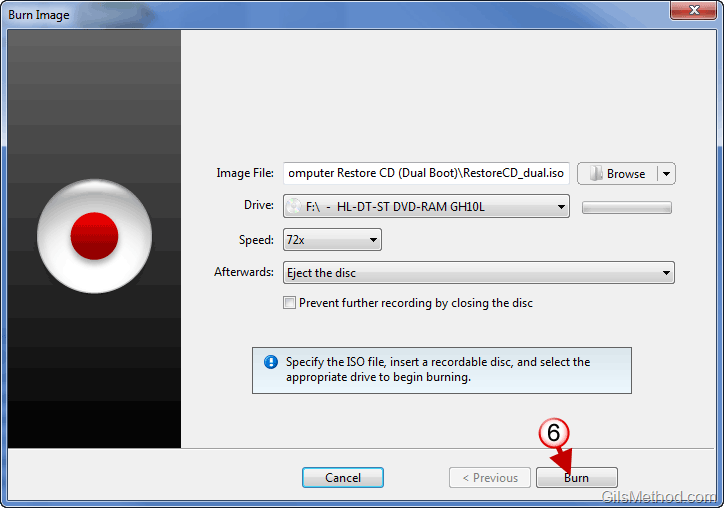
6. Burn the Image.
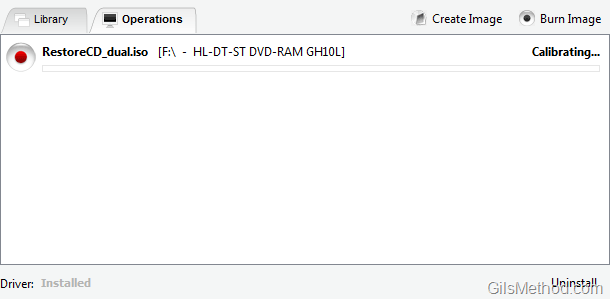
Image burning progress…
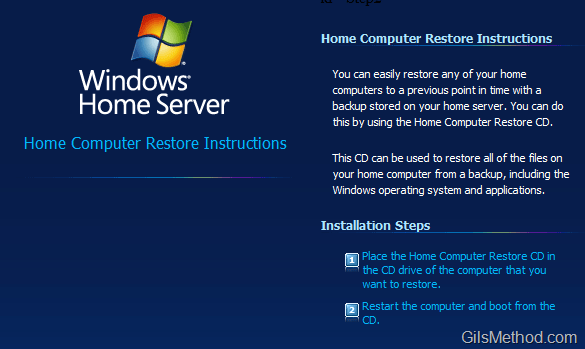
Once you are done burning the image you will be able to use it on any PC connected to your Windows Home Server.
You have two options to run the restore CD;
1. Run the restore CD on a computer while it’s running (see image above).
2. Insert the disc and reboot computer so that the computer boots off the restore CD (this option is useful if Windows does not run or respond.
Information below via ReadMe.txt
This ReadMe document is one of the Windows Home Server Home Computer Restore CD files. Unless you changed the installation location during setup, the Home Computer Restore CD files and license terms are located in one of the following folders:
* On Windows Vista: %HOMEPATH%\Documents\Windows Home Server Home Computer Restore CD (Dual Boot)
* On Windows XP: %HOMEPATH%\My Documents\Windows Home Server Home Computer Restore CD (Dual Boot)To use the Home Computer Restore CD software, you must write the ISO image file (restorecd_dual.iso) to a blank CD. A CD/DVD burner is required to write the ISO image file to the CD. Usually a CD/DVD burner includes the software that you need to write ISO image files. Follow the instructions with your burner software, and then select the option to write an ISO image, not the option to write individual files. Note that you cannot write the ISO image by using Windows Explorer to copy the file to the CD-ROM drive.



