
Since we began our first guide using the Start menu to access the Shut down, Log off, and other commands, it’s only right that we continue to explore the Start menu, how it works and what it can do for you.
The following is part of a series of articles that will mirror an electronic book that I’m set to release in December of this year. The eBook’s main focus will be helping new and old Windows users become familiar with the new version of Windows 7 that will available to the public in December. I hope that you find this series useful and informative and that you enjoy it so much that you will purchase my eBook when it is released.
This article is part of Chapter 1 of Windows 7 Basics How-to Guides for the Rest of Us™. To access other how-to’s from the book head on over to the Books section of this site.
The Start menu is the gateway to your computer, it provides you with access to the applications installed on your computer, the files saved on storage media, be it a hard disk, CD-ROM/DVD-ROM drive, thumb drives, and others, most importantly the Start menu provides you with access to the Control Panel and other administrative tools. The Start menu allows provides the following activities:
- You can start applications
- Open commonly used folders
- Search your computer
- Access help for your computer
- Access settings for your computer
- Shut down, log off, switch accounts, and place computer in Sleep mode
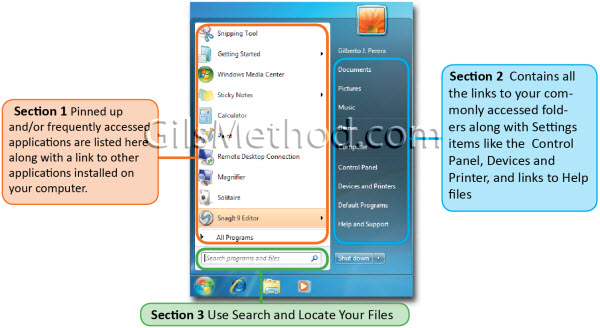
The Windows Start menu is comprised of three distinct sections, all providing you with easy access your files, applications, and settings.
- Section 1 – on the left contains the most frequently accessed applications with an option view all installed programs by clicking on the All Programs link.
- Section 2 – is made up of links to commonly used folders, files, settings, and other features.
- Section 3 – is the built-in search feature that allows you to locate any file or program on your computer within seconds.

Article posted on 08 25th, 2009


Get Daily Email Updates!
Maybe you can cut to the chase … ???
I use maybe 200 programs on a weekly basis that with the classic menu, I can group by folders: Graphics, Internet, Multimedia, Office & Utilities. With LONG filenames I don’t want, need or use search indexing. Ever.
The entire upper right portion of the win7 start menu was ONE link on my taskbar ! The bottom portion was all in another link called \Control Panel\ ! Duh… Which is another issue: columns get sorted VERTICALLY ! Ask ANY accountant or efficiency expert who does NOT work for MS… AND I always used the details view in EVERY explorer window, including control panel. Always. So How do I add what I want, not what the idiot microserfs want, to the start menu ? Or should I return/burn win7 and use an old pirated winXP64 and turn off ALL updates ?
@Larry – Are you talking about creating custom folders within the Start Menu so that you can group specific applications within those folders? If so – have you tried to browse the directory within Windows (C:ProgramDataMicrosoftWindowsStart Menu) this will help you create the folders within the Start Menu that I think you are referring to. If not – can you please clarify what you are referring to so that I can help you. Thanks for passing by. I look forward to helping you.
I absolutely agree Larry. Its rubbish. What would have been the problem with letting the customer choose an XP/classic/Win7 menu? Its a pity as Win7 isn’t too bad. But the Start Menu is a biggie for me. Glad I downloaded it: I’m sticking with XP.
I am looking for the same (I think) feature as Lary – custom folders (as Text, Graphics, Viewers, etc. containing sorted applications) in the Start menu which opens as a menu when you go with mouse over it.
Unfortunatelly, neither pinning the folders to the Start menu, nor the subfolders in “C:\ProgramData\Microsoft\Windows\Start Menu” does not help.
Clicking on a pinned folder opens the folder in a new explorer window, not as a menu.
A subfolder of “…\Start menu” is placed (strangelly) into “All Programs” list of the Start menu. Why? It get lost among too long list of all programs.
Is it possible to create custom lists similar to “All programs” placed at the left part of the Start menu?
Pavel: Don’t pin them. Just use Explorer to add directories off of “C:\ProgramData\Microsoft\Windows\Start Menu\Programsâ€? (Gil forgot the ‘Programs’ part) and move the existing shortcuts and subdirectories into your new ones. Then, when you hover or click “All Programs” in the Start window, your revised structure shows up. You will have to click through one UAC prompt for each move you make, but at least it gives you the structure you want, and once it’s done, it’s done.
Now, if MS would just do something about Search being so worthless in non-indexed areas… And every time I turn around, that’s where I need to find something… It used to work in XP–totally frustrating.
Sorry for the rant, but I hope this helps with the Start menu issue. It works for me.
@David – Thanks for the help with the answer….I did forget to mention the Programs on there. I do agree with you on the search of non-indexed items…maybe an update will fix that…we’ll see. Thanks again for the help.
I HATE the Win7 start menu, there's no way to organize programs into folders at the root level….very very frustrating. And why doesnt' the menu grow? Once you pic the max amount of programs your stuck having to go to All Programs which is a huge pain in the ass and slow to use. God to I hate the Wiin7 start menu in every way. Classic is much better.
@Eric – Have you tried pinning your favorite/frequently accessed programs to the Start Menu? This should help lessen the number of trips you make to the All Programs menu. Hope this helps.
[...] The Star Menu button open the Start Menu previously discussed (see Get Around the Windows 7 Start Menu) [...]
