

Click here to try Mozy for FREE!
Recommended: Click here repair PC errors
Click here to run a Free Registry scan
WebWatcher

How to Add and Remove E-mail Accounts in Outlook

by Gilberto J Perera 4 Comments Share

Do you like this article?

Outlook 2007 Logo

Outlook allows you to add multiple email accounts so that you can access all of your email from one location. The guide below will demonstrate how to add and remove accounts in Outlook so that you can accomplish this. If you have any comments or questions, please post them below.

Note: I used Outlook 2007 to create this tutorial, instructions should be similar in previous versions of Outlook.

Adding Accounts
Add Remove Accounts in Outlook

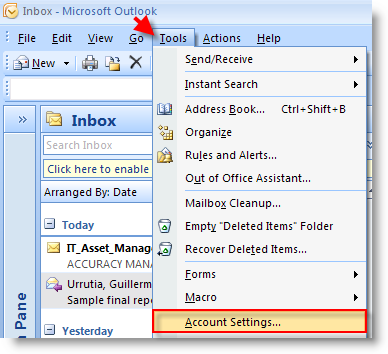
1. Open Outlook and click on Tools > Account Settings..The Account Settings window will open.
Add Remove Accounts in Outlook

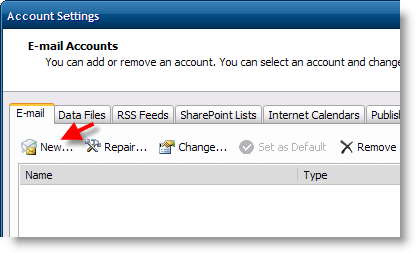
2. Make sure that the E-mail tab is selected and click on the New button.

Add Remove Accounts in Outlook

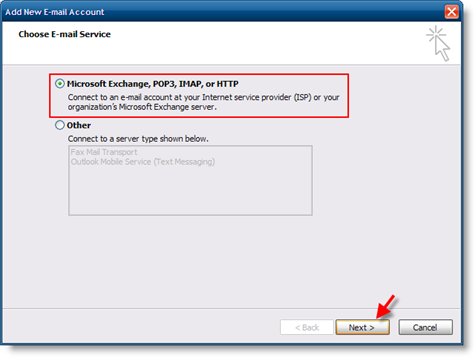
3. Select the first option, Microsoft Exchange, POP3, IMAP, or HTTP, click Next
Add Remove Accounts in Outlook

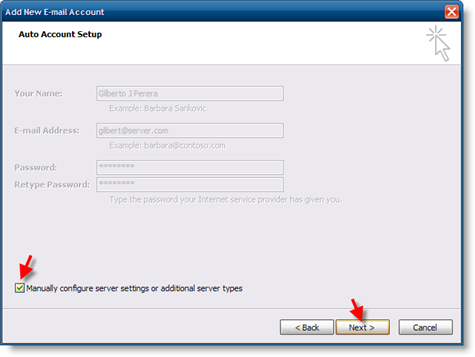
4. Add a checkmark to the Manually configure server… checkbox, click Next
Add Remove Accounts in Outlook

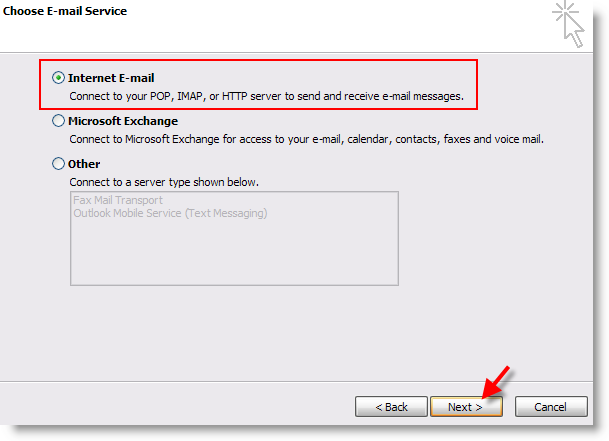
5. Select Internet E-mail and click Next
Add Remove Accounts in Outlook

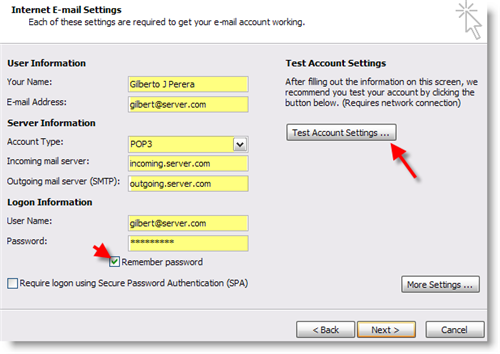
6. Enter the information designated in the highlighted fields, check the Remember password checkbox, and click Next.

Note: You can click on the Test Account Settings button to ensure that the settings you entered are correct (see screenshot below for account settings testing)
Add Remove Accounts in Outlook

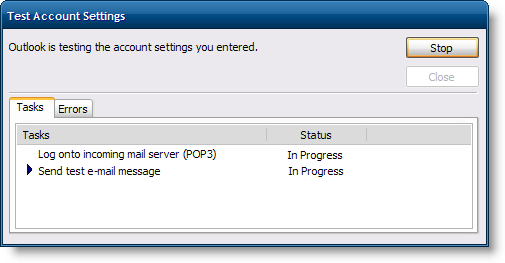
7. The tasks tab will list all of the items tested, if all passed proceed.
Add Remove Accounts in Outlook

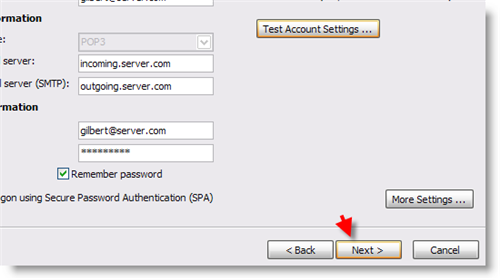
8.Click Next to proceed if you have not done so already.
Add Remove Accounts in Outlook

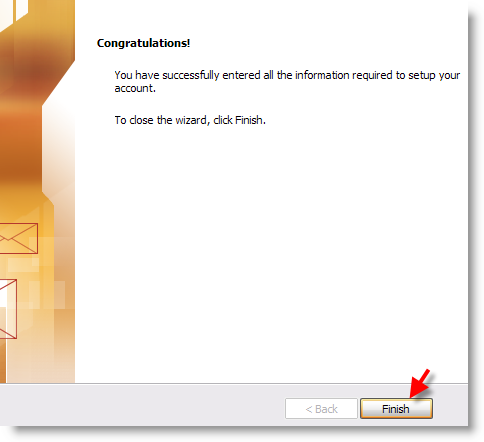
9. Congratulations you have set up your account, click Finish

Removing Accounts

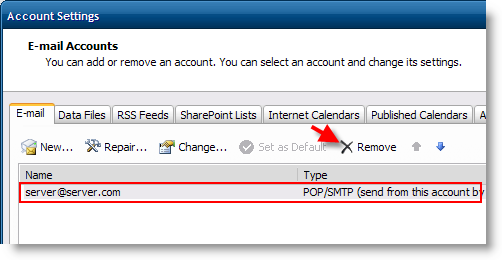
In order to get to the step below, you must follow Step 1 from the Add Accounts section above.
Add Remove Accounts in Outlook

1. Select the account you wish to delete and click on the Remove button.
Add Remove Accounts in Outlook

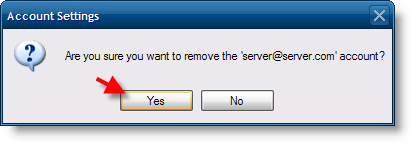
2. Click Yes when the dialog box appears.

Published on November 2, 2008

Related Posts

  1. How to Add a MobileMe Account to Outlook 2010
  2. Combine Your Email Accounts With Gmail
  3. Transfer Your Outlook 2003 Emails to Gmail
  4. How to Setup Email Accounts on the iPad
  5. Transfer Your Outlook Emails to Gmail
How-to

About the author

Gilbert is a Microsoft MVP, a full-time blogger, and technology aficionado. When Gilbert is away from his bike and his iPad, he's busy writing technology how-to's from his home-office in Miami, Florida on the latest programs and gadgets he can get his hands on. He's locally known as "the computer guy" and has spent the last 12 years helping family, friends, and GilsMethod.com visitors with their computer questions and problems. He was awarded the 2009 MVP award from Microsoft for his contributions in forums and blogs and is enjoying the new addition to his family.

Want more articles like this delivered for free to your inbox?

To receive the latest technology how-to's, news, and reviews, enter your email address below.

Sign up below

4 Responses to “How to Add and Remove E-mail Accounts in Outlook”

  1. Claudia Arriaga says:

    I follow the steps and when I get to step 6 and I try the test account settings it says it can’t find my email server. What does this mean?

    Thanks
    Claudia

    • Gil says:

      Claudia,

      What settings are you entering? Who is your Internet Service Provider or email provider? Thanks.

  2. Gil says:

    @Teresa: Yes you can, you would use IMAP instead of POP3 as the account type when setting up the email address (step #6). Let me know if you need help with this.

  3. Teresa says:

    Can this be used with yahoo/hotmail/gmail/etc accounts?
    Thank you,
    Teresa

Leave a Reply
