
If you use Outlook 2010 in a corporate environment, chances are that you email storage quota will be exceeded with just a couple days of unread emails. To help you stay out of your IT department’s black list, you can keep track of how much space your mailboxes are consuming. When you follow the instructions below you will be able to determine the total size of your mailbox and details about individual folders. This should help you find those heavy folders so that you can delete emails accordingly and stay within your IT department’s mailbox size limits.
If you have any comments or questions, please post them in the comments section at the end of this how-to.
Note: I used Outlook 2010 for this tutorial.
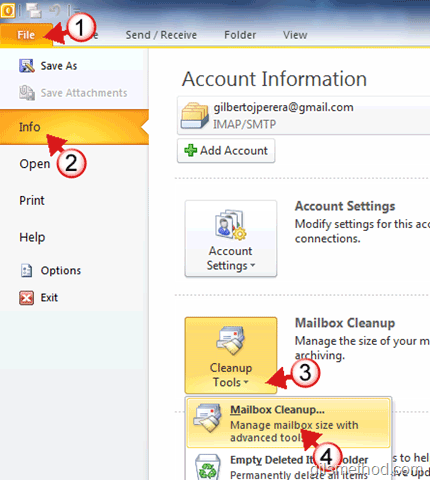
1. Click on File to open the Backstage.
2. Click on Info.
3. Click on Cleanup Tools.
4. Click on Mailbox Cleanup… from the list.

5. When the Mailbox Cleanup window opens, click on the View Mailbox Size… button.
The Folder Size window will open. You will be able to see the Total size of your mailbox and use the list to see the size of each of the folders in your mailbox.



