

Click here to try Mozy for FREE!
Recommended: Click here repair PC errors
Click here to run a Free Registry scan
WebWatcher

How to Geotag Your Pictures Using Picasa

by Gilberto J Perera View Comments Share
GeoTag Pictures with Picasa

One of the neatest features Picasa sports is the ability to Geotag your pictures using Google Earth. When you geotag a picture you are essentially adding GPS coordinates to the EXIF data contained in your picture (more on EXIF here). When you geotag your pictures you can view them on a map in Google Earth or a website that supports geotagging. The guide below will show you how to geotag your pictures using Picasa with Google Earth and how to display them on both programs. If you have any questions or comments, please post them below.

NOTE: I used Picasa 3 Beta & Google Earth 4.3.7 beta for this tutorial.
GeoTag Pictures with Picasa

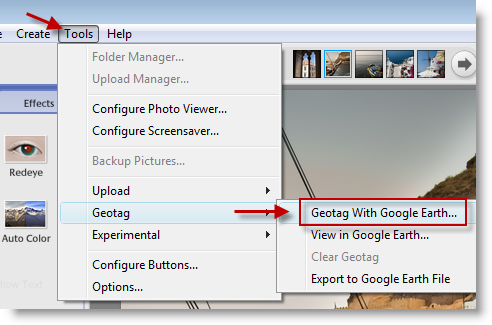
1. With Picasa open, click on Tools > Geotag > Geotag With Google Earth…
GeoTag Pictures with Picasa

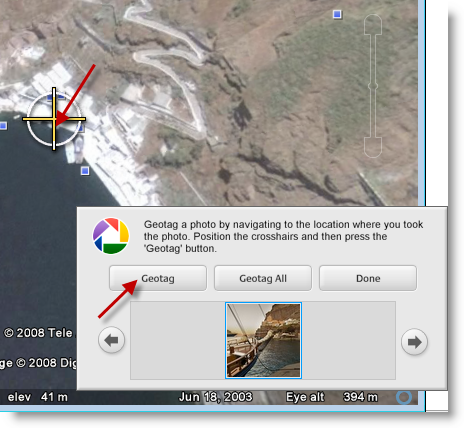
2. Google Earth will open and a Picasa dialog box will be shown on the bottom right. Select the picture you wish to Geotag (use the arrows at each side to select the pictures), find the location where the picture was taken (in Google Earth) and click Geotag. If you took all the pictures at the same spot you can click on Geotag All to add the same coordinates to all the pictures.

GeoTag Pictures with Picasa

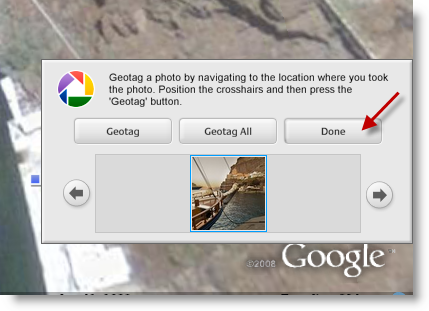
3. Once you’ve completed tagging your pictures, click on the Done button.
GeoTag Pictures with Picasa

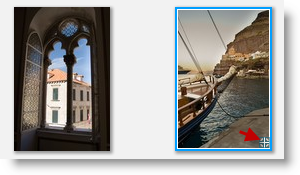
4. When you return to Picasa, you’ll notice that the pictures you geotagged have a small circle with a cross that indicates your picture has been geotagged.
GeoTag Pictures with Picasa

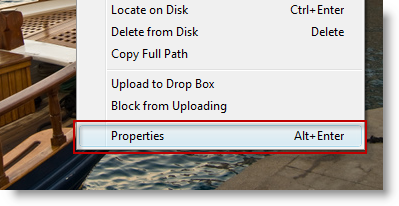
5. You can also see your pictures geotag information by right-clicking on the picture and selecting Properties from the menu.
GeoTag Pictures with Picasa

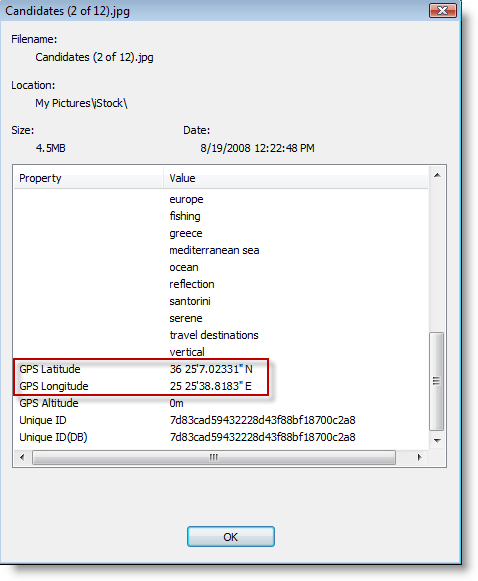
6. Scroll to the bottom of the page and you’ll see the GPS coordinates assigned to the image. Click OK to exit.
GeoTag Pictures with Picasa

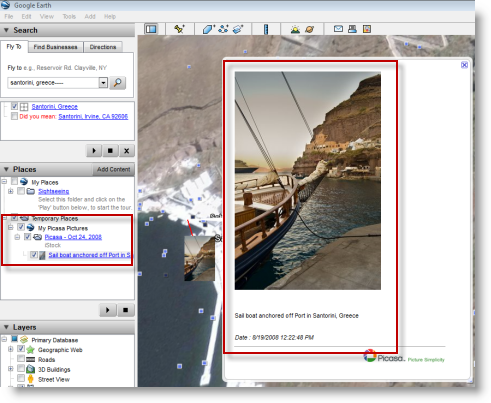
7. You can also view your picture in Google Earth by clicking on your picture located in the Places pane to the left.


Do you like this article?

Related Posts

  1. 4 Ways to Add Pictures to Picasa
  2. How to Email Pictures with Picasa
  3. How to Backup Your Pictures With Picasa 3
  4. How to Upload Your Pictures to Picasa Web Albums
  5. How to Convert RAW Files to JPEG’s Using Picasa
How-to

About the author

Gilbert is a Microsoft MVP, a full-time blogger, and technology aficionado. When Gilbert is away from his bike and his iPad, he's busy writing technology how-to's from his home-office in Miami, Florida on the latest programs and gadgets he can get his hands on. He's locally known as "the computer guy" and has spent the last 12 years helping family, friends, and GilsMethod.com visitors with their computer questions and problems. He was awarded the 2009 MVP award from Microsoft for his contributions in forums and blogs and is enjoying the new addition to his family.

Want more articles like this delivered for free to your inbox?

To receive the latest technology how-to's, news, and reviews, enter your email address below.

Sign up below

View Comments to “How to Geotag Your Pictures Using Picasa”

  1. Gex says:

    hey just a question, if you geotag a few pictures, are they available to everyone who uses Google Earth or is it just available to you.

Leave a Reply

blog comments powered by Disqus