

This how-to is a follow up to Monday’s post which described the process used to pair up your Bluetooth devices, if you haven’t done so already make sure to follow the instructions in How to Pair Bluetooth Devices in Windows Vista before proceeding with this tutorial. The ability to synchronize your BlackBerry wirelessly (via Bluetooth) is a plus, the only downsides to this feature is that you cannot synchronize media or install programs and that you must have a Bluetooth radio installed in the host machine. The guide below will walk you through the configuration settings necessary to synchronize your BlackBerry to your computer via Bluetooth. If you have any comments or questions, please post them below.
Note: I used BlackBerry Desktop Manager 4.3 (1107) on Windows Vista 64bit, BlackBerry 8830 Version 4.2.2 with Sprint, make sure to accept connections from your computer so that the sync process works, you will not be able to use Media Manager or Application loader via Bluetooth, you must be connected via USB to use these two features
Before proceeding make sure to follow the instructions provided in How to Pair Bluetooth Devices in Windows Vista
Configuring BlackBerry Device Manager to Connect Via Bluetooth
There are two ways that you can reach the BlackBerry Device Manager on your computer.
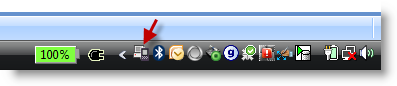
Method 1 Double-click on the small BlackBerry Device Manager icon located in the notification area to the right.
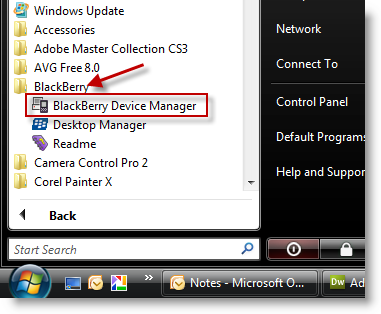
Method 2 Click on Orb > All Programs > BlackBerry > BlackBerry Device Manager
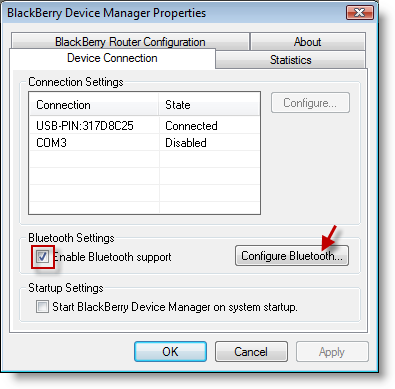
1. Click on the Device Connection tab and add a checkmark to the Enable Bluetooth Support checkbox, click on the Configure Bluetooth… button.
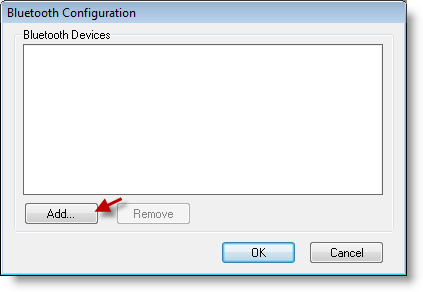
2. In the Bluetooth Configuration window, click on the Add… button
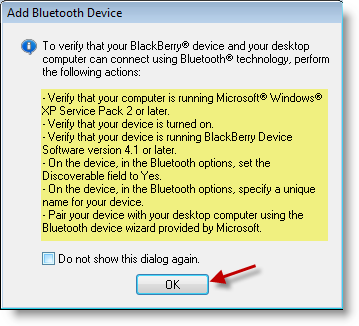
3. You will be prompted with the dialog box above, make sure that you meet all of those criteria. Click OK
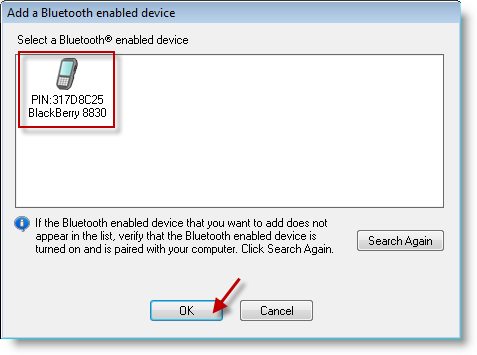
4. Your device should be listed in the Add a Bluetooth enabled device prompt, select your device by clicking on it and click OK to proceed.
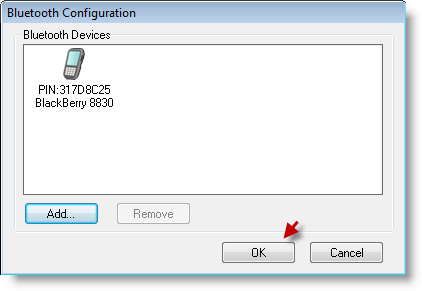
5. Click OK again.
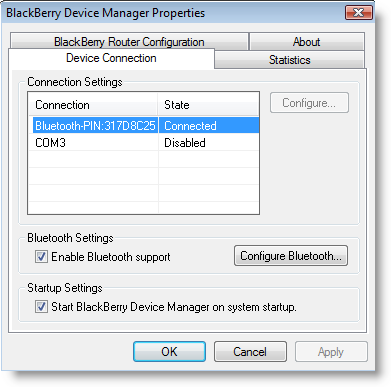
6. Your phone should now be listed in the Connection Settings list, click OK to close window.
Note: If your device is not listed, allow some time (about 3 min) for the changes made to be reflected, if nothing occurs, repeat steps 1-4.
Syncing Your BlackBerry Phone with Desktop Manager
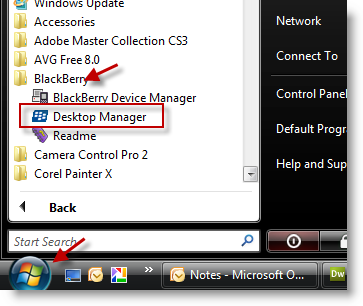
1. Click on Orb > All Programs > BlackBerry > Desktop Manager
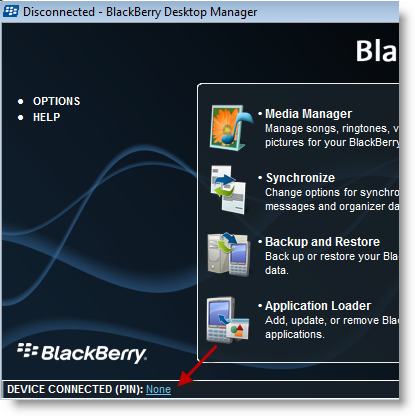
2. Your phone’s PIN should appear next to the DEVICE CONNECTED (PIN): area, assuming it is listed click on the Synchronize button and you are done!
Note: If your phone is not listed, follow the instructions below
3. Click on the None link that appears where the PIN number should appear (see screenshot above)
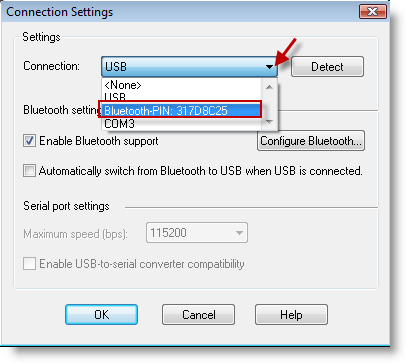
4. The Connection Settings window should open, click on the Connection drop-down and select Bluetooth-PIN: YOURPIN#, click OK
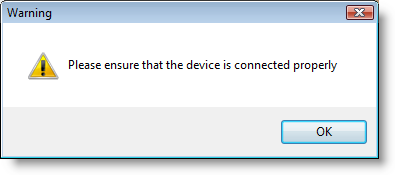
5. Click OK to proceed
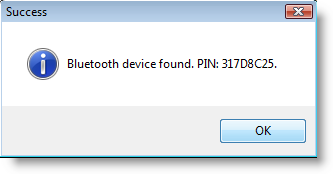
6. Your device should have been found, click OK to proceed.
Now you may Synchronize your BlackBerry with your computer via Bluetooth.


