
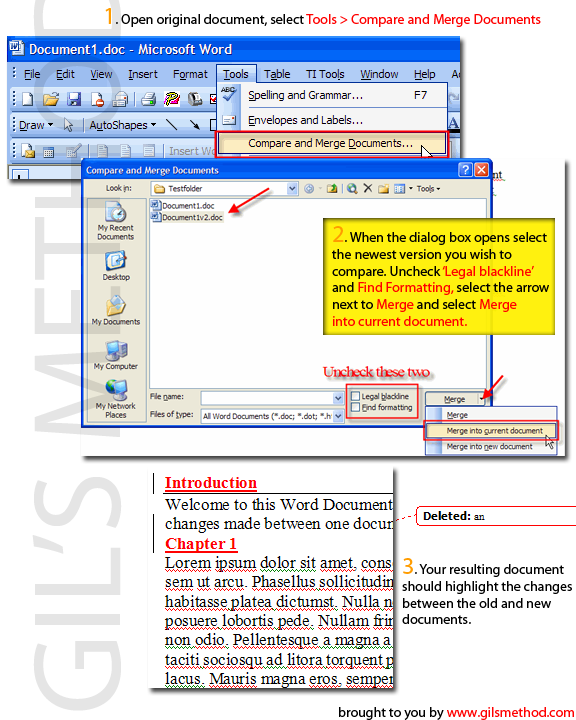
 Microsoft Word allows you to view the changes that took place between one version of a particular document and another. This tool is specifically useful when writing contracts which can vary from time to time or other documents whose format can be reused and changes tracked. I read about this feature on a recent PC Magazine edition and thought that I could illustrate the steps better. You can also view the one pager by clicking on the pic tutorial icon. As always comments/suggestions are always welcome.
1. Open the older version of your word document.
2. Select Tools > Compare and Merge Documents from the menu.
3. When the dialog box opens select the latest version you wish to compare.
4. Uncheck the Legal blackline and Find formatting boxes. Click the down button attached to the button labeled Merge and select Merge into new document.
5. Save the document with a name that will identify its sources and repeat for any other documents you wish to compare.


