Looking for a way to quickly synchronize notes from your computer to Google Docs? NoteSync is an Adobe Air App that allows you to synchronize notes created on the NoteSync application on your computer with Google Docs online. When NoteSync first starts it will ask you for your Google Docs credentials so that it can keep your notes synchronized. The first time NoteSync synchronizes with Google Docs it will automatically create a NoteSync folder which will contain all of the notes created by NoteSync. If you add notes to this folder using Google Docs, the notes will be available in the NoteSync application.
NoteSync is very intuitive and easy to use, but I’ll show how I quickly created a note with the application and how it synced with Google Docs instantly.
Note: I used NoteSync version 1.1 on Windows for this tutorial.
Download NoteSync for Mac and Windows from the Adobe Marketplace for $4.99 (trial available).
Create a New Note in NoteSync
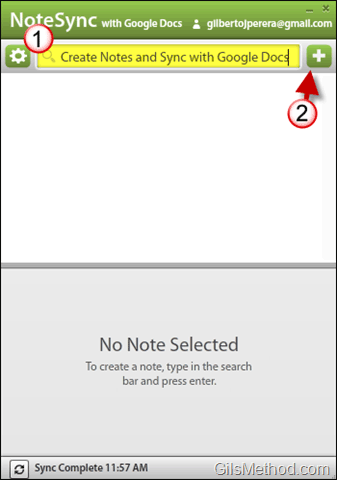
1. Enter a name for the note you are creating in the Search box.
Note: The search box can be used to create new notes and perform searches.
2. Click on the + sign to add/create a new note.

A. Note how the new note you created is now listed among other notes.
3. Enter the information for the note in the highlighted area.
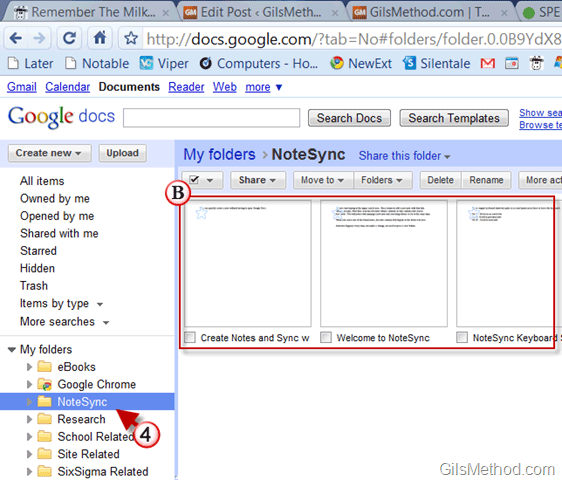
4. Go to your Google Docs account (http://www.docs.google.com) and click on the NoteSync folder in My Folders. The synchronized notes (B) should appear.
If you Google Docs was already open you may need to refresh the page for the NoteSync folder to appear.
Application Shortcuts
Keep your hands on the keyboard with these simple shortcuts.
Ctr-L – Set focus in search bar
Ctr-J – Scroll to previous note
Ctr-K – Scroll to next note