

The other day I came across Rollip.com, a very easy to use online photo manipulation site that allows users to choose from 40 different filter effects ranging from vintage effects to black and white conversion. I found the website fast and easy to use. I personally like to use programs like Picasa to do my any photo editing, but I found this site to be great for on-the-fly filter effects when a program like Picasa is not available. Below I will walk you through the steps necessary to upload and apply a filter to your pictures. If you know of other websites like this or have any questions, please post them below.
Using Rollip to Apply Filters to Your Pictures
1. Head on over to Rollip.com and click on the Click here to start! button.
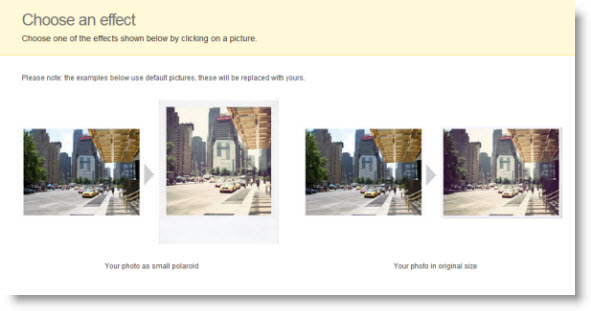
2. Choose the layout of your photograph. You have the option of a Polaroid look (which reduces the size of the image) or the original size. Simply click on the layout you wish to use.
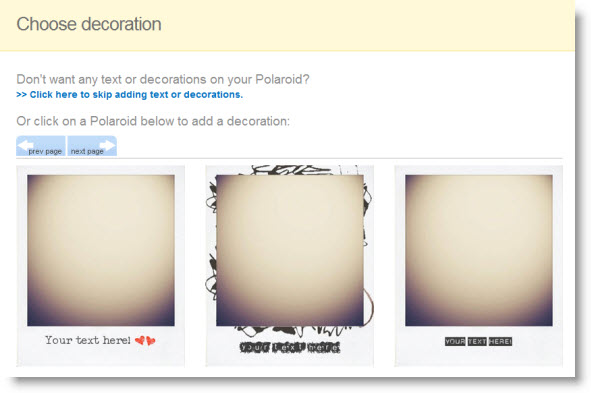
3. In this example I chose the Polaroid and as such I was provided with the options pictured above that allow me to add decorations to the border of the "Polaroid". Click on the option you would like to use and you will be taken to the next screen.
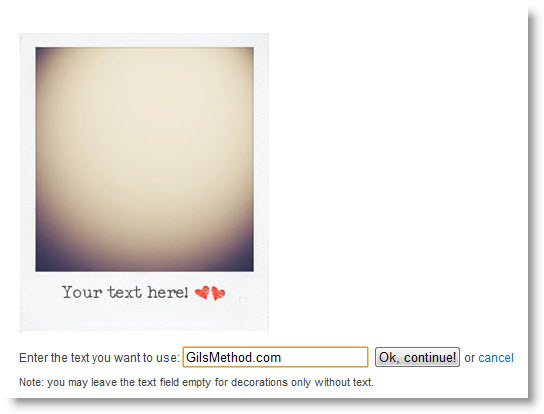
4. Again I chose the Polaroid layout so I was given the option to enter text, enter the text you wish to appear and click Ok, continue or you can cancel if you wish to do so.
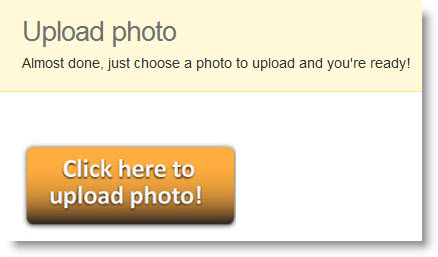
5. Once you have customized the options you now need to upload the picture you wish to use. Click on the Click here to upload photo! button.
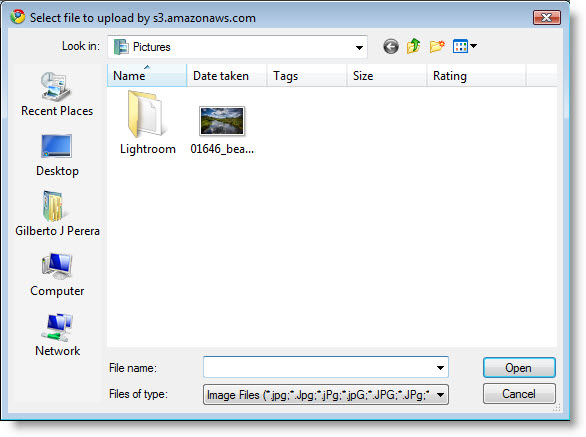
6. Browse to the location where your image is located, select the image you wish to use and click on the Open button.
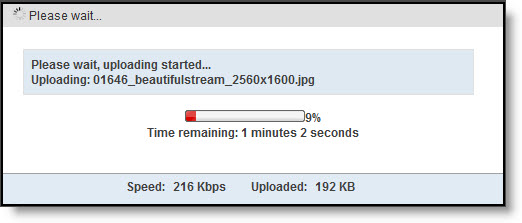
Your Image will upload…
Once upload is complete wait a few seconds for the settings you chose to be applied to the image.
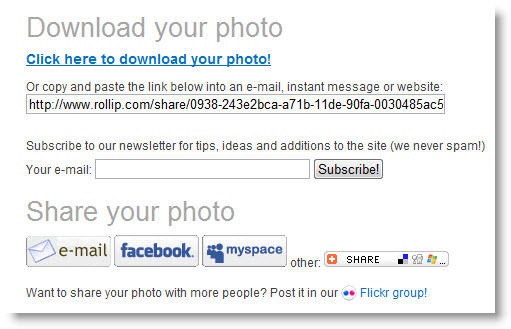
7. Share your photo with the world! or just download it to your computer. You can click on the download photo link or share your picture by email, facebook, myspace, or Flickr.
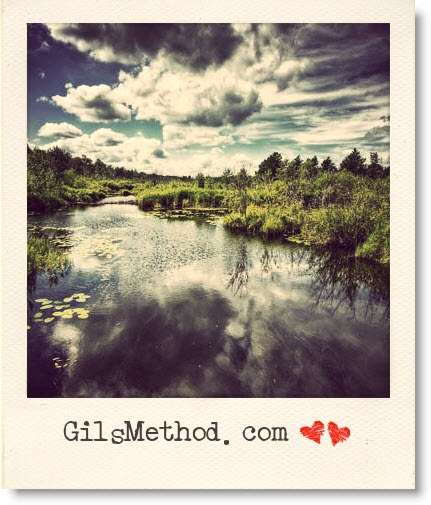
Sample of image that I uploaded and modified.


