See More About: , , ,

Use Xmarks to Backup and Synchronize Your Bookmarks

by
synchronize your bookmarks across multple computers header Use Xmarks to Backup and Synchronize Your Bookmarks

So you’ve got two computers at home and one at work which you browse the internet and are constantly bookmarking your favorite sites to. The problem is that unless you copy those bookmarks to a flash drive or other media you will not be able to access the same bookmarks on all three computers. Don’t worry there is a solution.

Xmarks allows users to synchronize their bookmarks across the web. Users install the add-on for their favorite browser (currently support Firefox, Internet Explorer, and Safari), create an account that will be used to store and synchronize your bookmarks, and bookmark. That’s it. Xmarks will store your bookmark and if enabled your web site log-in information on their servers (encrypted) in case your computer crashes or if you simply want to synchronize among all of your computers.

The guide below will walk you through the installation and configuration of this wonderful add-on. If you have any questions or have a suggestion for another tool that is similar, feel free to post it below.

Note: I used Firefox 3.011 for this tutorial

Installation

Download Xmarks from the Xmarks web site
synchronize your bookmarks across multple computers Use Xmarks to Backup and Synchronize Your Bookmarks

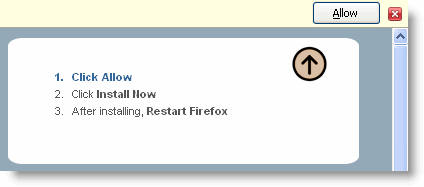
1. Before download starts you may encounter this message, click Allow so that the add-on download.
synchronize your bookmarks across multple computers1 Use Xmarks to Backup and Synchronize Your Bookmarks

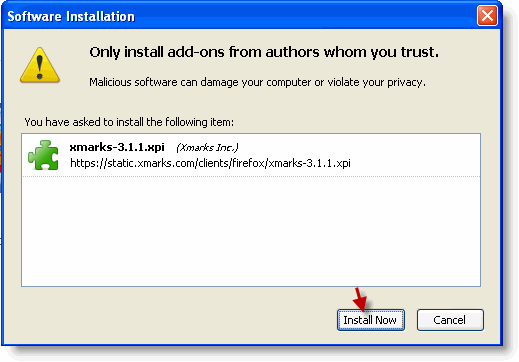
2. You will be prompted to allow installation. Click Install to proceed.
synchronize your bookmarks across multple computers2 Use Xmarks to Backup and Synchronize Your Bookmarks

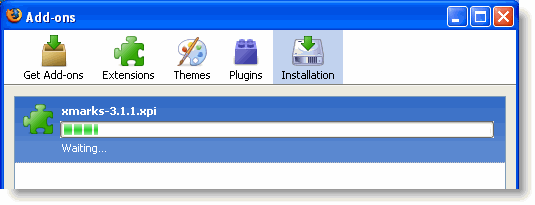
Installation Progress

synchronize your bookmarks across multple computers3 Use Xmarks to Backup and Synchronize Your Bookmarks

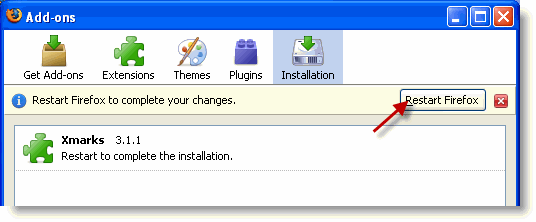
3. You must restart Firefox by clicking on the Restart Firefox button in order for installation to complete. Make sure that you save any work in any tabs before proceeding.

Configuration
synchronize your bookmarks across multple computers4 Use Xmarks to Backup and Synchronize Your Bookmarks

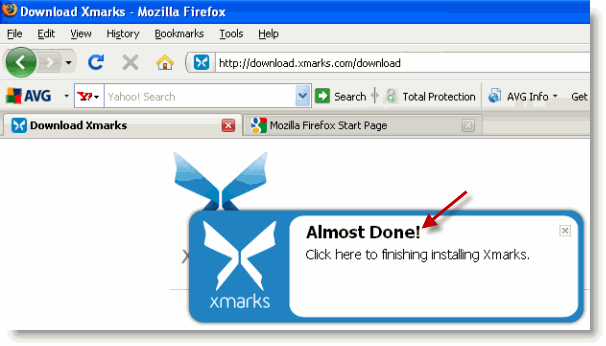
1. Once Firefox restarts you will notice that the Download Xmarks tab will also open. Click on the Almost Done! prompt to configure Xmarks.
synchronize your bookmarks across multple computers5 Use Xmarks to Backup and Synchronize Your Bookmarks

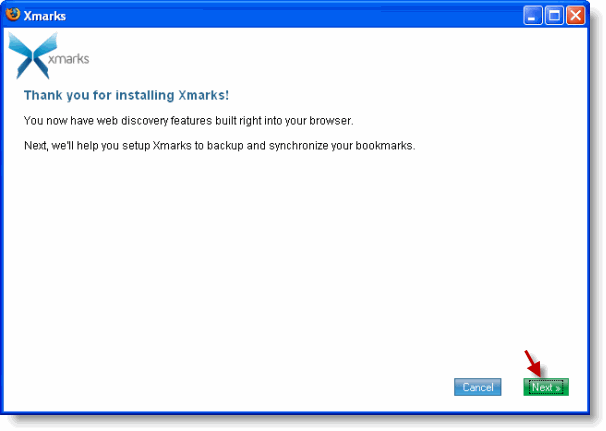
2. Click Next to Proceed with the configuration wizard.
synchronize your bookmarks across multple computers6 Use Xmarks to Backup and Synchronize Your Bookmarks

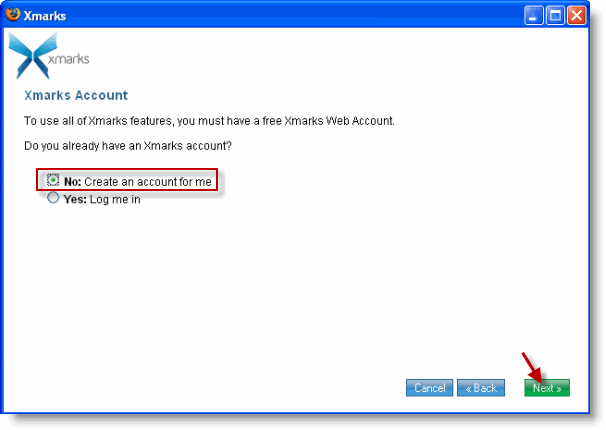
3. If you’re installing this program for the first time you most likely do not have an account. Select No. Create an account for me and click Next
synchronize your bookmarks across multple computers7 Use Xmarks to Backup and Synchronize Your Bookmarks

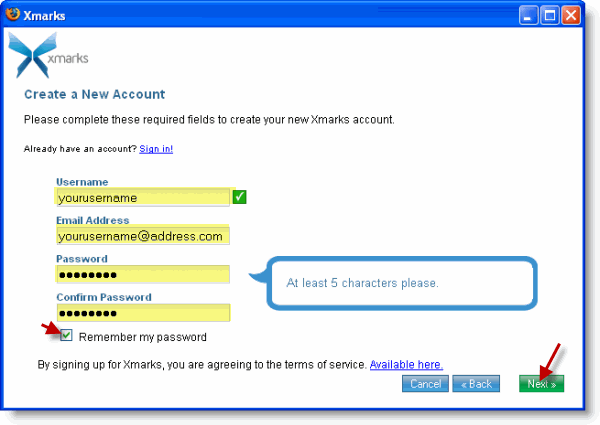
4. Enter the information for the highlighted fields above. Add a check mark to the Remember my password checkbox. Click Next to proceed.

Note: Make sure that you are installing this add-on on a private computer and not a shared/public computer.

synchronize your bookmarks across multple computers8 Use Xmarks to Backup and Synchronize Your Bookmarks

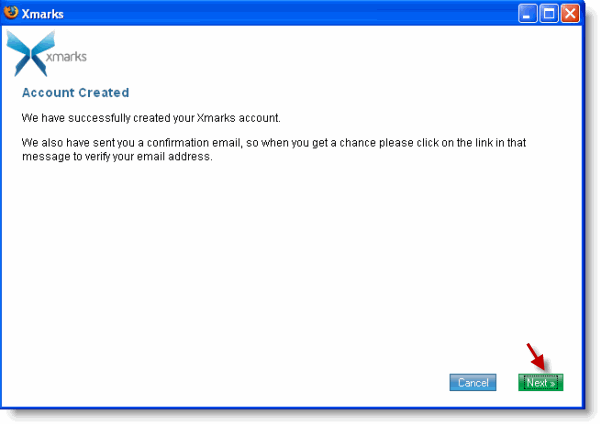
5. When you received the Account Created message above, click Next to proceed.
synchronize your bookmarks across multple computers9 Use Xmarks to Backup and Synchronize Your Bookmarks

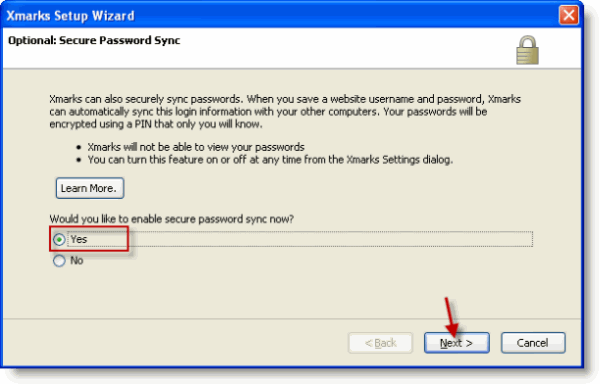
6. If you wish to use Xmarks password sync feature you can enable it by selecting Yes and clicking Next to proceed. Otherwise proceed to Step #9.
synchronize your bookmarks across multple computers10 Use Xmarks to Backup and Synchronize Your Bookmarks

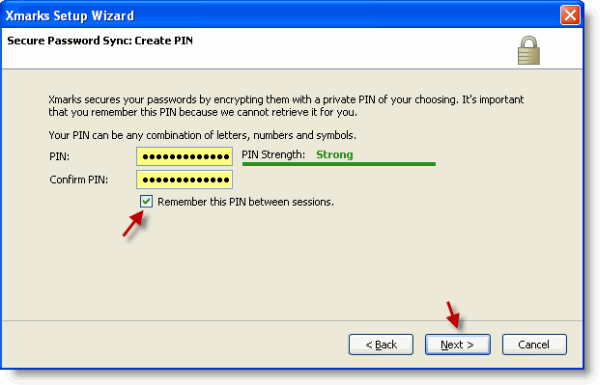
7. Enter the PIN Xmarks will use to encrypt your passwords. Make sure to add a check mark to Remember this between sessions to prevent having to re-enter the information for new sessions. Click Next.

Note: If you need help with strong passwords head on over to 8 Ways to Secure Your Privacy in the Cloud and read #3
synchronize your bookmarks across multple computers11 Use Xmarks to Backup and Synchronize Your Bookmarks

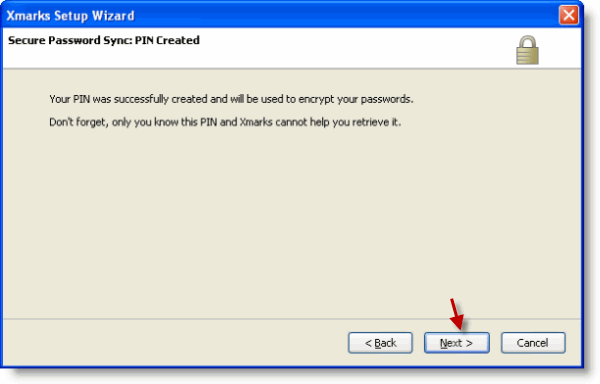
8. Click Next twice – On this screen and the next screen.
synchronize your bookmarks across multple computers13 Use Xmarks to Backup and Synchronize Your Bookmarks

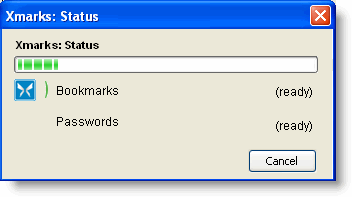
Xmarks will begin bookmark & password synchronization
synchronize your bookmarks across multple computers14 Use Xmarks to Backup and Synchronize Your Bookmarks

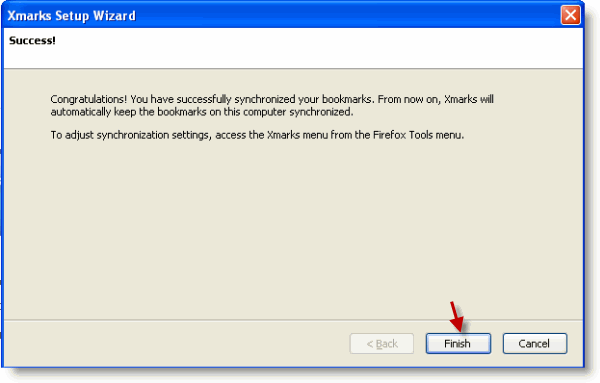
9. Congratulations, setup and synchronization have been completed. Click Finish to exit the setup Wizard.

synchronize your bookmarks across multple computers15 Use Xmarks to Backup and Synchronize Your Bookmarks

You will receive the message above when the wizard window closes.

synchronize your bookmarks across multple computers16 Use Xmarks to Backup and Synchronize Your Bookmarks

10. To access Xmarks settings or perform an unscheduled Synchronization, click on the the Xmarks icon located on the bottom right of the browser window. Select the action you wish to perform.

Note: The screen shot above was taken of Xmarks on Firefox
synchronize your bookmarks across multple computers17 Use Xmarks to Backup and Synchronize Your Bookmarks

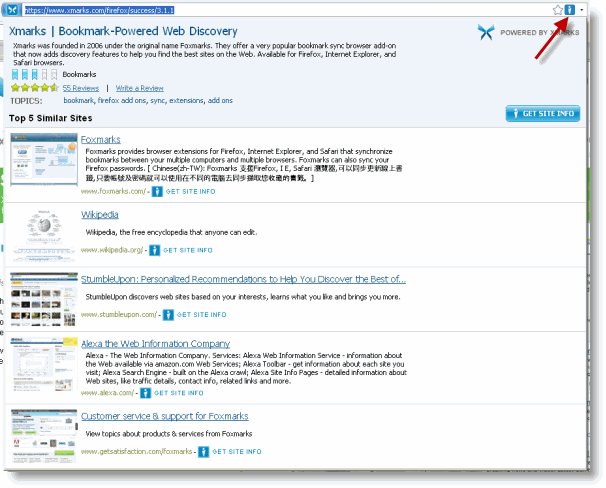
If you click on the Xmarks icon located at the far right of the browser address bar you will receive information about the web site and other related sites.


See More About: , , ,
Originally posted Jul 17, 2009

We close comments after 30 days on GilsMethod.com and ask that you post questions and issues on our Answers website.

This helps us better serve you by allowing us to keep track of unanswered questions that are usually hidden in long comment threads.

Answers.GilsMethod.com is a community-powered support website where you will be able to post questions, and other users including us will respond with expert advice.

So if you are having trouble with your PC, Mac, iPad, iPhone, or other piece of technology, head over to Answers.GilsMethod.com and ask away.

  • Jac

    This is useful. I've been trying to look for a how-to manual on Xmarks itself and have been fruitless. Excellent post!

  • Jac

    This is useful. I've been trying to look for a how-to manual on Xmarks itself and have been fruitless. Excellent post!

  • http://theaquariumwiki.com/ Stuart Halliday

    Can I use Xmarks to sync my Firefox bookmarks with the iPad web browser ‘Safari’?

  • http://theaquariumwiki.com/ Stuart Halliday

    Can I use Xmarks to sync my Firefox bookmarks with the iPad web browser ‘Safari’?

  • http://www.gilsmethod.com Gilberto J Perera

    Not yet, that I’m aware of. I think bookmark sync is something we will see in os 4.0 this fall. Let’s cross our fingers.

  • http://www.gilsmethod.com Gilberto J Perera

    Not yet, that I’m aware of. I think bookmark sync is something we will see in os 4.0 this fall. Let’s cross our fingers.