Have you ever wanted to include a link to a website within a document you were working on? Did you know that you could include links to websites, parts of the document, new documents and even email addresses? In Word 2010 you have a lot of flexibility when adding hyperlinks (links) to documents. In the guide below I will show you how to add a link to a website in a Word document and how to configure that link. If you have any comments or questions please use the comments form at the end of the article.
Note: Word 2010 was used for the screenshots below, however these instructions will also apply to Word 2007.
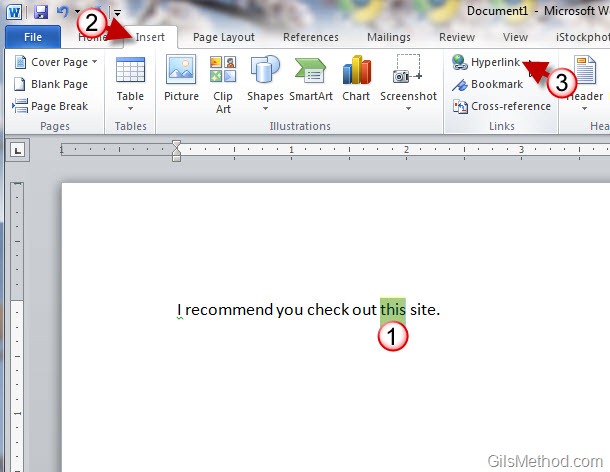
1. Select the text you wish to add a link to.
2. Click on the Insert tab on the Office Ribbon.
3. Click on the Hyperlink button in the Links group.

The Insert Hyperlink window will open.
A. Click on what you would like to link to.
- Existing File or Web Page
- Place in This Document
- Create New Document
- Email Address
B. In this guide we will be linking to a website so enter the Address to the link to.
C. Click on the ScreenTip button to include a small tip when users hover over the link (see screenshot below).
D. Click on the Bookmark button to select a bookmark from the document.
E. Click on the Target Frame to set where the document will open when the person clicks on the Link (see screenshot below).
5. When you are done click OK to set the link.
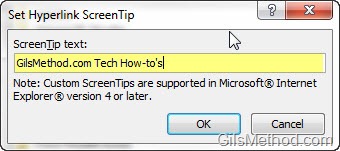
Set Hyperlink ScreenTip dialog box.
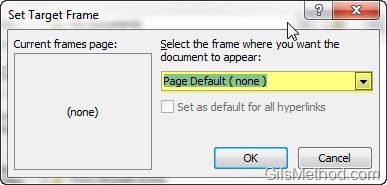
Set Target Frame dialog box.

You will notice that the linked word or phrase will appear blue and underlined, identifying it as a link.
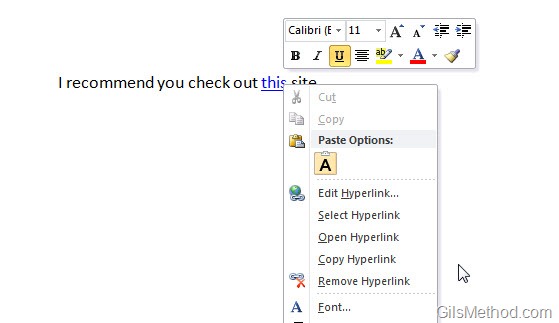
If you wish to edit the link or remove it, right-click on the link and use the options from the list.
- Edit Hyperlink
- Select Hyperlink
- Open Hyperlink
- Copy Hyperlink
- Remove Hyperlink