
If setting automatic notifications in Google Calendar leaves you yearning for more control over your calendar then you will have to set them individually each time you create a new event/appointment. Google Calendar provides users with three types of notifications for calendar entries; Email, SMS (Short Message Service) to your mobile phone, and a Pop-up. All of these notifications/alerts can be configured to appear at a time specified by you. If you are using pop-up alerts and have devices synchronized to your Google Calendar, those alerts should appear in the device’s notification system. In the guide below I will show you how to add reminders/notifications/alerts to your calendar entries in Google Calendar.
If you have any comments or questions, please post them below. To add notifications automatically follow these instructions.
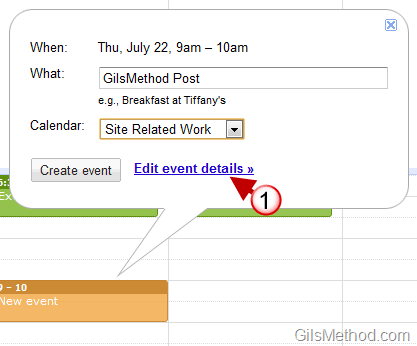
1. Click on a calendar entry and click on the Edit event details link.
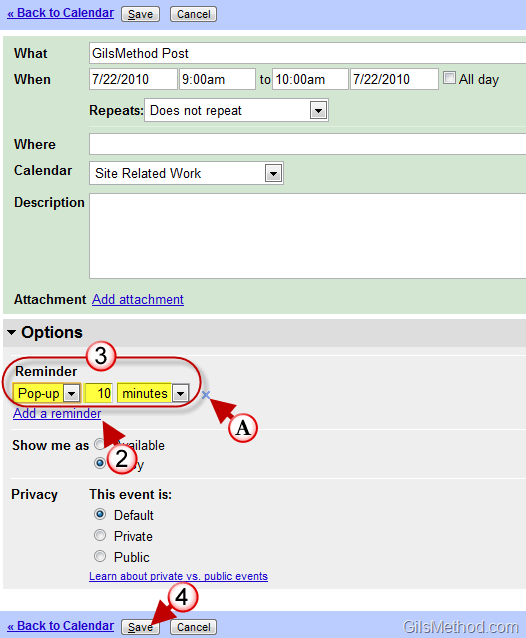
2. When the Event Details page opens, click on the Add a reminder link in the Options section.
3. Three drop-down boxes will appear above the Add a reminder link. Select the type of reminder (Email, SMS, Pop-up) and set the time interval using the drop-down menus.
4. When you are done, click on the Save button to save the changes.
A. If you’re not satisfied with the reminder, you can always delete it by clicking on the small x to the right of the reminder.



