
Although WordPress is an amazing blogging platform it does not allow for the creation of posts while offline. Fortunately there are several applications that will allow you to create or edit posts while you are offline. Word 2010 just happens to be one of those applications. Before you can create posts offline you will need to setup Word with your blog’s account information. The how-to below will show you how to setup your blog with Word 2010 and will also show you some of the features you will be able to use while composing blog posts.
If you have any comments or questions, please use the comments section below.
Setup Word 2010 to Blog Offline
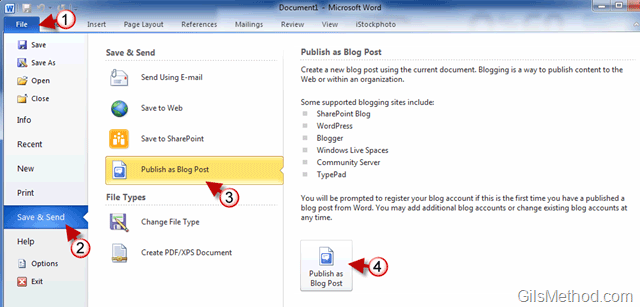
1. With Word open, click on File.
2. Click on Save & Send to expand the menu.
3. Click on Publish as Blog Post
4. Click on the Publish as Blog Post button on the right pane.
Word 2010 supports the following blogging platforms:
- SharePoint Blog
- WordPress
- Blogger
- Windows Live Spaces
- Community Server
- TypePad
You can create multiple accounts for each of the services listed above.
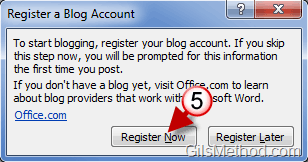
5. Before proceeding you will be asked to register your blog with Word 2010. Click on the Register Now button.
Note: You can skip this step and proceed to write, however you will eventually need to set up your account to be able to post online from Word 2010.
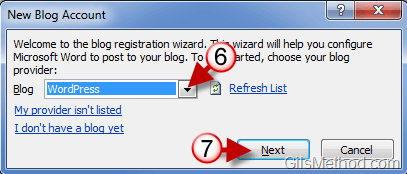
6. Choose the blogging platform from the list. I chose WordPress because I use it for GilsMethod.
7. Click Next to proceed.
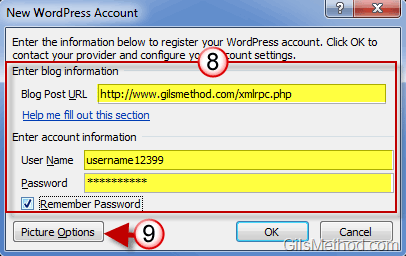
8. Enter your blog’s post URL and account information. If you don’t know what the Blog Post URL is, please read this article.
9. Once you have entered your information, click on Picture Options.
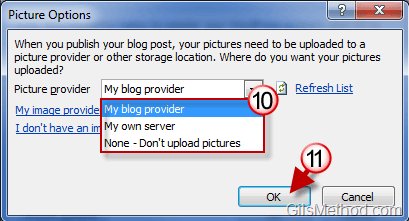
10. The Picture Options window will open. You will have the option to select the provider for your images, options available:
- My blog provider
- My own server
- None – Don’t upload pictures
11. Click OK to save the picture options.
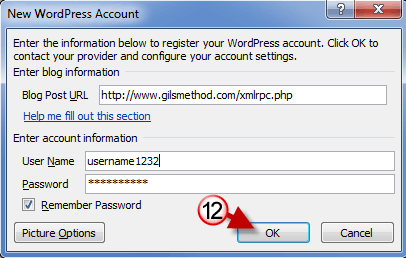
12. Once everything is set, click OK to proceed.

13. Click OK to proceed.
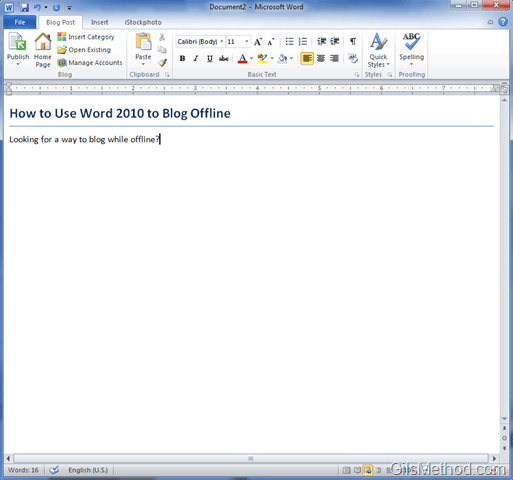
You can now blog offline using Word 2010.
Options Available
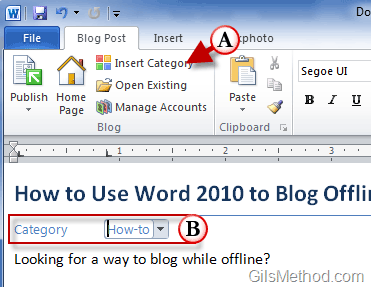
A. Click on Insert Category to choose a category from the list.
B. In Word 2010 you will be able to set the Category for blog posts, sorry no Tag support.

C. In the Blog Post tab you will have almost all of the basic formatting options available in Word.
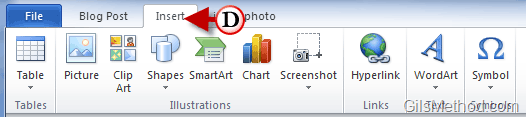
D. The Insert tab provides bloggers with options to insert Tables, Pictures, Clip Art, SmartArt, and other items.



