
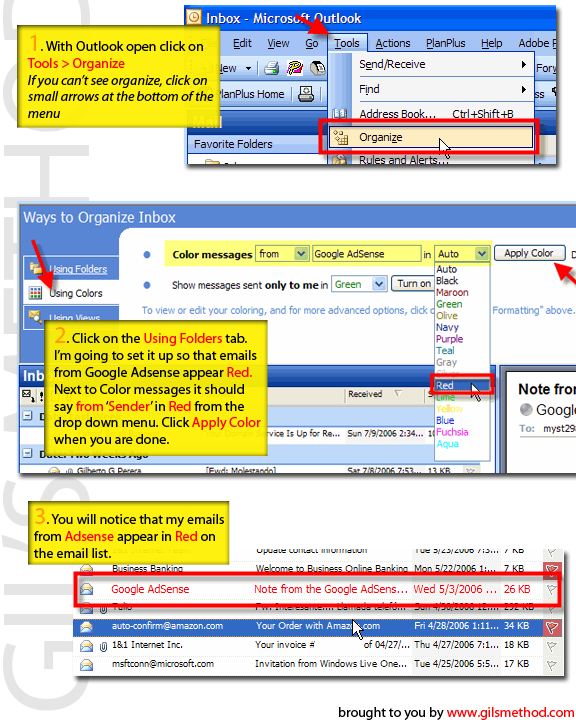
 I recieve an enormous amount of emails on a daily basis, but there are really very few that I have the time to read and so I started to look for an easy way of letting Outlook help me find those that I need to read. Using a small setting in Outlook I am able to have certain e-mails color coded. For example if you have a boss, which most of us do, you want to make sure that any email that he sends you is read right away, one way of making sure that you get to his email before any others is by assigning a color like Red to anything that you recieve from his email address. This way you can jump directly to the Red messages in your inbox, without having to read the senders name. Below you will find the steps necessary to accomplish this. As always comments/suggestions are welcome.
1. Open Outlook [If you have the email which you wish to color code already selected, it would make this easier to set up]
2. Go to Tools >Organize – the top portion of outlook should expand with Ways to Organize Inbox
3. Click on the Using Colors tab
4. The line that reads Color messages [designation drop down] [your input] in [color] Apply Color Button this is where you will be making your selections. Assuming that you had an email selected prior to going into Tools > Organize, Outlook should have prefilled some of these options.
5. In this example I want emails from Google Adsense to be in Red. So I set the following on the first drop down; I select the from [could be set to sendto] type, then I type the sender – Google Adsense [you can use email addresses or names] then I set the color to Red from the drop down and click the Apply Color button.
6. All of the emails from that sender that you assigned a color to, should appear in that color.


