

In previous articles I detailed how I was able to move from Outlook to Google for all of my email and organizational tasks. In this article I’ll cover how I moved all of my email accounts to Gmail. I’ll walk you through the simple process of adding an account from Hotmail that will be accessible via Gmail. If you have any tips to share, please post them below.
Note: It appears that users can add up to five accounts, if you attempt, as I did to add the sixth account you will received the error message found at the end of this how-to. I used the Hotmail example, but you can add other accounts from Att, Covad, Yahoo, and others.

1. Log on to your Gmail account and click on the Settings link located on the top right corner of the screen.
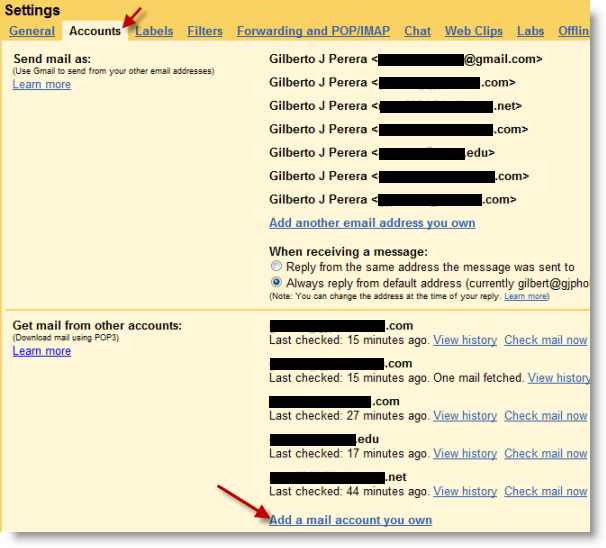
2. Click on the Accounts tab and click on the Add a mail account you own link in the Get mail from other accounts section.
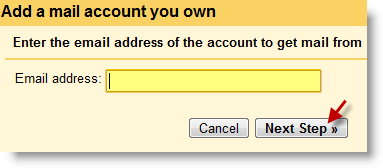
3. The Add a mail account you own pop-up will appear. Enter the email address you would like to add and click on the Next Step button to proceed.
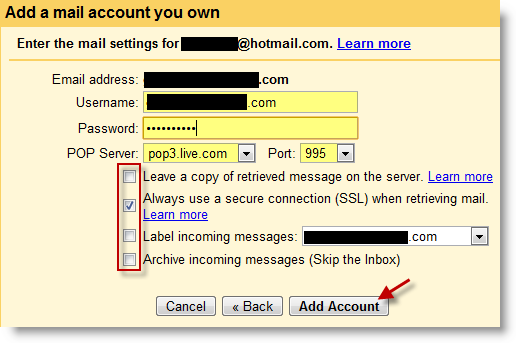
4. Enter the highlighted information, Username, Password and in most cases you can leave the default options for POP Server and Port. The other option are at your discretion. Click the Add Account button when you are done.
Note: I suggest you add a check mark to Always use a secure connection (SSL) when retrieving mail. You can also label the incoming messages from this account to help you identify them.
5. Repeat for all the email accounts you would like to add.
Tips
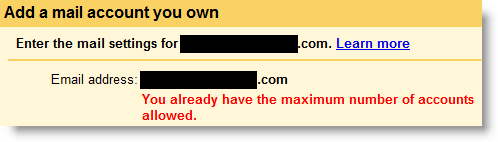
-Error message when I attempted to add more than five accounts – You already have the maximum number of accounts allowed
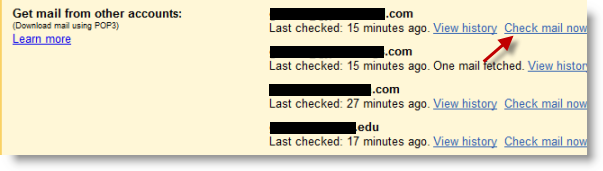
-Emails are fetched in hour intervals so keep that in mind when you are expecting messages at a certain time. Messages will not come in until Gmail fetches them at it’s predetermined interval. At the moment it does not look like there is a way to modify this interval. However you can manually tell Gmail to fetch the emails by going the Accounts tab in the Settings menu and clicking on the Check mail now link.

Article posted on 07 3rd, 2009


Get Daily Email Updates!
Did I already tell you that I love every topics on your site ?
Thx for the info..
I will visit again for another new interesting topic..
Cheers,
It’s my understanding that internet accounts can not be added to Gmail. I tried to add my live account and it wouldn’t work.
According to the Google help, they only support POP & IMAP for this feature.
If you’ve found a way, I’d like to hear about it. Thanks for the good article.
@Lynn Dye: The article I wrote above was created by adding my Hotmail account to Gmail. It seems to work just fine. What error did you receive?
POP 3 is the protocol used, refer to Step 4 where it pictures POP Server – Gmail should have automatically populated that field with the pop3.live.com.
Please let me know if this helps. Thank you for the feedback.
Hi Gil,
Thanks for replying back. I went back to try it again and here’s the message I got:
Show error details Server returned error: “We were unable to locate the other domain. Please contact your other provider.”
I’m wondering if it’s not working since I use live mail with my own domain (lynndye.com). Perhaps it only works if the domain has hotmail or live in it.
Regards,
Lynn
@Lynn Dye: I’m sorry for the delayed response. I’m catching up with comments.
The fact that you are using your own domain could be causing the issue. When you are setting this up you are using the lynndye.com address correct? What was your original hotmail/live mail account? Have you tried using those. Also have you enabled POP3/IMAP access on your hotmail/live account? Let me know so I can better assist you. Thanks.
Hi Gil – Thanks so much for writing back. I too, apologize for the long delay.
Yes, I did set up my live account using my domain name and never had an address with live or hotmail in it – only my domain. So, that is the problem then?
As far as enabling POP/IMAP, I’ve looked and looked and don’t see this setting anywhere.
I have my live mail imported into outlook 2007, and the setting on that is ‘MAPI’ – which was done for me by outlook.
But, if you think it’s my domain that is preventing this, I will live with it. Thanks again.
Lynn Dye
You can change the frequency with how often each email is checked in gmail, by going into the Accounts and Import screen, going to the “edit info” tab for the selected email, and right clicking on it. Hover on the “Reload Every” selection, and the arrow shows different time options with how often the email is checked for updates. You can even customise the frequency if you wish.
@Marlow Aster- I’m not seeing that option with my Gmail…I followed your instructions, but did not see that option. Was this with POP3 email? Please let me know so that I can configure this…it is a setting I would really like control over, thanks.
