
See More About: , , ,

Convert M4A files to MP3′s with VLC Media Player

by

I’ve been fiddling with ways to get audio files from my iPhone to my computer and then using Dragon Naturally Speaking to transcribe those audio files. One of the first obstacles I encountered was the file format of the voice memos created by the iPhone, they are stored as .m4a files which Dragon doesn’t recognize. I started to looking through my program list to see if there was anything that had a conversion tool and then it hit me. I was using VLC Media Player to watch a movie the other day and noticed that when I opened the Media menu there was a Convert / Save command, so I opened VLC Media Player and quickly found out that it is more than a media player, it is also a very powerful conversion tool. VLC Media Player allows you to convert MP3, M4A, MEP, OGG, WAV, WMV, and many other formats to the file type of your liking.

Since I discovered this I thought it would be a great idea to share with others who might be interested in converting files and don’t want to spend the money to buy a dedicated conversion program. If you have any comments, questions, or know of another free program like VLC to convert files please share it with us and comment below.

Note: I used VLC Media Player 1.0.3 Goldeneye on Windows Vista Ultimate 64-Bit

If you don’t have VLC Media Player you can download it from VideoLAN for free.

Converting Files with VLC Media Player
convert m4a files to mp3 formats Convert M4A files to MP3s with VLC Media Player

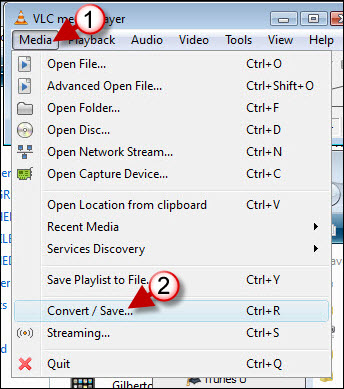
1. Click on Media to open the menu.

2. Click on the Convert/Save… from the menu
convert m4a files to mp3 formats1 Convert M4A files to MP3s with VLC Media Player

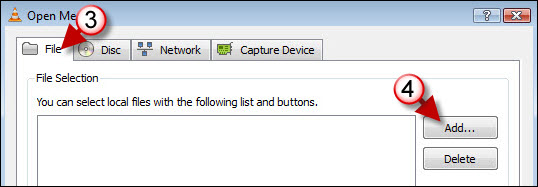
3. The Open Media dialog box will appear. Click on the File tab.

4. Click on the Add button.
convert m4a files to mp3 formats2 Convert M4A files to MP3s with VLC Media Player

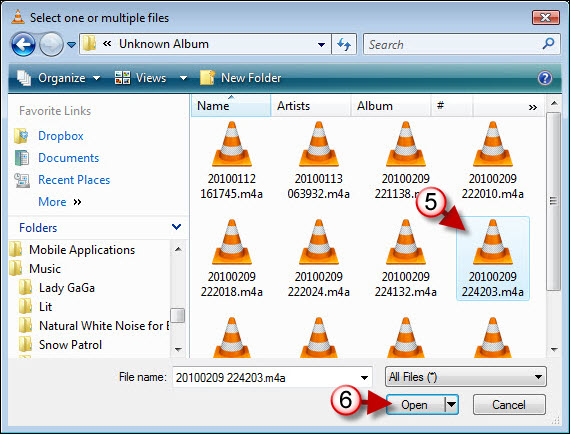
5. Locate the file (.m4a) you wish to convert and select it.

6. Click on the Open button to add the file.

convert m4a files to mp3 formats3 Convert M4A files to MP3s with VLC Media Player

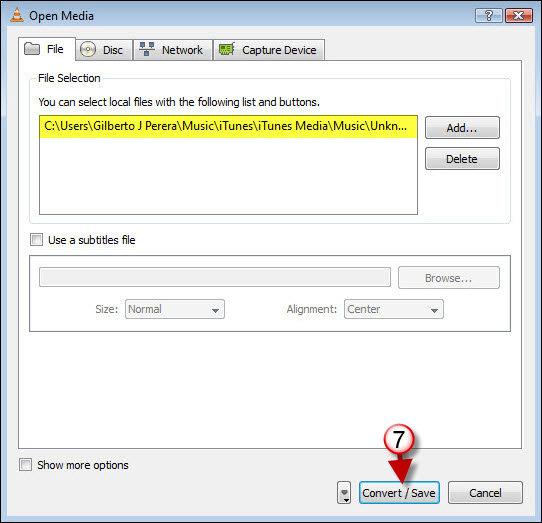
7. You will be brought back to the Open Media dialog box, make sure that the file you selected is listed as highlighted above. Click on the Convert/Save button.
convert m4a files to mp3 formats4 Convert M4A files to MP3s with VLC Media Player

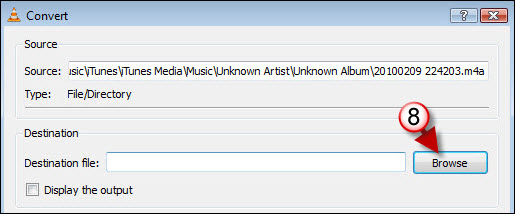
8. The Convert dialog box will open. Click on Browse to designate a destination for the converted file.
convert m4a files to mp3 formats5 Convert M4A files to MP3s with VLC Media Player

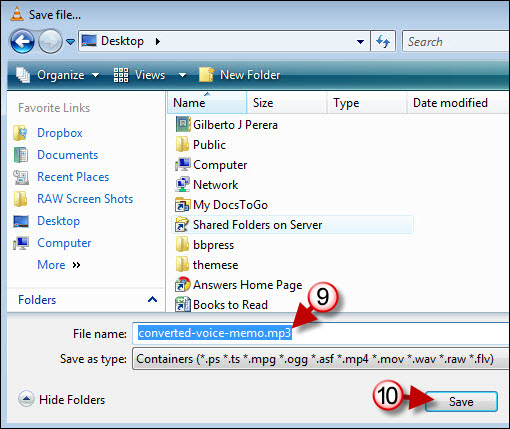
9. Locate a place to store the converted file, name the file by entering the information in the File name text box.

Note: When naming the file, you need to specify the format you wish to convert it to. So if you are converting to MP3 make sure that the file name is followed by .mp3

10. Click on Save when you are ready.
convert m4a files to mp3 formats6 Convert M4A files to MP3s with VLC Media Player

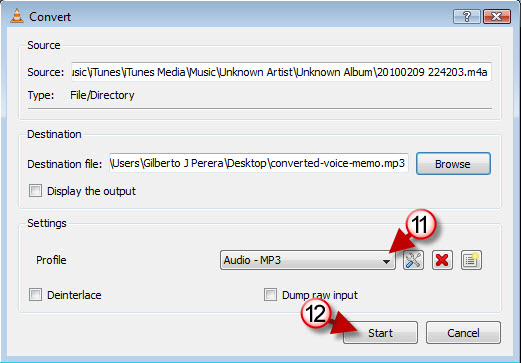
11. You will return to the Convert dialog box. Make sure the Audio -MP3 Profile is selected from the drop-down menu.

12. Click on Start to begin the conversion process.
convert m4a files to mp3 formats7 Convert M4A files to MP3s with VLC Media Player

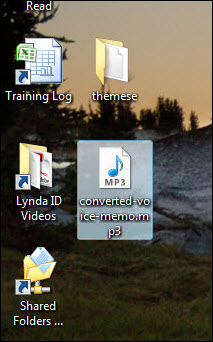
Depending on the size of the file to convert, conversion can take seconds to a couple of minutes. Once conversion is completed locate the directory that you designated to store the file and the converted file should be there.


 

Originally posted Feb 11, 2010

We close comments after 30 days on GilsMethod.com and ask that you post questions and issues on our Answers website.

This helps us better serve you by allowing us to keep track of unanswered questions that are usually hidden in long comment threads.

Answers.GilsMethod.com is a community-powered support website where you will be able to post questions, and other users including us will respond with expert advice.

So if you are having trouble with your PC, Mac, iPad, iPhone, or other piece of technology, head over to Answers.GilsMethod.com and ask away.

  • http://rare-cd.com/ MP3 CD SHOP

    Hello from Germany.
    Thanks for this aricle.
    I often convert M4A files to MP3’s with VLC Media.

    Mp3 format – is a format of future !

  • http://rare-cd.com/ MP3 CD SHOP

    Hello from Germany.
    Thanks for this aricle.
    I often convert M4A files to MP3’s with VLC Media.

    Mp3 format – is a format of future !

  • Vesa Vuorinen

    Thank you for this article! Most helpful since VLC is not very intuitive to use for converting.

    Do you know if there is a way to do this for multiple files at once?
    Also automatically using the same filename as the source file would be most helpful. Any way to do that?

  • Sumdumguy

    Thank you Gil

  • Kingsfield58

    Thank you for a very informative article. I’m using Dragon NaturallySpeaking version 11 and when I try and convert its files with VLC media player it does everything just as your instructions show. However, when I try to transcribe the file in Dragon, it says the file format is unsupported (even though it is now an MP3 file) and the file format needs to be between 11.025 and 99 kHz, in 16-bit mono. Is there any way I can convert the already converted files to comply with this new requirement? Many thanks.

  • Anders14

    Its good and i understand what to do and everything is fine .. except one thing , the video for me doesnt work , its not a song , a video. And when she sings
    - Oh im in heaven “random”
    Its sounds like this:
    - oooahdhh “Disk lagg” iimnn hevnnvvnv ”
    So uhm… this is shit ..didnt help me at all

  • Guest

    thanks

  • Rigopr

    Keep the good work!!!!!!!!!!!!!!!!!!!!!!!!!!

  • http://www.gilsmethod.com Gilberto J Perera

    Thanks.

  • K Milou

    merci beaucoup c interessant

  • Vanman1448

    Didn’t work. There’s no Convert/Save option under any tab. There’s no Media tab either, at least in the free version at the link you gave. Hope you can fix that! But thank you for the help anyways!

  • http://www.gilsmethod.com Gilberto J Perera

    Are you using the Windows version of VLC Media player?

  • jez

    did you figure out how to convert multiple files? I have to do it to burn to CD since VLC will not play on audio CD’s and it seems like it will only save one at a time?

  • http://www.gilsmethod.com Gilberto J Perera

    Click the Add button to include multiple files.