
Do you want specific shortcuts to stand out on your Desktop? It can be quite difficult to locate a shortcut on your Desktop if you have 100 other shortcuts that look like it. This usually occurs when you have more than one shortcut for the same file type. In order to remedy this you can modify the icon used by the shortcut so that the shortcut stands out compared to others.
Note: I used Windows 7 Ultimate for this tutorial.
Create a Shortcut
For those of you that are not familiar with Windows 7 shortcuts, here’s a short tutorial to show you how to create shortcuts.
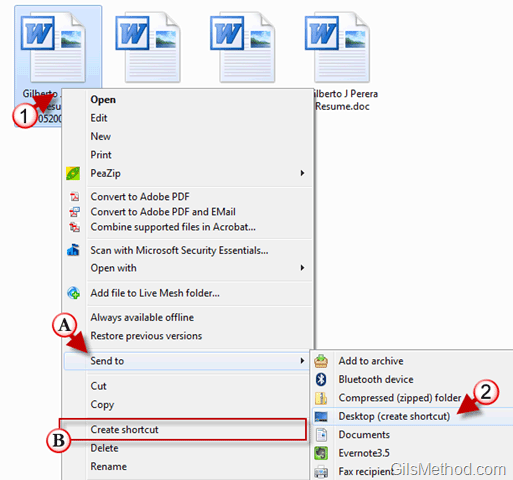
1. Right-click on the file or folder whose shortcut you wish to create – you will have two options.
A. Send to > (2) Desktop (create shortcut) – This option will create a shortcut of the selected item on your Desktop.
B. Create Shortcut – This option will create the shortcut for the selected item in the current directory.
Once the shortcut is created it will appear on the Desktop or Folder (depending on the option selected above).
Change the Shortcut’s Icon
Once the shortcut’s is created it will use the icon pertaining to the application it is related to. For example, a shortcut to a Word Document will use a Word document icon to represent the shortcut. If you wish to change the icon to something that stands out more, follow the instructions below.
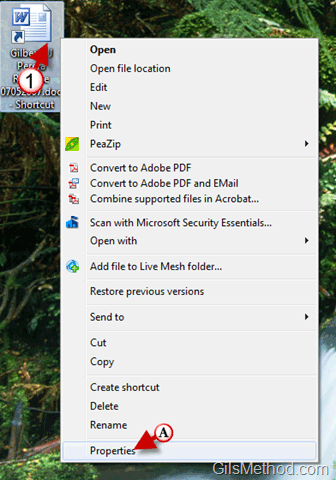
1. Right-click on the shortcut whose icon you wish to change and click on (A) Properties from the menu.
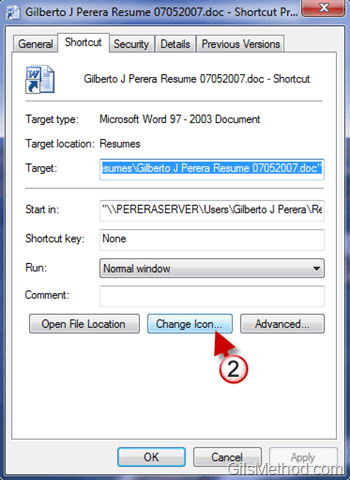
2. When the Shortcut Properties window opens, click on the Change Icon… button.

3. When the Change Icon window opens you will be able to select an icon from the list or look for other icons on your computer by clicking on (A) Browse.
4. Once you have selected the icon you wish to use, click OK to save the changes and close the window.
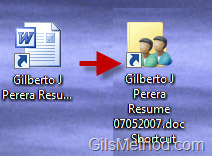
The shortcut’s icon should change to the new icon selected.



