
 I hate it when I’m working on my computer with all my winodows open, I just found an awesome website, I started my music, I got everything the way I want it and all of a sudden out of nowhere I get a notification telling me that all of my updates have been downloaded/installed and that my machine requires me to restart. What i find even more annoying is the constant reminder. This little tweak allows you to completely remove the notification (I wouldn’t completely disable only because you want to make sure you get your machine rebooted at the end of the day) or extend the amount of time between reminders, it just keeps them from nagging you all day long. If you’re like me and can’t absolutely stand this notification then follow the steps below. As always comments/suggestions are welcome.
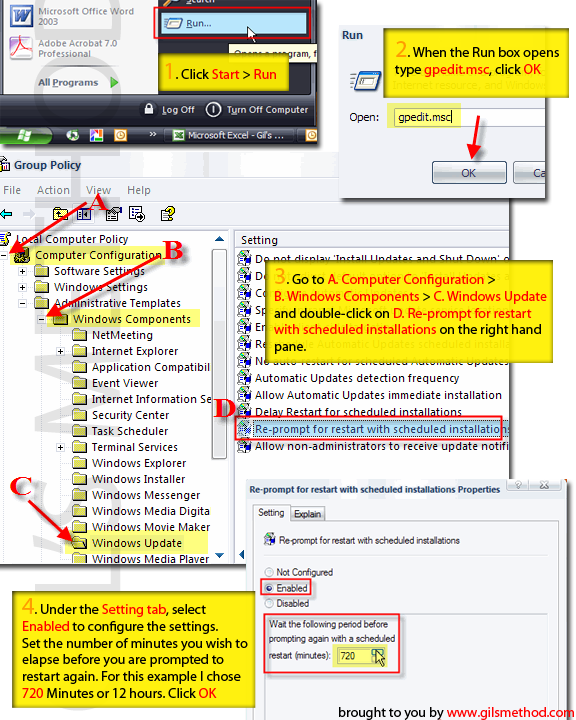
1. Click Start > Run
2. When the Run Box opens type gpedit.msc in the dialog box
3. Go to Computer Configuration > Windows Components > Windows Update
4. On the pane to the right you will see a list of settings for the Windows Update Component. Double-click on the Re-prompt for restart with scheduled installations. A box will open.
5. Under the Settings tab select Enable to so that you may configure the wait period before the machine prompts you to restart. Set the interval that you wish to use, for this example I chose 720 minutes or 12 hours which would give enough time to get by the day without being nagged all day long about a restart. ALternately you can disable the notifications altogether by clicking Disable, Click OK. You should restart your computer for changes to take effect.
Note: At the end of the day I do suggest you apply your updates because they are nececssary for the optimal performance and security of your computer.
Concept Source: MSTN


