
Want to use Remote Desktop Connections on Windows Home Premium? How about running concurrent connections to that computer? When Microsoft shipped Windows 7 Home Premium they didn’t include a very handy application, Remote Desktop Connection Server. RDC allows a user to remotely connect to his/her computer from any computer supporting the protocol. This feature is included in other version of Windows 7, but not Home Premium. So if you have a Media Center PC running Home Premium in your living room, like I do, then you will always have to sit in front of the TV to perform updates or install additional software. By enabling this feature you will be able to remotely connect to your Media Center PC from the comfort of your desk without ever having to get up.
Clarification: You can connect from Windows 7 Home Premium computer to a Windows 7 Professional or Ultimate editions, however you cannot connect to a Windows 7 Home Premium edition from any computer. This is where this fix comes in.
The other feature enabled by the fix we’ll discuss below is the ability to log in to the remote computer without locking it out for the individual that may be using it. I’ll give you a scenario. My wife’s watching a movie on the Media Center PC in the living room, if I remote connect to it (without this feature) the computer will Lock and display the log in screen. With this feature enabled, I will be able to remotely log in to the computer, do what I need to do and she would never notice. That’s what a concurrent remote connection is.
If you still have some questions about remote desktop or need assistance with the how-to below, please use the comments form below.
Installing the Script
IMPORTANT – Before you continue, please back up your computer, also this might be borderline EULA violation so use at your own risk.
1. Download and extract the patch to your computer from MediaFire.

2. Open the extracted folder and right-click on install.bat
3. Click on Run as administrator from the menu.
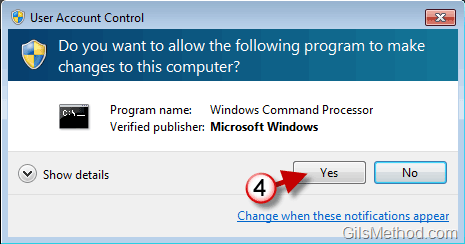
4. If and when the UAC prompt appears, click Yes to proceed.
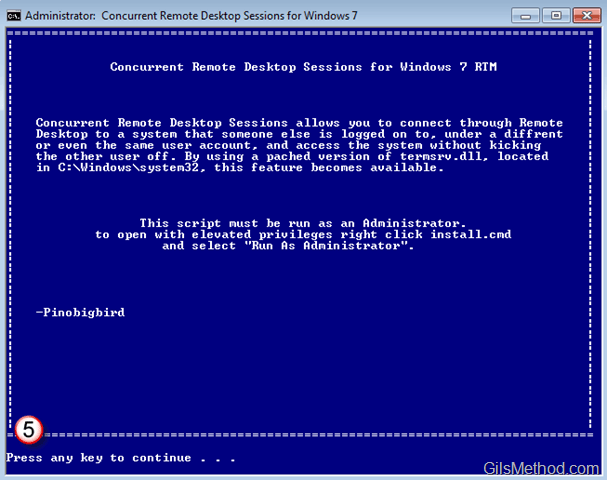
5. Press any key to continue.

6. Type Y (Yes) to allow multiple connections.

7. Type Y (Yes) or N (No) to enable blank password logon. I always like to use passwords…

8. Press any key to continue. You are done.
You should now be able to remotely connect to your Windows 7 Home Premium PC and should be able to connect to it while someone else is using it.
Notes from the ReadMe File
Concurrent Remote Desktop Sessions allows you to connect through Remote Desktop to a system
that someone else is logged on to, under a different or even the same user account, and access
the system without kicking the other user off. By using a patched version of termsrv.dll,
located in %SystemRoot%\System32\, this feature becomes available.
The package contains 6 files:
- readme.nfo     This file
- install.cmd    The install script.
- /bin/32_termsrv.patch The patched file for x86 build 7600.16385.090713-1255
- /bin/64_termsrv.patch The patched file for x64 build 7600.16385.090713-1255
- /bin/md5.exe checksums termsrv.dll to dertermine if its been patched
- /bin/bspatch.exe applys the patch to the dll
The script must be run as an Administrator.
Right click install.cmd and select run as administrator
Source Into Windows



