
If you have ever wanted to access your Gmail account from an email client on your computer you might want to make sure that IMAP access is enabled in Gmail. IMAP or Internet Message Access Protocol allows users to download a cached copy of their email from their email servers. Unlike POP3 (another email protocol) which simply downloads messages, IMAP acts like an exchange server that allows users to access email messages on their server while they are offline. The key difference is that message actions are queued up until the user connects online and those changes are synchronized with the email server.
What does this all mean for you? You can enable IMAP in Gmail and access all of your messages from multiple clients (your laptop, desktop, work computer, etc) and not have to worry about messages being unavailable because they were already downloaded by another client as is the case with POP3.
If you have any comments or questions, please post them below.
Note: I used a standard Gmail account to write this article.

1. Log on to Gmail and click on the Settings link located on the top left corner.
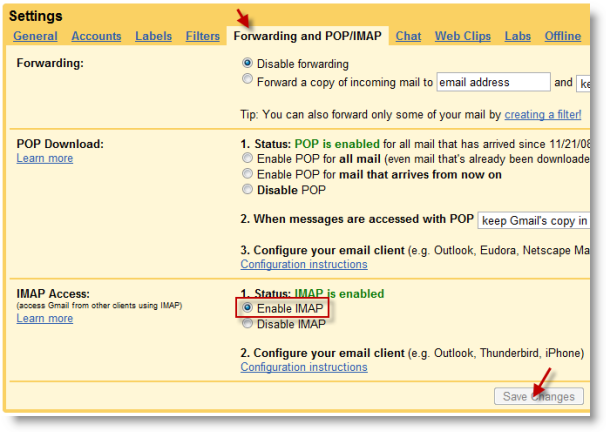
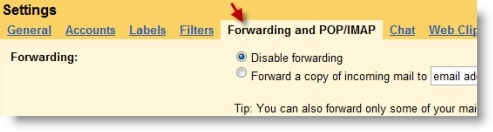
2. In the Settings section, click on the Forwarding and POP/IMAP tab and under IMAP Access click to select the Enable IMAP radio button, click the Save Changes button.
Information on IMAP via wikipedia.com


