
Have you ever wanted the ability to save bookmarks from your computer to your iPhone? If so, you’re going to love the new App from Mozilla. Firefox Home allows iPhone users to synchronize browsing history, bookmarks, and even open tabs to your mobile phone instantly. The App works in conjunction with a Firefox add-in (Firefox Sync) that stores all of this information on secured server so that you can keep all of your computers and your iPhone in sync. Let’s say you’re at the office and you found these great websites you want to view on your iPhone, if you’ve got Firefox Home installed all you have to do is open the application and the open tabs on your desktop will appear on your iPhone! All you have to do is tap on the bookmark/open tab/or history entry and Safari will automatically open that page.
In this review/guide we will cover the following:
- Configuring the Sync Add-in on Your Computer
- Configuring Firefox Home on the iPhone
- Using Firefox Home
Note: I used an iPhone 4 running iOS4 and Mozilla Firefox 3.6 for this tutorial.
Configuring Sync on Your Computer
Before you get started, lets make sure you have Firefox installed along with the Firefox Sync Add-in.

1. Once installed you will be prompted to create an account (I’ve never used Sync before) or if you already have Sync setup on another computer use that option instead.
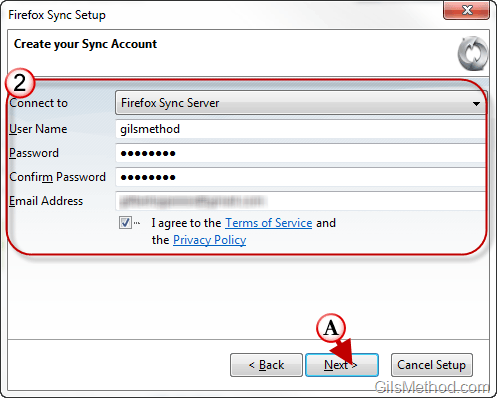
2. Choose the server type you want to use and enter your information, click A. Next to proceed.
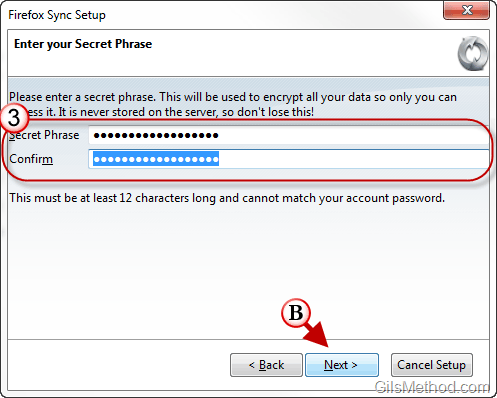
3. Enter a Secret Phrase and confirm by entering it again.
Note: The Secret Phrase is used to encrypt all your data so only you can access it. It is never stored on the sever, so don’t lose this!
B. Click Next to proceed.
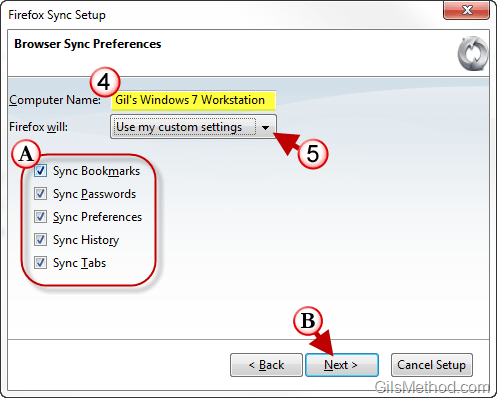
4. Enter a Computer Name to describe the computer this iteration of Firefox is running on.
5. Click on Custom Settings to tell Sync what items to synchronize, options are:
- Sync Bookmarks
- Sync Passwords
- Sync Preferences
- Sync History
- Sync Tabs
Once configured you can access Sync settings in Firefox by following the instructions below.
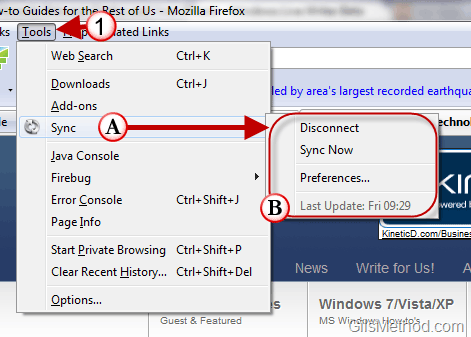
1. In Firefox click on the Tool menu item, place your cursor over A. Sync and B. and click on the option your wish to use from the menu.
- Disconnect – This will disconnect Sync from your account so no syncing will occur.
- Sync Now – When you click on Sync your profile will be updated.
- Preferences – In this window (see below) you will be able to update your Sync preferences.
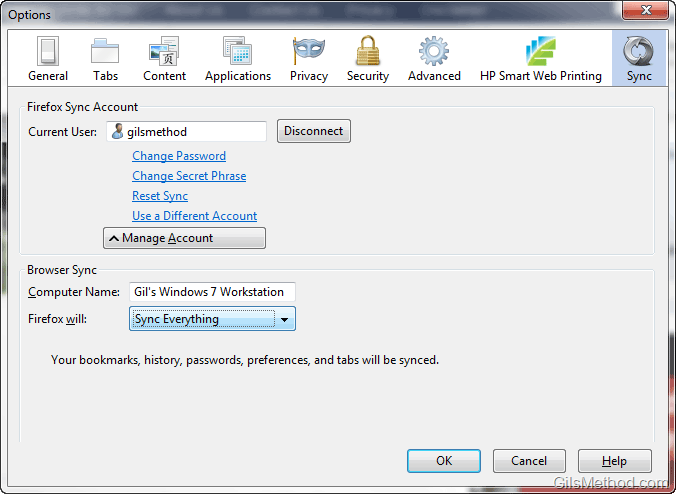
The Preferences window for Sync will allow you to update your password, secret phrase, you computer’s name, and the items that will be synchronized.
Configuring Firefox Home on the iPhone
Download Firefox Home from iTunes/App Store.
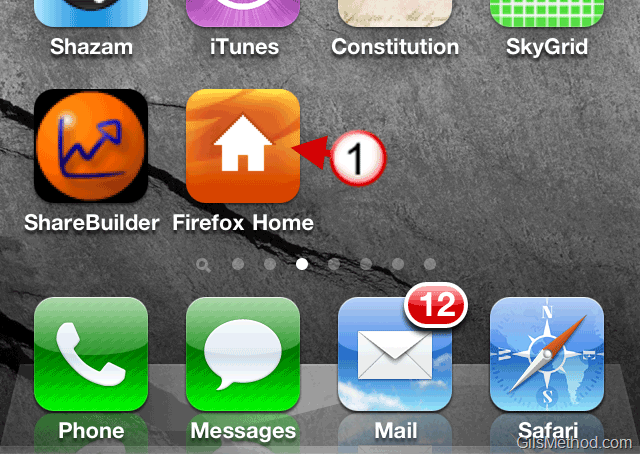
1. Tap on the Firefox Home app on the Home Screen.
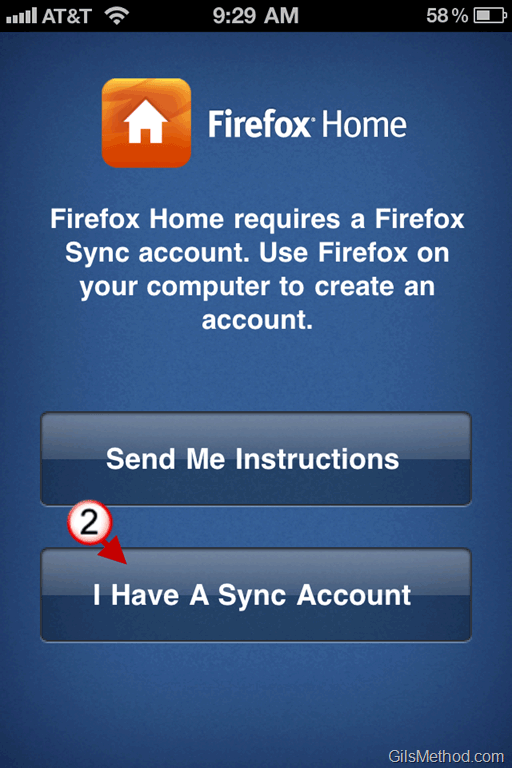
2. Since we have already configured a Sync account in the previous section of the guide we’ll tap on I Have a Sync Account.
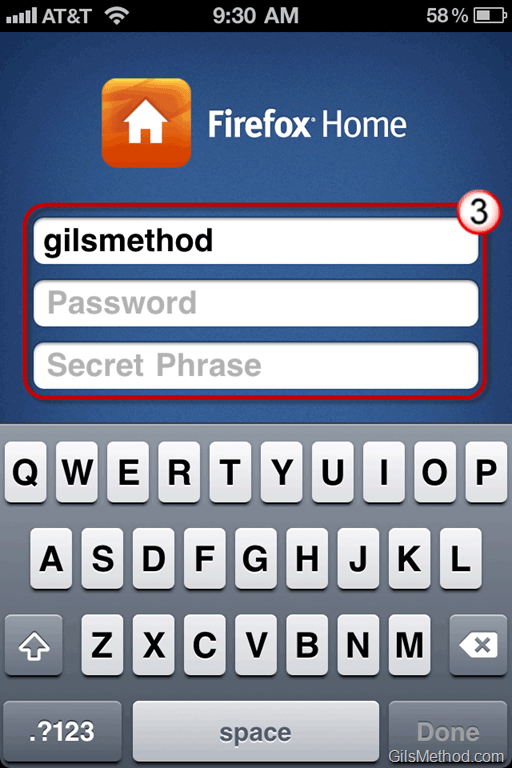
3. Enter your Sync credentials and tap on Done.
The iPhone will be synchronized with your Sync profile.
Using Firefox Home on Your iPhone

1. The home page for the Firefox Home app is the Search page. Here you will be able to A. enter a Search query to locate Tabs, Bookmarks, and History.
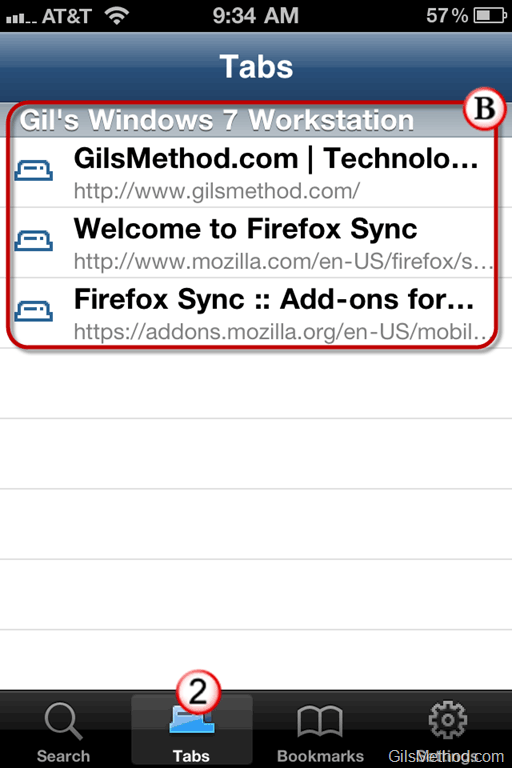
2. When you tap on Tabs, you will be presented B. with a list of open tabs sorted by computer.
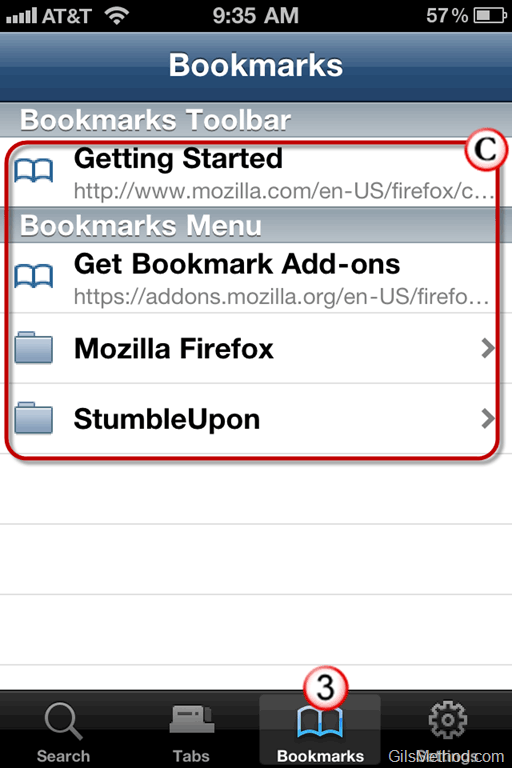
3. To access bookmarks from your computers on the iPhone, simply tap on the Bookmarks button. Here you will C. find a listing of all of your Bookmarks.
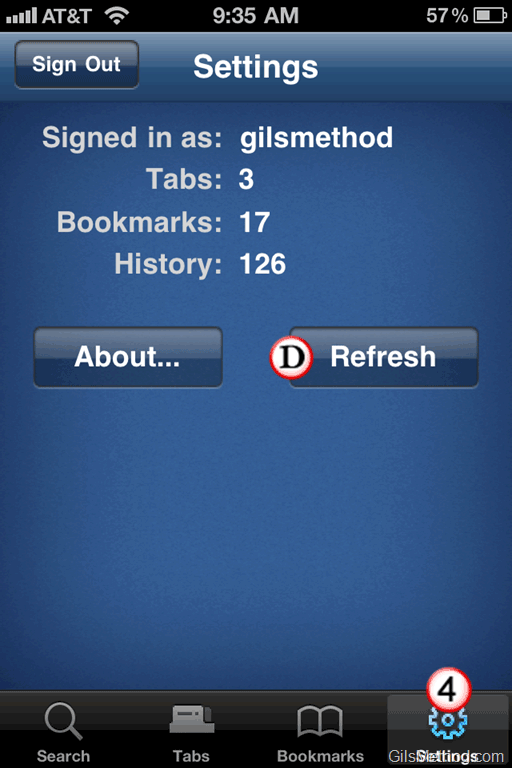
4. You can also configure the Settings, Sign Out of your account, and Refresh (Manual Sync) your account by tapping on the Settings button and choosing the appropriate option.
So what do you think of this App and the whole Sync function? Is it something you would use? Know of other alternatives for the iPhone and other devices? Use the comments section below.



