See More About: , ,

Use Google Docs to Perform OCR on PDF’s and Images

by

If you’ve been following the progress Google has been making with their Google Docs offering, you would know that they have been moving at a fast clip. The latest feature to come out of Mountain View is the ability to perform text recognition on PDF and image files that you upload to Google Docs. OCR or Optical Character Recognition is the machine translation of scanned images containing text or handwritten notes into a text file that can be edited. To become familiar with this really cool feature, check out the screenshot tour below.

Google Docs OCR Feature
uploadpdfconvertocr thumb Use Google Docs to Perform OCR on PDFs and Images

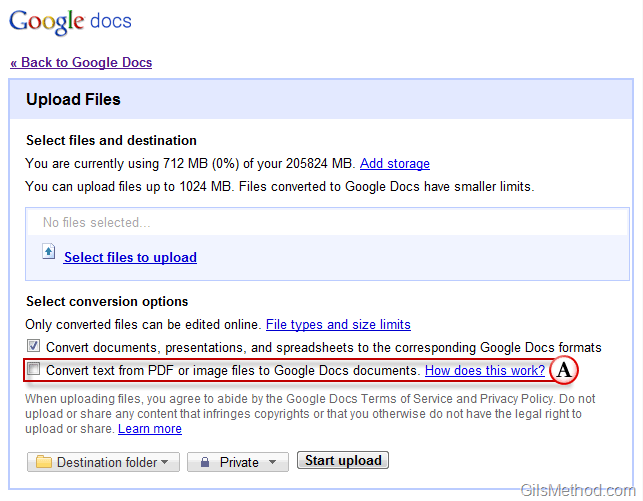
A. Next time you try to upload a PDF file or an image containing text, Google Docs will offer you the option to Convert text from PDF or image files to Google Docs documents.
uploadpdfconvertocra thumb Use Google Docs to Perform OCR on PDFs and Images

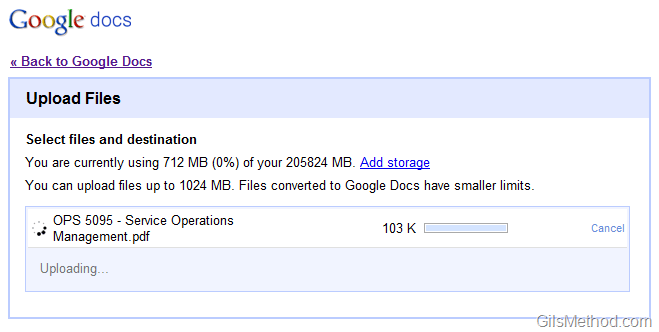
Files as they are being uploaded…

uploadpdfconvertocrd thumb Use Google Docs to Perform OCR on PDFs and Images

The file you uploaded should now be listed as Google Doc on your list.
uploadpdfconvertocrb thumb Use Google Docs to Perform OCR on PDFs and Images

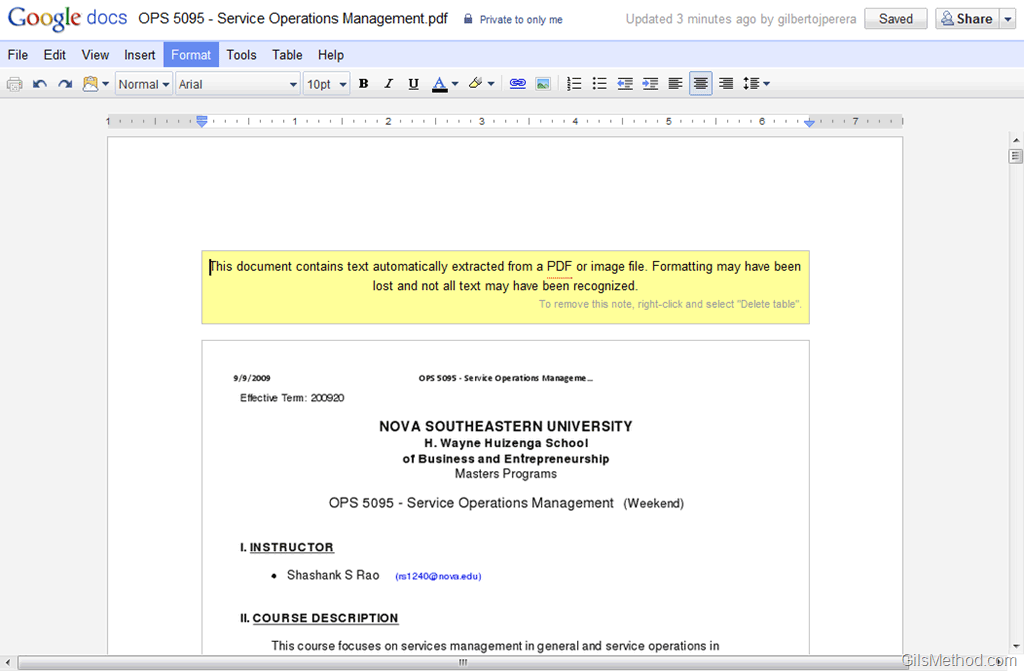
You will notice that when the PDF file is opened there will be a yellow text box above the document (highlighted above).

This document contains text automatically extracted from a PDF or image file. Formatting may have been lost and not all text may have been recognized.

To remove this note, right-click and select “Delete table”.
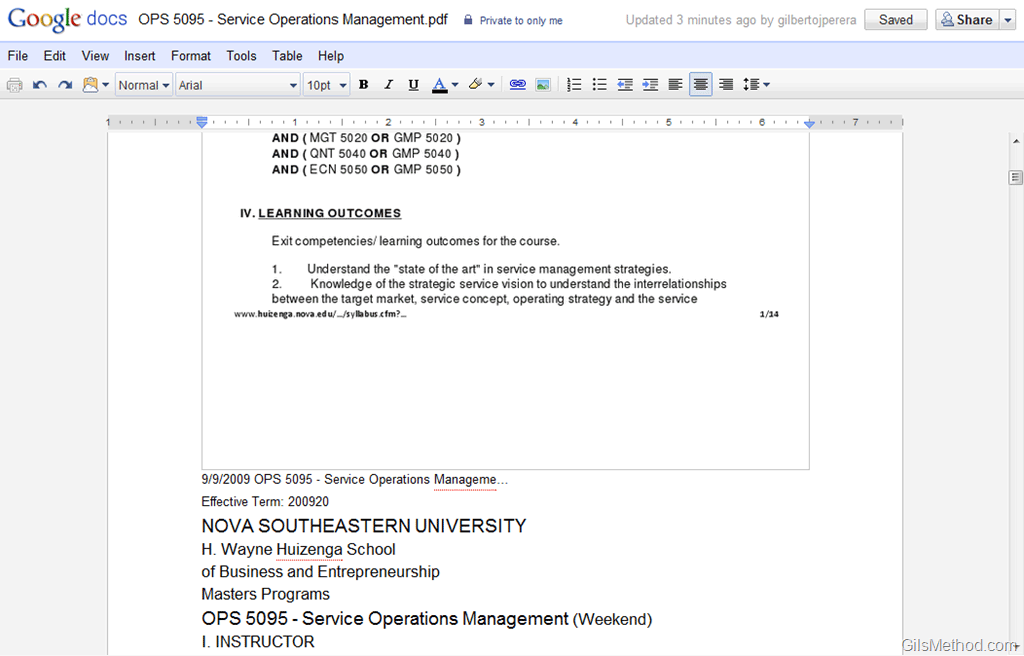
uploadpdfconvertocrc thumb Use Google Docs to Perform OCR on PDFs and Images

The original document (PDF) will be included in the document. When you scroll to the bottom of the page, the text from the PDF/image file will be there.


See More About: , ,
Originally posted Jun 30, 2010

We close comments after 30 days on GilsMethod.com and ask that you post questions and issues on our Answers website.

This helps us better serve you by allowing us to keep track of unanswered questions that are usually hidden in long comment threads.

Answers.GilsMethod.com is a community-powered support website where you will be able to post questions, and other users including us will respond with expert advice.

So if you are having trouble with your PC, Mac, iPad, iPhone, or other piece of technology, head over to Answers.GilsMethod.com and ask away.

  • http://topsy.com/www.gilsmethod.com/google-docs-perform-ocr-pdfs-images?utm_source=pingback&utm_campaign=L2 Tweets that mention Use Google Docs to Perform OCR on PDF’s and Images — Topsy.com

    [...] This post was mentioned on Twitter by Greg Rose. Greg Rose said: Whoa, this is cool!! –> "Use Google Docs to Perform OCR on PDF’s and Images" http://bit.ly/dtyGUU. Yeah, I'll be using it! [...]

  • http://www.seopressorplugin.com SEOPressor

    I have to say I have not been following Google. Maybe I should pretty good features listed that I did not know about. These will be very helpful for me personally.

  • http://www.seopressorplugin.com SEOPressor

    I have to say I have not been following Google. Maybe I should pretty good features listed that I did not know about. These will be very helpful for me personally.

  • http://www.gilsmethod.com Gilberto J Perera

    I’m glad you found the list useful. Make sure to check back often, I’m always adding new content. Thanks.

  • http://www.gilsmethod.com Gilberto J Perera

    I’m glad you found the list useful. Make sure to check back often, I’m always adding new content. Thanks.

  • Info

    Can’t get rid of the message. This document contains text automatically extracted from a PDF or image file. Formatting may have been lost and not all text may have been recognized.
    To remove this note, right-click and select “Delete table”.

  • http://www.gilsmethod.com Gilberto J Perera

    Did you follow the instructions? – To remove this note, right-click and select “Delete table”.

  • http://www.gilsmethod.com Gilberto J Perera

    Did you follow the instructions? – To remove this note, right-click and select “Delete table”.

  • http://www.gilsmethod.com Gilberto J Perera

    Did you follow the instructions? – To remove this note, right-click and select “Delete table”.