
See More About: , , , , , , ,

Help Me Spread Awareness About Fake Virus Scanner Scams

by

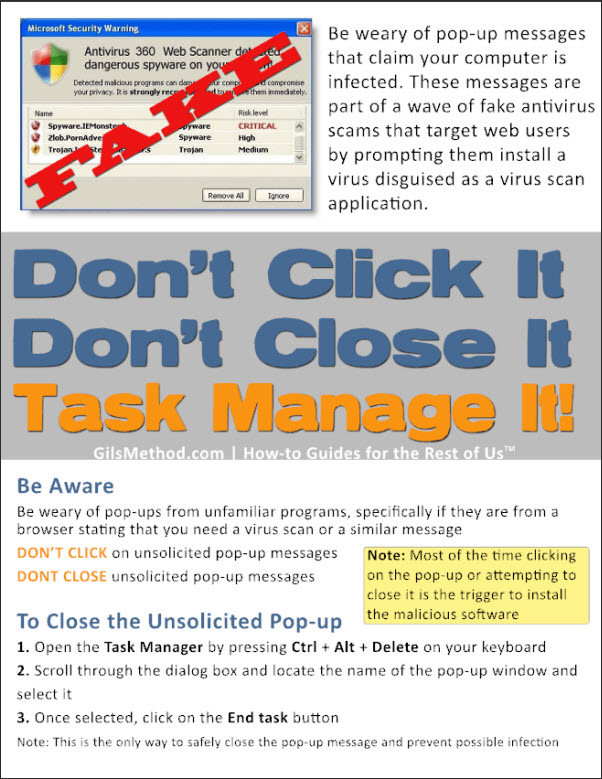
In an effort to educate computer users about the potential dangers of fake virus scanner pop-ups and how to close the pop-ups without infecting their computers I put together a one page PDF that summarizes the threat and lists some steps to help mitigate its impact. The idea came from a similar campaign that was started at the office and I thought it would be a good idea to start my own and help inform Gil’sMethod.com readers.

Fake antivirus scams are usually triggered when a user visits a website that is hosting this scam or clicks on an email containing a link to the malicious code. Users are then warned that they have a virus and must run the virus scan, the problem is that the virus scan is really malicious code disguised as a virus scanner. The usual response is to run the scan or if suspected closing the window by clicking the [X], however most of the time, these two actions actually trigger the malicious program to run and further infect your computer. Not a pretty sight.

Please share the PDF below with friends and relatives to help spread the word about fake virus scanners and how infections can be prevented.

By following the guidelines found in the poster below users can counter some of the threats associated with fake virus scanners. A summary of the PDF can be found below.

  • Be weary of pop-up messages that claim your computer is infected. These messages are part of a wave of fake antivirus scams that target web users by prompting them install a virus disguised as a virus scan application.
  • Be weary of pop-ups from unfamiliar programs, specifically if they are from a browser stating that you need a virus scan or a similar message
  • DON’T CLICK on unsolicited pop-up messages
  • DONT CLOSE unsolicited pop-up messages


To Close the Unsolicited Pop-up

1. Open the Task Manager by pressing Ctrl + Alt + Delete on your keyboard

2. Scroll through the dialog box and locate the name of the pop-up window and select it

3. Once selected, click on the End task button

Note: This is the only way to safely close the pop-up message and prevent possible infection

Image below is linked to downloadable PDF Poster
fake antivirus screenshot Help Me Spread Awareness About Fake Virus Scanner Scams


Originally posted Dec 08, 2009

We close comments after 30 days on GilsMethod.com and ask that you post questions and issues on our Answers website.

This helps us better serve you by allowing us to keep track of unanswered questions that are usually hidden in long comment threads.

Answers.GilsMethod.com is a community-powered support website where you will be able to post questions, and other users including us will respond with expert advice.

So if you are having trouble with your PC, Mac, iPad, iPhone, or other piece of technology, head over to Answers.GilsMethod.com and ask away.

  • http://www.gilsmethod.com/help-me-spread-awareness-about-fake-virus-scanner-scams Scoffer

    I have added some other info, similar to the processes you describe here. Hope this helps. This is for the "Best-P7" varriant, but the same processes should work for the others.To block this Dangerous scan scam and any associated virus and malware, add the following "keywords" to your modem firewall and to your computer firewall if they are capable: –
    best-p7
    virusscanner.com
    DO NOT CLICK ON IT. DO NOT SHUT IT DOWN THE WAY IT SAYS TO. Leave it alone for the moment and do the following: –
    1. Disable, Disconnect or Unplug your modem immediately.
    2. Exit out of your Browser (IE Explorer, Firefox, Opera etc).
    3. If you can't exit from the Scam, Press Ctr/Alt/Del to bring up the Task Manager, left click on processes, Right click on the Scam process and left click on End Process Tree.
    4. Repeat for all Browser running processes.
    5. Open your browser again and Clear all Cookies and Temp files from your Browser.
    6. Do Not shut down your PC until you do a full Security System Scan using your Antivirus and Malware scanner, eg AVAST and Superantispyware, both free and powerful, but there are others just as good.

  • http://www.gilsmethod.com/help-me-spread-awareness-about-fake-virus-scanner-scams Scoffer

    I have added some other info, similar to the processes you describe here. Hope this helps. This is for the "Best-P7" varriant, but the same processes should work for the others.To block this Dangerous scan scam and any associated virus and malware, add the following "keywords" to your modem firewall and to your computer firewall if they are capable: –
    best-p7
    virusscanner.com
    DO NOT CLICK ON IT. DO NOT SHUT IT DOWN THE WAY IT SAYS TO. Leave it alone for the moment and do the following: –
    1. Disable, Disconnect or Unplug your modem immediately.
    2. Exit out of your Browser (IE Explorer, Firefox, Opera etc).
    3. If you can't exit from the Scam, Press Ctr/Alt/Del to bring up the Task Manager, left click on processes, Right click on the Scam process and left click on End Process Tree.
    4. Repeat for all Browser running processes.
    5. Open your browser again and Clear all Cookies and Temp files from your Browser.
    6. Do Not shut down your PC until you do a full Security System Scan using your Antivirus and Malware scanner, eg AVAST and Superantispyware, both free and powerful, but there are others just as good.

  • http://intensedebate.com/people/gjperera gjperera

    @Scoffer – Thanks for your tips…very helpful.

  • http://intensedebate.com/people/gjperera gjperera

    @Scoffer – Thanks for your tips…very helpful.

  • Home Business Computer Security Advice from PMI Education | PMI Home Business

    [...] may look legitimate, but don’t be deceived! Even if you correctly identify it at a fraud, DO NOT close it. You need to go into your task manager (by hitting Control-Alt-Delete) and then closing it from [...]

  • Johnny

    Part 1
    The best thing to do is first unplug your modem. Then, hit ctrl/alt/delete at the same time. This will bring up the task manager. Click on the "Applications" tab, and click on each entry there, and then click "end task". This should usually close the pop ups, which is an image, so clicking cancel or the x to close it will begin the execuation of the mal. files. Sometimes ending task via task manager doesn't work either. In that case, you will want to go to tools/internet options/security. Click on "custome level" scroll down a ways and look for "Active Scripting", place a dot in Disable, and then look for "Scripting of Java Applets", and place a dot in disable. This is for IE, and the pop ups should go away. Go back to task manager now, an use it to end task.

  • Johnny

    Part 1
    The best thing to do is first unplug your modem. Then, hit ctrl/alt/delete at the same time. This will bring up the task manager. Click on the "Applications" tab, and click on each entry there, and then click "end task". This should usually close the pop ups, which is an image, so clicking cancel or the x to close it will begin the execuation of the mal. files. Sometimes ending task via task manager doesn't work either. In that case, you will want to go to tools/internet options/security. Click on "custome level" scroll down a ways and look for "Active Scripting", place a dot in Disable, and then look for "Scripting of Java Applets", and place a dot in disable. This is for IE, and the pop ups should go away. Go back to task manager now, an use it to end task.

  • Johnny

    Part 2: For FireFox, go to tools.options. Click on the "content" tab, and take the check out of enable "javascript". This should close the pop up, again use task manager to end all tasks from the Application tab. Do not click the X or the cancel tab on the pop up. Don't click on any portion of the pop up. After this delete your internet cache, run malwarebytes, google it and d/l it. Update your Virus scanner and run a full system scan. Should malwarebytes find anything, you will have an option to delete the infected files and reg. entries, do so.

  • Johnny

    Part 2: For FireFox, go to tools.options. Click on the "content" tab, and take the check out of enable "javascript". This should close the pop up, again use task manager to end all tasks from the Application tab. Do not click the X or the cancel tab on the pop up. Don't click on any portion of the pop up. After this delete your internet cache, run malwarebytes, google it and d/l it. Update your Virus scanner and run a full system scan. Should malwarebytes find anything, you will have an option to delete the infected files and reg. entries, do so.

  • http://enarcade.com Luke

    Eh, i installed one of these it was such a pain in the butt to get rid of it took me like 3 days to successfully get rid of a fake virus scanner. The only other way to get rid of it is to actually buy it.

  • http://enarcade.com Luke

    Eh, i installed one of these it was such a pain in the butt to get rid of it took me like 3 days to successfully get rid of a fake virus scanner. The only other way to get rid of it is to actually buy it.

  • http://www.best-registrycleaner.net Best Registry Cleaner

    The only other way to get rid of it is to actually buy it.

  • Barb

    Ctrl+Alt+Delete works,but why does Firefox reload the malicious scan when I reopen it after closing it down this way?

  • http://www.gilsmethod.com Gilberto J Perera

    It’s a setting in Firefox that automatically loads the last pages you were viewing. I would suggest running firefox in private or safe mode to change this setting. Let me knownif you need assistance with this.

    Sent from my iPad

