
Click here to try Mozy for FREE!
Recommended: Click here repair PC errors
Click here to run a Free Registry scan
WebWatcher

How to Change the Default Email Format in Outlook 2010

by Gilberto J Perera View Comments Share

How many times have you started writing a new email message in Outlook and tried to insert a link and couldn’t? Chances are that your default email format is Rich Text or Plain Text. In either case HTML code cannot be used when composing your message. If you wish to use HTML code in your email or include hyperlinks you need to switch the email’s format to HTML, but why do that, when there’s an easier way? The how-to below will show you how you change the default email format in Outlook 2010 so that all your messages are created in the default format of your choosing.

If you have other Outlook 2010 tips to share feel free to post them below or if you need some help visit the forums.

Note: I used Outlook 2010 beta in this tutorial.

Change the Default Email Format

If you wish to understand the differences between formats visit the end of this article for details.
change-the-default-email-format-in-outlook-2010

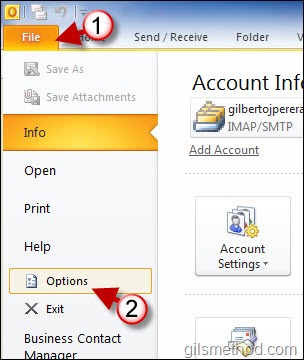
1. Click on File to open the menu.

2. Click on Options from the menu.
change-the-default-email-format-in-outlook-2010-a

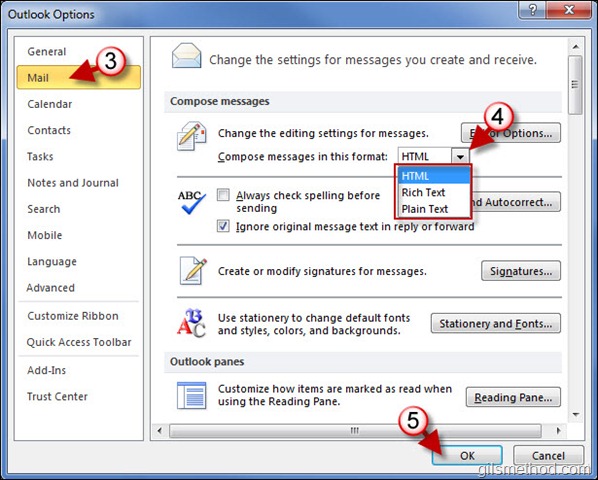
3. Click on Mail on the left pane.

4. Under the Compose messages section , click on the Compose messages in this format drop-down and choose the format you wish to use as the default.

5. Click OK when you are done.

Examples of Default Formats
change-the-default-email-format-in-outlook-2010-html

Plain Text Format – Only allows you to modify the font size without any further changes to the color, style, and other advanced formatting tools. You cannot use images, charts, and other items in your email message.

change-the-default-email-format-in-outlook-2010-plain

Rich Text Format – Allows you to format the text using the advanced formatting tools, but does NOT allow for the inclusion of Hyperlinks,  embedding images, charts, and other items.

change-the-default-email-format-in-outlook-2010-rich-text

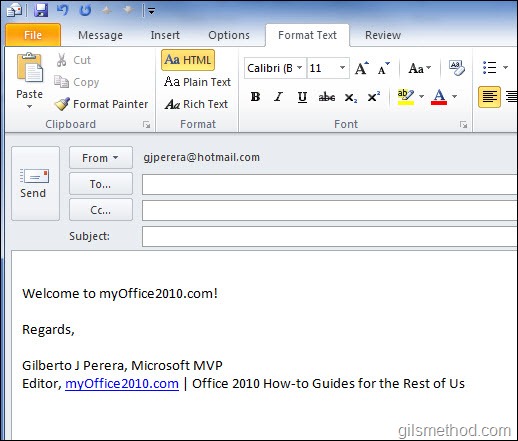
HTML Format – Allows you to format the text with all the formatting tools and allows you to insert images, chart, tables, and other items into email messages.


Do you like this article?

Related Posts

  1. Change When Emails Are Considered Read in Outlook 2010
  2. How to Modify the Default Outlook 2010 Start Folder
  3. How to Send Text Messages with Outlook 2010
  4. How to Quickly Add Contacts from Emails in Outlook 2010
  5. How to Change the Location of the Outlook 2010 Desktop Alerts
How-to, Office 2010, Outlook 2010

About the author

Gilbert is a Microsoft MVP, a full-time blogger, and technology aficionado. When Gilbert is away from his bike and his iPad, he's busy writing technology how-to's from his home-office in Miami, Florida on the latest programs and gadgets he can get his hands on. He's locally known as "the computer guy" and has spent the last 12 years helping family, friends, and GilsMethod.com visitors with their computer questions and problems. He was awarded the 2009 MVP award from Microsoft for his contributions in forums and blogs and is enjoying the new addition to his family.

Want more articles like this delivered for free to your inbox?

To receive the latest technology how-to's, news, and reviews, enter your email address below.

Sign up below

View Comments to “How to Change the Default Email Format in Outlook 2010”

Leave a Reply

blog comments powered by Disqus