
Outlook 2010 like previous versions of Outlook give users a great among of flexibility in customizing how the program looks and how it behaves. Among those items users can customize is the location of the Desktop Alerts that appear when new messages arrive to your Inbox. The default location of the Desktop Alerts is situated above the notification area (the bottom right corner, directly above the time), you can can change the location of the alerts to any spot on the screen by simply clicking on it and dragging it.
The quick and easy how-to below will walk you through the steps necessary to modify the location of your Desktop Alerts using the Outlook Options menu, however you can always change the location of the alert by clicking and dragging it whenever it appears on your desktop.
If you have any comments please post them below or if you have any questions visit our forums.
Note: I used Windows 7 Ultimate and Outlook 2010 Beta in this tutorial.
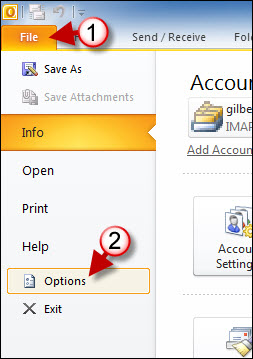
1. Click on the File menu in Outlook 2010.
2. Click on Options from the drop-down menu.
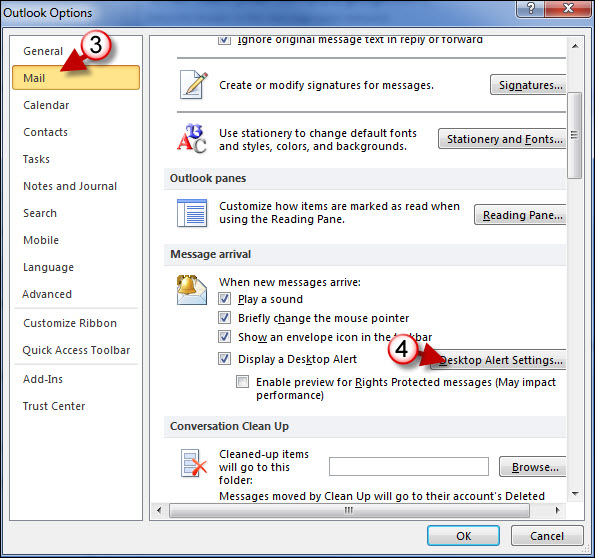
3. When the Outlook Options dialog box appears, click on Mail located on the left pane
4. Click on the Desktop Alert Settings button.
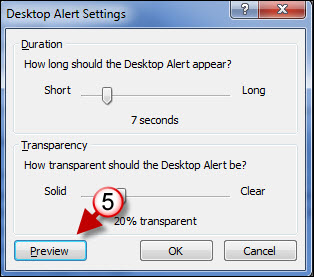
5. When the Desktop Alerts dialog box appears click on the Preview button.
A preview should appear
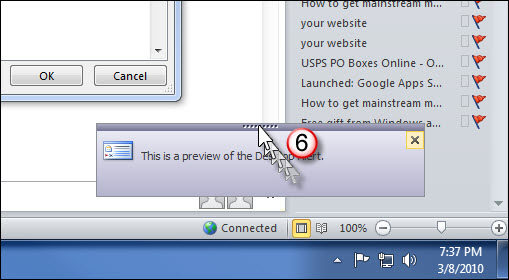
6. Click on the dark-gray bar at the top of the alert and while holding down the mouse button, drag the alert to the location you wish.



