
As I stated in my previous post, I had to create a Windows 7 virtual machine so that I can write a series of articles while I’m out of town this weekend. As I was creating the virtual machine in VirtualBox I realized that this would be a good tutorial to publish on this blog so that others can learn from it, and here it is. The how-to below will walk you through the ‘typical’ steps necessary to create a virtual machine in VirtualBox, by the way VirtualBox is free and you can download it from Oracle.
For those that don’t know what virtualization is, it is simply a way of creating a virtual machine or virtual computer (guest) that runs on an existing computer (host) yet it is isolated from the host. Think of it as a computer within a computer. The beauty of virtualization is that you can virtually (no pun intended) run any operating system on say, a Windows computer. This is a great tool for tinkerers like me so that if I mess up/crash the virtual computer I can just reload a copy of the virtual computer without affecting the host.
Virtualization is also deployed in server environments to save electricity and use physical servers as efficiently as possible. Imagine a setup that includes a server for mail, one for storage, and another for applications. Instead of using three separate servers you would use one with multiple virtual machines for each of those functions.
I hope this brief and non-technical explanation helps those who may not know what virtualization is, if it does not suffice you can always stop by Wikipedia for a more thorough explanation.
The process is fairly simple, but I thought I’d cover it here for those of you who may not know how to get to the right place in VirtualBox right away. If you have any comments or questions, please post them below.
Note: I used VirtualBox and a Windows 7 image for this how-to.
Create a Virtual Machine
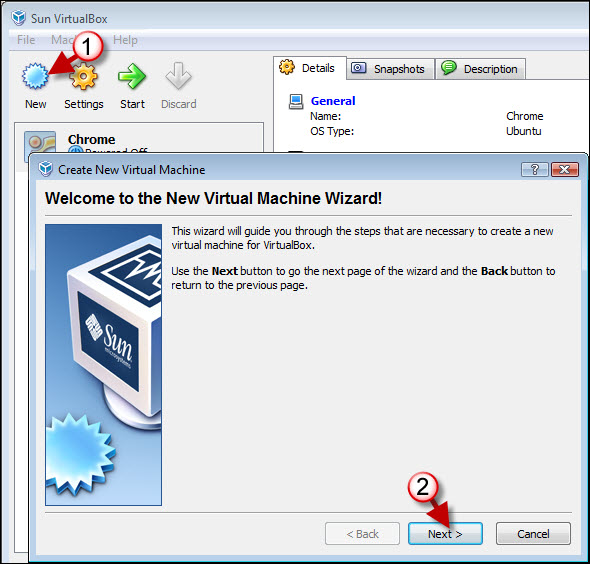
1. Open Virtual Box and click on the New virtual machine button.
2. The Create New Virtual Machine wizard will open. Click Next to proceed.
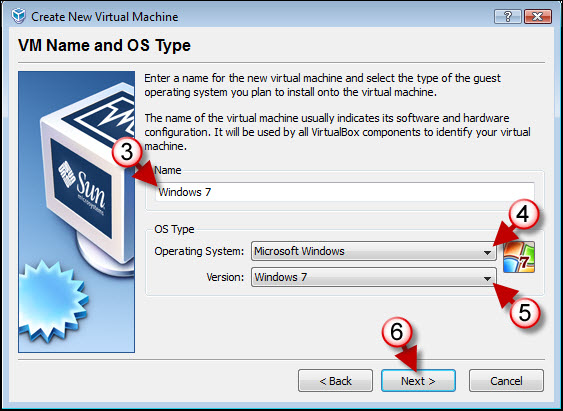
3. Enter a name for the virtual machine you are creating.
4. Choose an Operating System from the drop-down
5. Now choose the Version of the operating system you selected in the previous step.
6. Click OK to proceed.
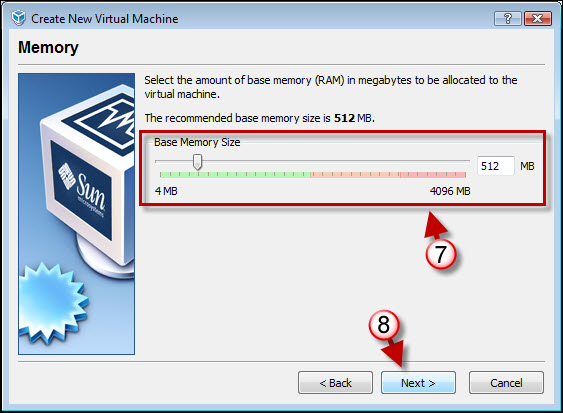
7. VirtualBox automatically sets the recommended RAM allocation for the operating system you selected, but also gives you the flexibility of modifying the default to your liking. Use the slider to move the allocation back and forth or type it in the box displaying the current allocation.
8. Once you’ve decided on the memory allocation you wish to use, click Next to proceed.
Create A Virtual Hard Disk
Chances are you don’t have a spare Virtual Hard Disk laying around in your hard drive and so we need to create one. The virtual hard disk is the equivalent of a physical hard drive where the operating system, programs, files and anything else you add will reside. Without it we cannot create a virtual machine.
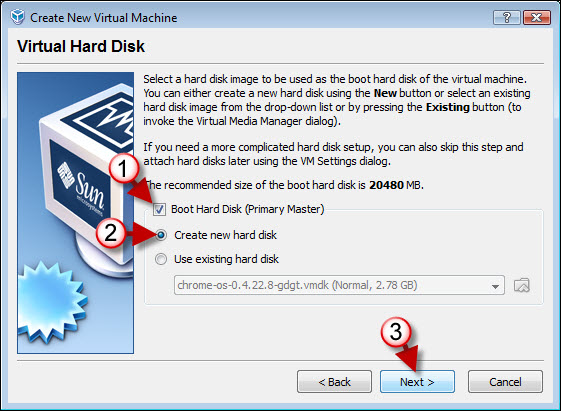
1. Since we are creating a new virtual machine we need to create a Boot Hard Disk, choose this option.
2. As indicated before we are creating a new hard disk, so choose Create new hard disk
Note: If you already had a virtual disk stored in your computer and wanted it to use it for this virtual machine you would have selected the second option, Use existing hard disk.
3. Click Next to start the Create New Virtual Hard Disk Wizard
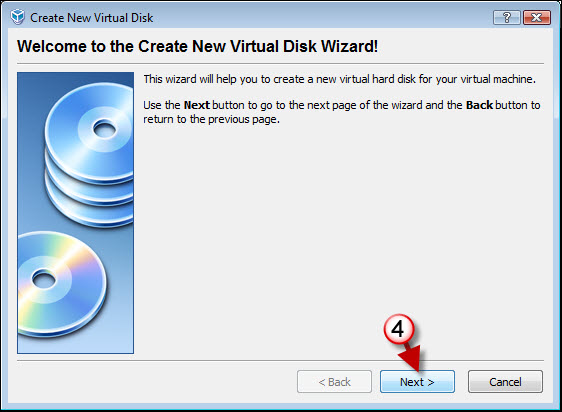
4. Click Next to start the wizard.
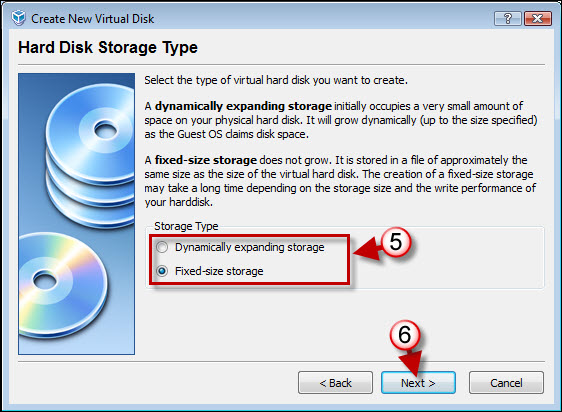
5. VirtualBox provides you with two Storage Types when creating a virtual hard disk;
- Dynamically expanding storage uses a small amount of hard drive space initially and will expand as the virtual machine’s needs grow.
- Fixed-size storage uses the amount of storage specified in the next step and can take a while …a 20GB hard drive on my laptop took about 30 minutes to create. I like this option because the size of my virtual machine’s hard disk is limited and I know how much space it will use.
Choose the Storage Type you wish to use.
6. Click Next to proceed.
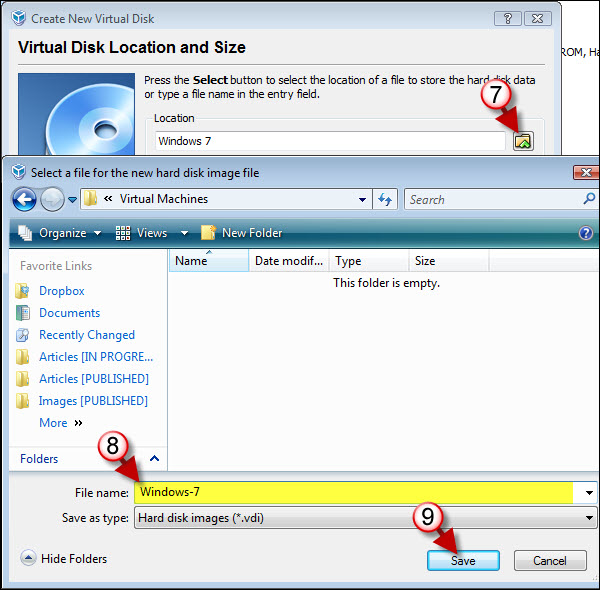
7. Before we allocate the space the hard disk will use we need to specify a location where the hard disk will reside. VirtualBox will default to the virtual machines directory, but since I have multiple virtual machines I usually store them on an external hard drive for easy access among my computers and it keeps them off my main hard drive. If you wish to store the virtual disk in a place other than the default location on your main hard drive, click on the small folder icon to select a new directory.
8. Name the virtual disk. If you plan on creating multiple virtual machines, I’d use something descriptive so you don’t get them confused.
9. Click Save when you are done.
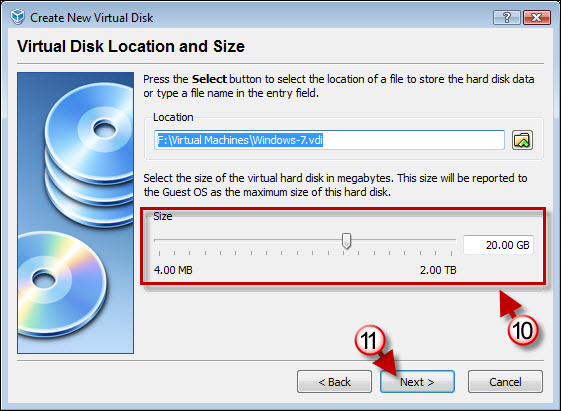
10. Once you’ve designated a location for the virtual disk you’re going to have to specify the size of the hard disk. Use the slider to increase or decrease the size of the hard drive or enter the amount directly into the text box displaying the current size.
11. Click Next to proceed
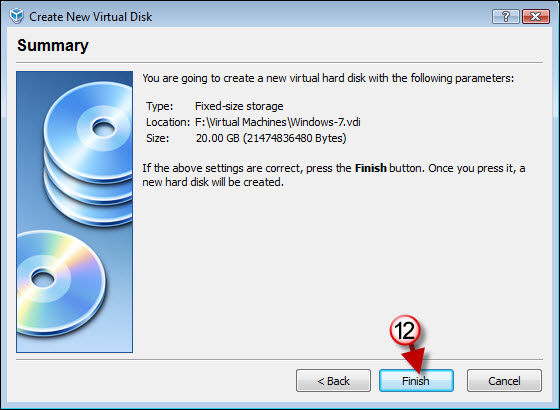
12. Verify that the parameters are correct, click Finish to complete the Create New Virtual Disk Wizard.
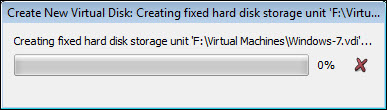
You will be presented with a progress bar as the virtual disk is created.
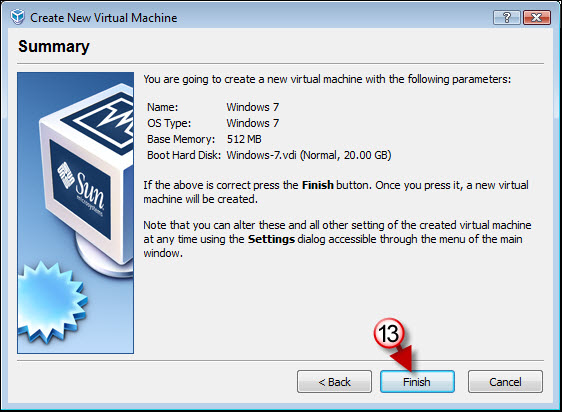
13. Review the Summary of the virtual machine you just created, if satisfied click Finish to complete the creation of the virtual machine.
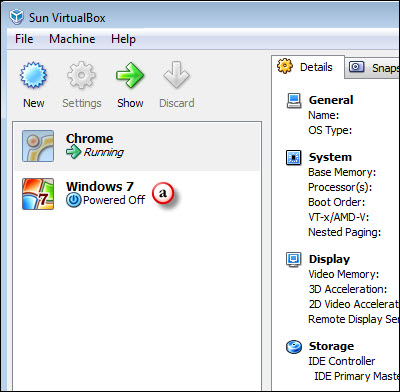
a. Your newly created virtual machine will be listed among others in the VirtualBox pane located on the left side of the screen.


