See More About: , , , ,

How to Create a Shortcut to All Control Panel Tasks in Windows 7

by

Are you tired of navigating though all of the Control Panel tasks one by one? Rather than navigate to the Control Panel, then a subsection, then the actual task you want to perform, you can open all of the Control Panel tasks in one window. In the how-to below I will show you how to create a shortcut on your desktop to get to this window with all Control Panel tasks quickly.

If you have any comments please post them below or if you have any questions visit our forums.

Note: I used Windows 7 Ultimate in this tutorial.
create a shorcut to display all control panel items windows 7 How to Create a Shortcut to All Control Panel Tasks in Windows 7

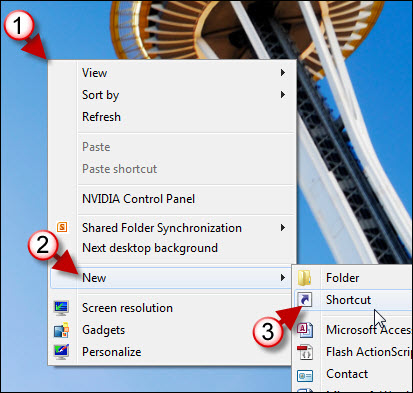
1. Right-click on your Desktop

2. Click on New to expand the menu.

3. Select Shortcut from the menu.

create a shorcut to display all control panel items windows 7 a How to Create a Shortcut to All Control Panel Tasks in Windows 7

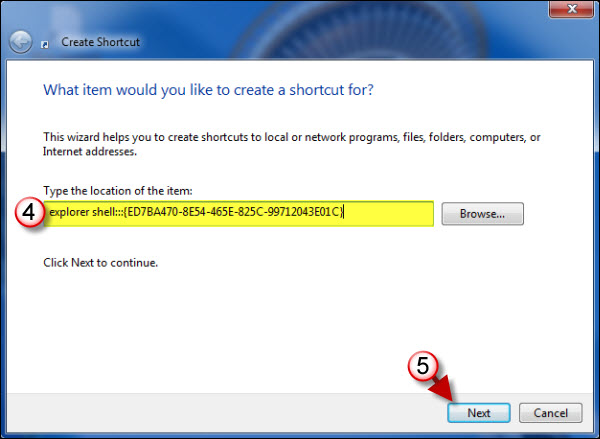
4. The Create Shortcut window will open. Type the following information in the item location text box (highlighted above).

explorer shell:::{ED7BA470-8E54-465E-825C-99712043E01C}

5. Click Next to proceed.

create a shorcut to display all control panel items windows 7 b How to Create a Shortcut to All Control Panel Tasks in Windows 7

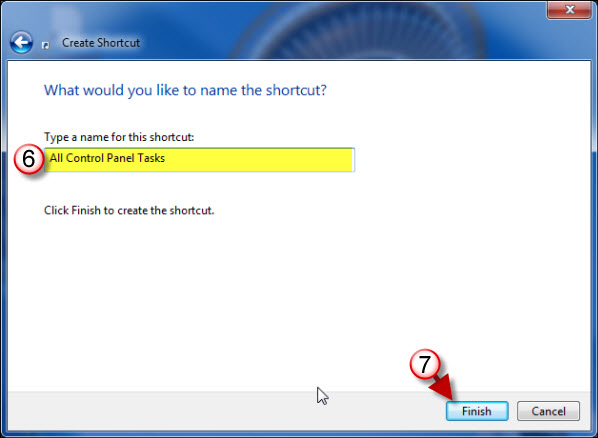
6. Enter the name you wish to assign to the shortcut.

7. Click Finish.
create a shorcut to display all control panel items windows 7 c How to Create a Shortcut to All Control Panel Tasks in Windows 7

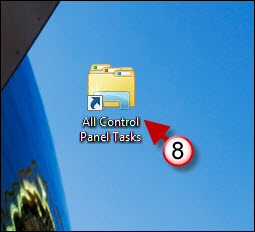
You will find the newly created shortcut on the Desktop.

8. Double-click to open the shortcut you just created.
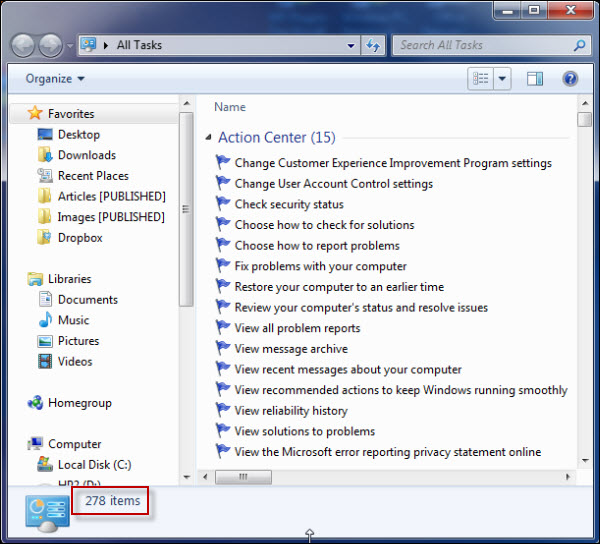
create a shorcut to display all control panel items windows 7 d How to Create a Shortcut to All Control Panel Tasks in Windows 7

The All Tasks window will open displaying 278 different items you can quickly get to using the Search box on the upper right corner.


Originally posted Mar 29, 2010

We close comments after 30 days on GilsMethod.com and ask that you post questions and issues on our Answers website.

This helps us better serve you by allowing us to keep track of unanswered questions that are usually hidden in long comment threads.

Answers.GilsMethod.com is a community-powered support website where you will be able to post questions, and other users including us will respond with expert advice.

So if you are having trouble with your PC, Mac, iPad, iPhone, or other piece of technology, head over to Answers.GilsMethod.com and ask away.

  • http://www.esthercallis.com/ Cash Back Card

    Thanks for making my work easier

  • http://www.esthercallis.com/ Cash Back Card

    Thanks for making my work easier

  • R Evans

    Click Start,right click Control Panel,click Show on desktop.
    When you open C Panel the first time, click category, choose large or small icons.
    Hope that helps

  • http://www.gilsmethod.com Gilberto J Perera

    R Evans,

    Thanks for the information.

  • http://www.gilsmethod.com Gilberto J Perera

    R Evans,

    Thanks for the information.

  • http://www.gilsmethod.com Gilberto J Perera

    Glad you found the guide useful.

  • http://www.gilsmethod.com Gilberto J Perera

    Glad you found the guide useful.