
How to Enable File Sharing in Virtual PC

If you’ve ever worked with Virtual environments then you know the importance of file accessibility. In my case I have a preset list of programs that I install when testing Windows environments as such seamless access to these files is essential. Virtual PC has a set of additions that enable users the ability to share folders with the host PC, the software does this via the creation of network drives that are enabled in the virtual environment which link files/directories to the host machine. The guide below will demonstrate how to add shared folders from your host computer to the virtual environment. If you have any comments or questions, please post them below.
Note: I used Virtual PC 2007, Windows XP SP3 as the virtual environment, and Vista SP1 Premium as the host for this tutorial.
1. Install Virtual PC Additions by following this tutorial, you can skip this step if you have already installed virtual machine additions.
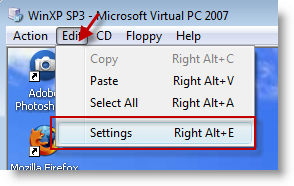
2. While running your Virtual Machine, click on Edit > Settings
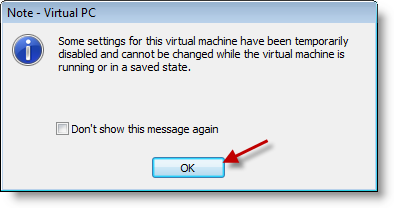
3. A dialog box will appear, it states that some settings cannot be modified while the Virtual PC is running, in this case is does not matter, so click OK to proceed.
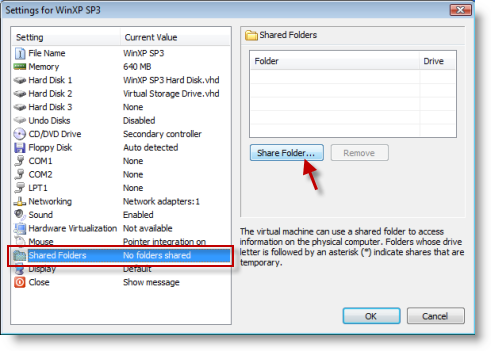
4. Select Shared Folders from the list to the left, an empty shared folders list will appear to the right, click on the Share Folder button below the list.
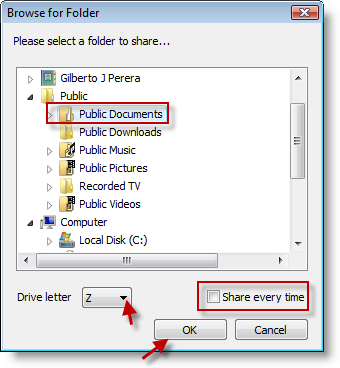
5. Browse and select the directory you wish to share, before clicking OK you have two options available; the ability to re-share the directory (Share every time check box) and the assignment of a Drive letter.Once you’ve chosen your settings click OK to return to the Shared Folders list.
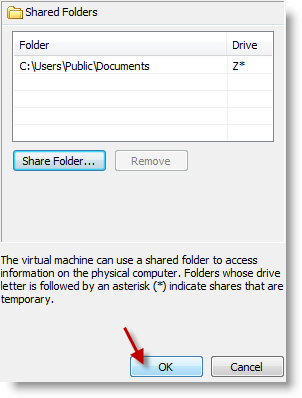
6. Click OK to return to the Virtual PC
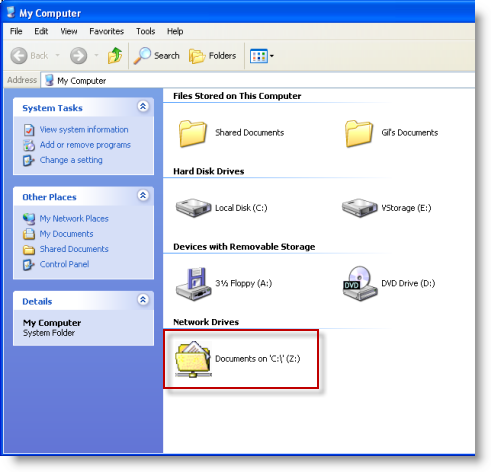
7. Open My Computer in the virtual environment and you will see the folder you just shared listed as a network drive in the virtual environment




Thanks Gilberto. I was successfully able to share my folders.
Bharath.
Hello i have installed virtiual PC-SP1 and have shared the files from host to virtual Pc. Now the problem i have is that i want to share the files of VIRTUAL PC to my HOST PC. So can you help me providing the easy steps of doing this?
@Razeshzone -Have you configured the Virtual PC to share folders? In other words is the Virtual PC a part of your network? You can usually run the networking Wizard to accomplish this. Let me know if this helps.
Try this article for setting up the network – http://www.gilsmethod.com/share-your-printer-and-files-with-windows-xp
@Arthur: Have you verified that meet the minimum requirements (correct OS, etc)? Also do you have Virtual Machine Additions installed? Let me know so that I can help you.
http://www.gilsmethod.com/how-to-install-virtual-machine-additions-for-virtual-pc
Guys i’ve tried it and it didn’t work the share folder is not accessible it doesn’t let you mark or unmark it simple stuck.. please help
@Randy West: Performance wise it depends on the specs for the host PC. Regarding the shared file for QuickBooks, I don’t think you can do that…I ran into some issues using QB08′ on a shared directory and using the Offline files feature in Vista. I looked up it on their website and they confirmed it.
I’m not sure how related that is to sharing a file on a Virtual share, but it’s worth the try.
One word of advice though. Back up your QuickBooks file…please. I went through a really bad scare and if it wasn’t for a backup I’d be SOL. Hope this helps and good luck.
I have vista ultimate 64 operating system as host. I would like to add a virtual machine with a shared file to run Quickbooks 2009 mulituser version from both the virtual machine and host operating systems. Do you forsee an issue with doing this? i.e. – is it possible, will there be performance issues, etc.
Thanks,
Randy
This seems to be the standard method I’ve found for enabling file sharing. However, I find this method to be extremely slow. I want to use Virtual PC to test programs I write in different environments *without* having to copy/install them to each virtual machine. In some cases I get a “The parameter is incorrect” error message when attempt to launch an .exe file on the shared drive.
Any ideas?
@DonBakke: I’ve had similar issues while transferring large files from the Virtual PC to the host via shared folders. I resolved this by mounting the VHD files using Gizmo, but this sounds like a different issue. Have you verified that you host PC meets the minimum requirements set by Virtual PC? I had a user on this page whose problem seemed to stem from the fact that he was running Vista Home edition. If that isn’t the problem, have you considered creating an image file (ISO) of these files to load onto each virtual machine as a CD-ROM and then running the files from there? This will keep you from copying them to each virtual machine and you just keep one copy.
If that doesn’t work for you try using Virtual Box instead. Please follow up with your solution so that everyone can learn from your experience. Thanks and good luck.
Share Folder in Virtual PC is not working
1. My host pc is Vista Home Basic,
2. I have installed Virtual PC 2007
3. I have installed Guest OS XP in Virtual PC
4. Action –> Install or Update Virtual Machine Additions – done
5. Then I tried to enable share folder in virtual pc as per above mentioned steps.
6. For me still Share Folders — current value showing not installed, Share Folders button not enable in right side.
Please help me out to resolve this issue.
Thanks,
Velmurugan
@velmurugan: Thanks for getting back to me. I think I found your problem. The host PC for Virtual PC 2007 per Microsoft’s website has to be Vista Business and above, it seems that you are running Home Basic and it is unsupported by Virtual PC 2007. There are several people online that have installed it successfully in Home Basic and Premium, but Microsoft warns that it is at your own risk. Those that have installed it seem to have the same issue.
Before giving up I would try to reinstall the Virtual Machine Additions on guest PC. To uninstall head over to the control panel and locate Virtual Machine Additions.
You can also install Virtual PC on another computer (supported OS) or try dragging and dropping files from Host to Guest…it should work, but I’m not sure if it will work with the whole unsupported issue.
Hope this helps you understand the error you are receiving. Please see the link below.
Microsoft Virtual PC 2007 Requirements
@velmurugan: Can you please be more specific? Where is it that you are getting stuck? Thanks.
We have tried this option for no longer it’s not working. I have installed the add on applications, but no luck.. please help me out.
Thanks,
Velmurugan