
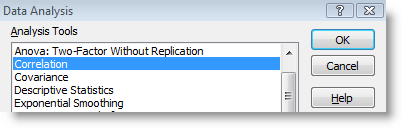
Excel like many of Microsoft’s other Office applications are extremely powerful tools that have many ‘hidden’ features. I stumbled on the Analysis ToolPak when I took an quantitative analysis class for my Masters program. Once I enabled the add-in and learned how to use the tools it provided, I have not used any other statistical tool except perhaps Minitab, but then I use that for the more complex analysis. The problem with the Excel add-in is that it is not loaded by default, this quickly became a problem for the professor teaching the class because he had to walk everyone through the process of enabling the powerful add-in. I’m posting this quick how-to for those of you that don’t know how to enable it or even know where to locate it. If you have any questions or comments, feel free to post them below.
Note: I used Excel 2007 for this guide.
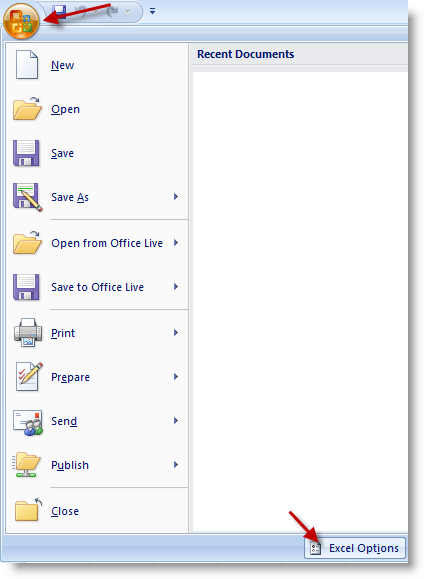
1. While Excel is open, click the Office button (the Orb) and click on Excel Options.
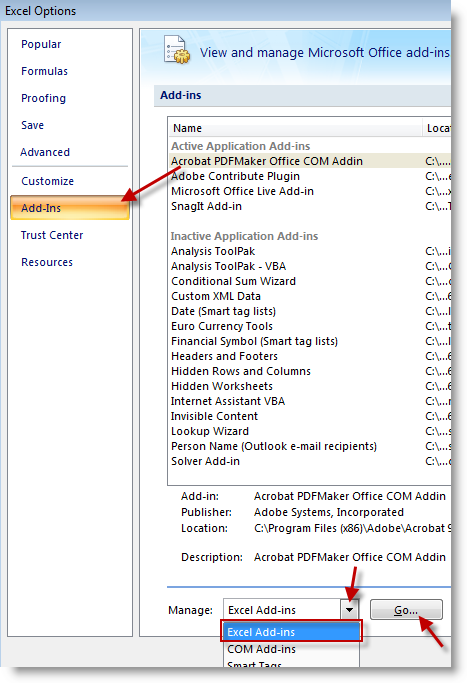
2. When the Excel Options window opens, click on Add-Ins located on the left pane. At the bottom of the window select Excel Add-ins from the drop-down to the right of Manage:, click Go… to proceed.
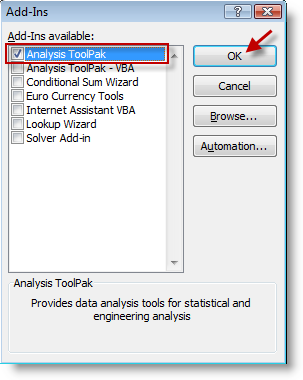
3. The Add-Ins window will open, add a checkmark to the check box next to Analysis ToolPak, click OK.
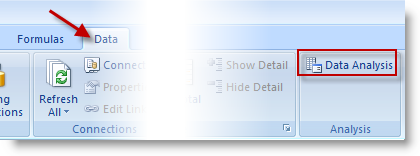
4. Once enabled the Data Analysis ToolPak will be located in the the Data tab all the way to the right. Click on Data Analysis to open the analysis tools available.
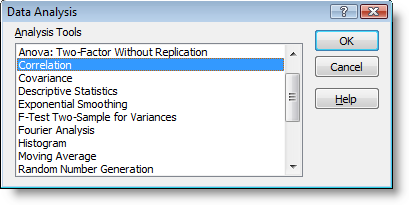
5. Available Data Analysis tools. Select the tool you wish to use and click OK.


