
If you are new to Internet Explorer 9, chances are that the new look and design probably shocked you because of the differences between this version and previous versions. If you are a fan of the bookmarks bar you will notice that this is one of the options that is disabled by default to conserve space on the screen. However if you wish to add the Favorites bar you may have a hard time figuring out just how so I’ve put this guide together that will show you how to enable the Favorites bar in Internet Explorer 9.
If you are looking for other Internet Explorer 9 guides, check out our IE9 section.
Software/Hardware used: Internet Explorer 9 running on Windows 7.
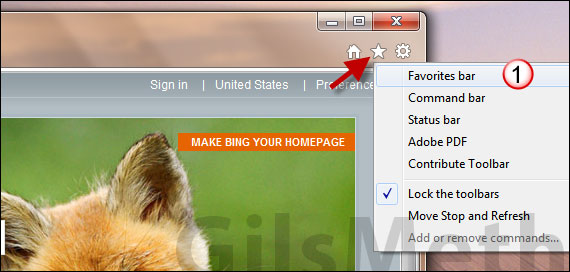
1. Right-click the Favorites icon (small star) on the top-righ corner of the Internet Explorer window and click Favorites bar from the menu that appears.
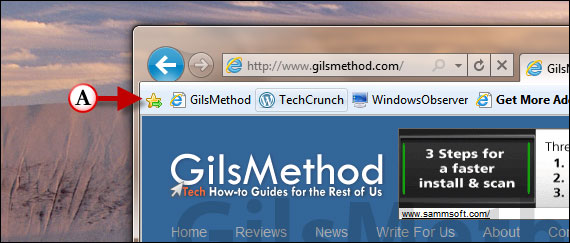
A. You will notice that the Favorites bar is now visible directly below the address bar in Internet Explorer. If you wish to remove the Favorites bar, simply follow the instructions in the previous step.
If you have any comments or questions please use the comments form below.



