

PLEASE NOTE: Article has been updated to reflect changes to Feedburner ID once a user switches to Feedburner by Google – 2/25/09
One of the things that I’ve been working on as part of the transfer of Gil’s Method is the design (one of my biggest challenges). While modifying the WordPress theme that I’m using, I was prompted for my FeedBurner ID (it’s a feature that automatically generated the FeedBurner icon for the website), at first I thought it was the user name that is used to log in to FeedBurner, but I was wrong. FeedBurner assigns users a unique ID (not your user name) which is inserted in the code provided by FeedBurner that is used to identify your feed on the website. Initially I didn’t know about this so I did some searching, this guide is a summary of my findings and a description so that you don’t have to waste your time like I did.
Before we continue with this guide, you might ask yourself, "Why do I need this?" Let me answer this shortly, in my case I bought a premium WordPress Theme, one of the features offered on this theme was the ability to display the FeedBurner icon automatically, no code required, all I needed was my Feed ID. If you ever buy a theme or use a plugin that would require that information, then this is the guide for you. Another scenario may be if you are coding your own web design and would like to add custom code to display the FeedBurner icons, this information would probably come in handy. If you have any comments or questions, please post them below.
1. You must log on to your FeedBurner account
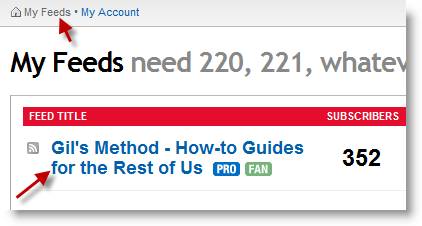
2. Once you’re logged in, click on the My Feeds link located on the top left of the page
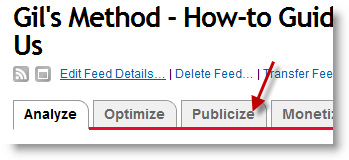
3. Click on the Publicize tab
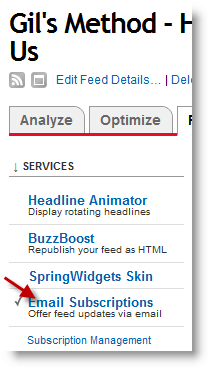
4. The Publicize section provides several options, click on the Email Subscriptions link
PLEASE NOTE: If your account has been switched to Google (Google bought Feedburner), then proceed to Step 6, otherwise follow Step 5
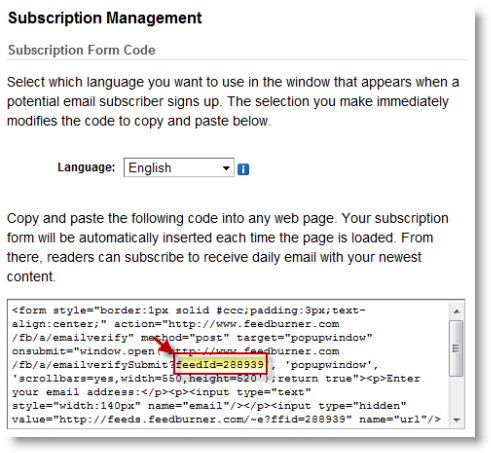
5. Scroll down to the section that contains the code you would insert in your website, you can try a search for feedId or if you have good eyes, pick it out from all of the code listed. Your feed’s ID is located after the = sign.
feedID=123456
If you are using Google Feedburner then proceed to step 6, otherwise Stop…
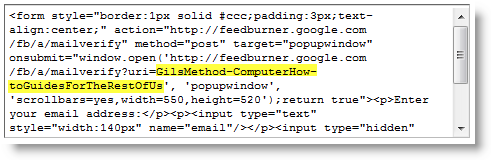
6. If your account is transitioned to Google then your Feedburner ID is the name given to your feed, in the code provided by Subscription Management, copy the data followed by the ‘mailverify?uri=‘ this would be your Feedburner ID.
In this case my ID is GilsMethod-ComputerHow-toGuidesForTheRestOfUs (highlighted above)


