
I use VirtualPC for a lot of the guides you see on this website. The beauty of this application is that changes made on the virtual computers are transparent to the host PC, which means I don’t need to format my computer every six months because it has all the junk that has been left over from the programs I write about. I’ve been using it for quite a while now and there are certain things that have always bothered me, for instance there are times when I need access to files located on virtual hard drive (VHD). This requires that I boot up the virtual PC in order to gain access to those files which at times can be time consuming and inconvenient. Another annoyance is an error that has cropped up several times while transferring large files. Both these issues have left me with the need for a method of accessing these files without having to deal with the error or having to boot up a virtual computer.
I came across a program not too long ago that helped me with these two issues and I wanted to share it with everyone. Gizmo Drive allows users to mount ISO, BIN, CUE, NRG, and VHD files using a Virtual CD-ROM drive. This essentially means that the program emulates a physical DVD/CD drive that you can load images onto. In my case I wanted to mount a .VHD (virtual hard disk) file so that I can access the files on that drive. Thus far the software has met that need and done so in an easy to use and stable experience.
Below I will walk you through the easy process of mounting .vhd files (same for ISO, BIN, CUE, and other Image file formats) so that you too may access the files without opening Virtual PC. If you know of an easier way to load VHD files or have any questions please post them below.
Note: I used Windows Vista and Gizmo 2.7
Before proceeding with this guide, download and install Gizmo
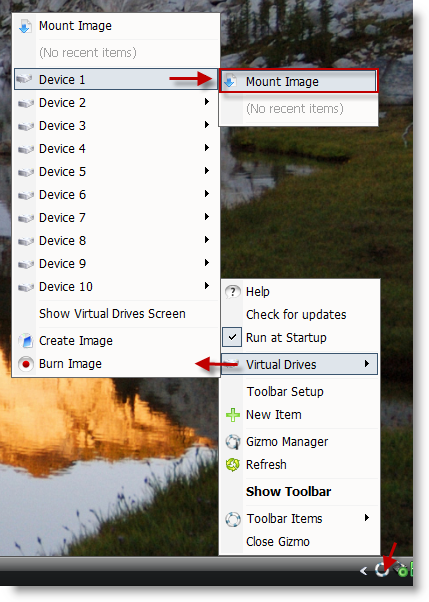
1. Right-click on the Gizmo icon located in the Notification Area on the bottom right corner of the screen. Go to Virtual Drives > Device 1 > Mount Image.
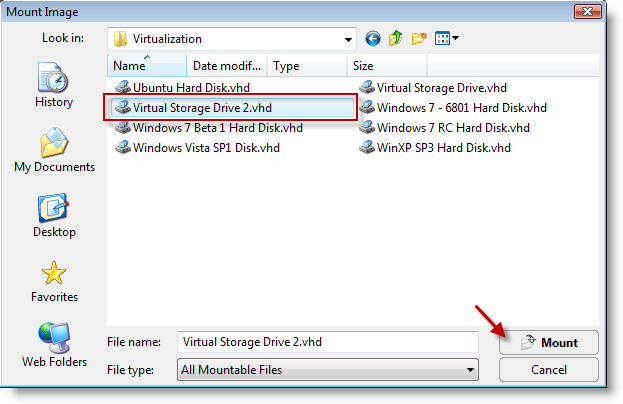
2. Locate the drive (.VHD) file that you wish to mount, select the file and click Mount.
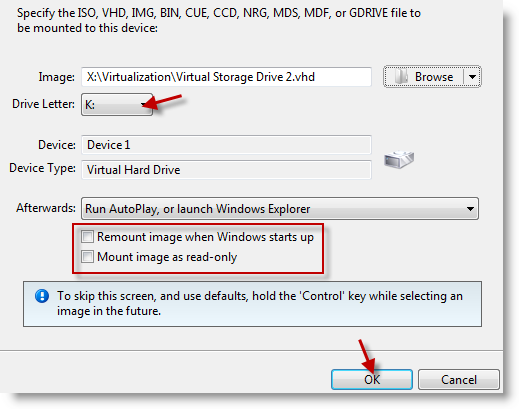
3. Assign an available Drive Letter from the drop-down menu, click OK.
Note: On this screen you are provided with several options;
- Remount image when Windows starts up: Simply mounts the image whenever the computer boots up, I recommended it if you will be accessing this VHD frequently.
- Mount image as read only: When enabled, it will not allow you to write onto this drive. I would recommend enabling this option as a safeguard to prevent anything from being added or deleted to the virtual disk.
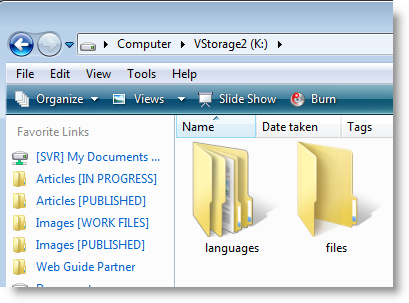
4. Open Start > Computer and locate the drive letter you assigned to your virtual drive and browse freely without a virtual pc.

Article posted on 06 8th, 2009


Get Daily Email Updates!
I found your blog on google and read a few of your other posts. I just added you to my Google News Reader. Keep up the good work. Look forward to reading more from you in the future.
This article was just what I was looking for. I’m beginning to use Virtual PC to maintain access to previous OS versions and data sets. Transfer of data to and from some of these, such as a DOS 6.2 system, is rather convoluted. So I’ve been using virtual drives to share data between Virtual Machines. Being able to access these from my host OS is a big plus.
@Gary – When I discovered this program I felt the same way. Glad you found it useful.
WinMount provides an easiest way to mount VHD as a virtual disk. You can read or write to the vhd file without loading the virtual system.
Here shows you how to do: http://www.winmount.com/mount_vhd.html
@Colorzone – I'll have to check that one out, thanks for the suggestion.
