
Click here to try Mozy for FREE!
Recommended: Click here repair PC errors
Click here to run a Free Registry scan
WebWatcher

How to Pair Bluetooth Devices in Windows Vista

by Gilberto J Perera View Comments Share
Pairing Blackberry Via Bluetooth

If you own a Bluetooth enabled device or BlackBerry as is my case, you have the ability of syncing your phone wirelessly via a Bluetooth connection, but before you can sync your phone or device, you must first pair that device with your computer. The how-to below will show you how to pair a Bluetooth enabled device to your computer, the guide will walk you through the pairing process for a BlackBerry 8830 and a Lenovo laptop. The pairing process is pretty much the same for any Bluetooth device, but it is a great reference for BlackBerry users as well. If you have any comments or questions, please post them below.

Note: I used BlackBerry Desktop Manager 4.3 (1107) on Windows Vista 64bit, BlackBerry 8830 Version 4.2.2 with Sprint. Make sure to accept connections from your computer so that the sync process works, you will not be able to use Media Manager or Application loader via Bluetooth, you must be connected via USB to use these two features. You must have a Bluetooth radio installed in your computer for this to work.

BlackBerry Setup (Pairing with Computer)

Unfortunately I don’t have the capability to take screenshots on BlackBerry (yet)

1. In the device Options , click Bluetooth

2. Press the Menu key

3. Click Options

4. Set the Discoverable field to Yes

5. Press the Menu key

6. Click Save

Computer Setup

There are two ways that you can reach the Bluetooth menu on your computer.

Pairing Blackberry Via Bluetooth

Method 1 Double-click on the small Bluetooth icon located in the notification area to the right.
Pairing Blackberry Via Bluetooth

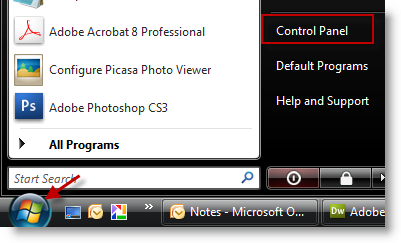
Method 2.A Click on Orb > Control Panel

Pairing Blackberry Via Bluetooth

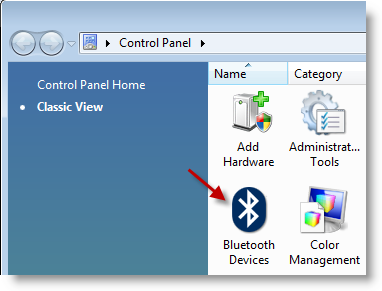
Method 2.B When the Control Panel window opens locate and double-click the Bluetooth Devices icon.

Either method will get you to the step below…
Pairing Blackberry Via Bluetooth

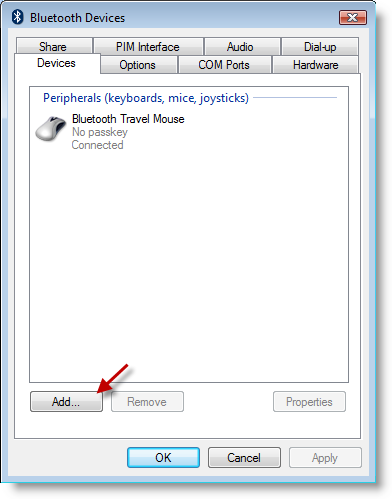
1. To add your device (phone) click on the Add… button.
Pairing Blackberry Via Bluetooth

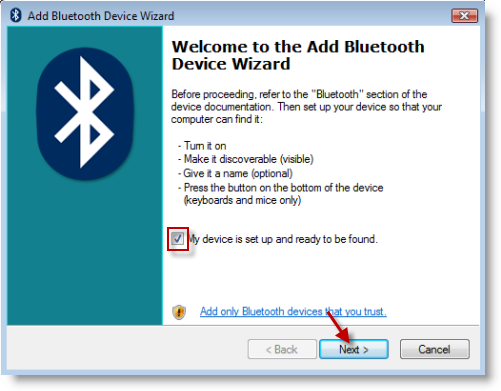
2. The Add Bluetooth Device Wizard will open. Add a checkmark to the My device is set up and ready to be found checkbox, click Next

Note:Each Bluetooth device is different, follow the instructions provided by your device manufacturer. If you are pairing a BlackBerry make sure to follow the instructions located at the beginning of this guide.
Pairing Blackberry Via Bluetooth

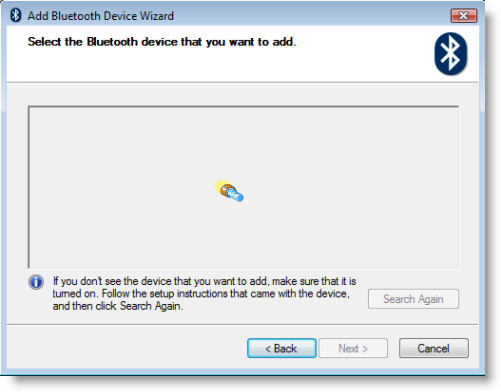
3. The wizard will search for Bluetooth devices in your vicinity.
Pairing Blackberry Via Bluetooth

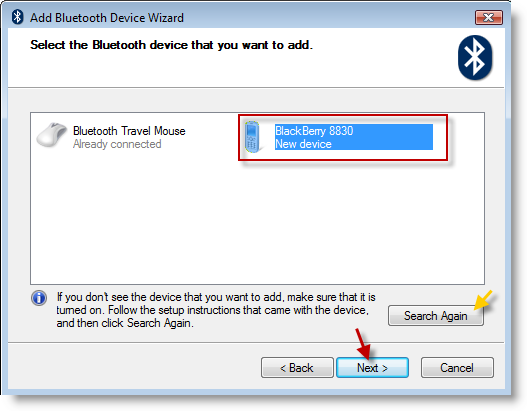
4. When the search is complete the wizard will prompt you to select the device you wish to add (in my case it was the BlackBerry 8830), click on the device and click Next.

Note: If your device does not appear, ensure that device is set to be discovered and click on the Search Again button.
Pairing Blackberry Via Bluetooth

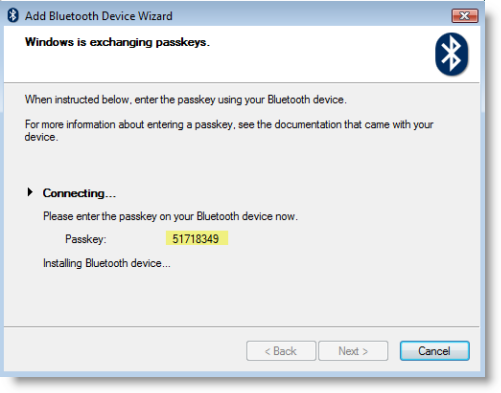
5. Some devices require a Passkey in order to be connected to your computer, the Passkey prevents unauthorized users from accessing your devices and/or your computer. In my case Windows chose a Passkey so I entered the provided Passkey into my phone for validation.

Note: Some devices like mice or keyboards do not require a Passkey, however one can be automatically generated or specified.
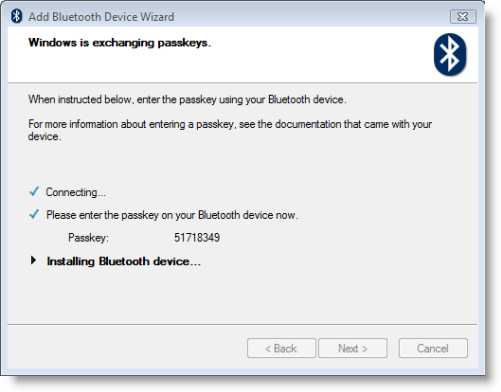
Pairing Blackberry Via Bluetooth

6. Once Passkey has been validated your Bluetooth device will be installed.
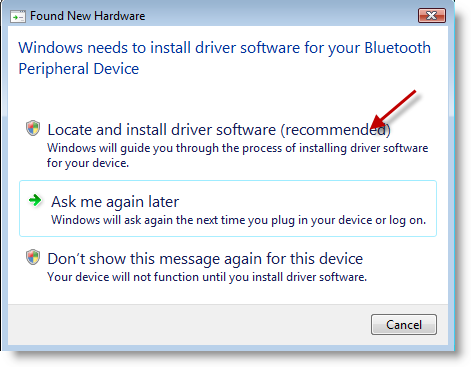
Pairing Blackberry Via Bluetooth

7. If you have not installed the appropriate software prior to hardware installation you may be prompted for manufacturer drivers to your device. Insert the disc that was included with your device to install the drivers. Click on the Locate and install driver software button to proceed.
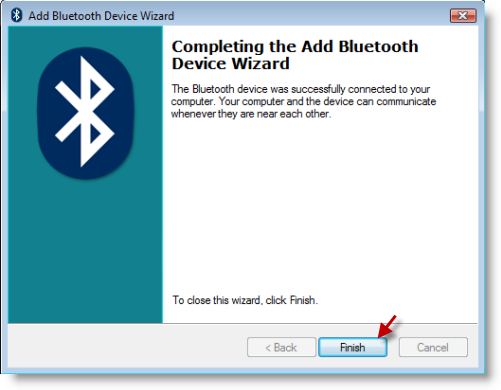
Pairing Blackberry Via Bluetooth

8. When installation is complete you should see the message above, click Finish to exit the wizard.
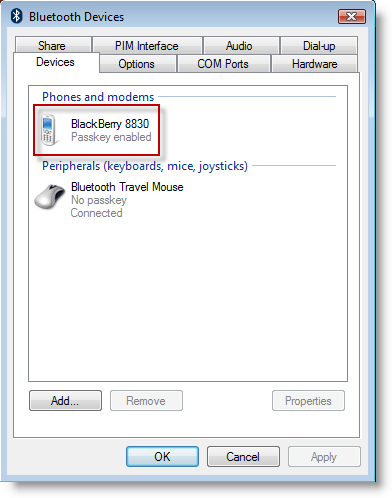
Pairing Blackberry Via Bluetooth

9. When you return to the Bluetooth Devices window you will notice that your device has been added.
Pairing Blackberry Via Bluetooth

BlackBerry Users

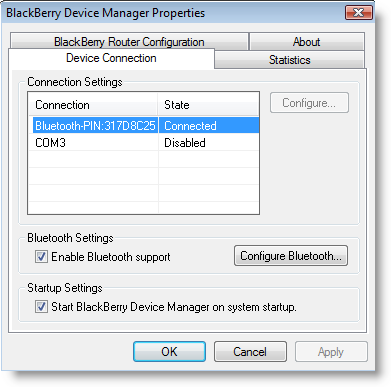
You can verify Bluetooth Connection by opening the BlackBerry Device Manager under the Device Connection Tab.


Do you like this article?

Related Posts

  1. How to Synchronize Your BlackBerry Using Bluetooth
  2. How to Find Device ID’s to Resolve Unknown Device Problems
  3. How to Access the Updates List in Windows Vista
  4. How to Enable the Bluetooth Radio on Your iPad
  5. Share Your Printer and Files with Windows XP
How-to

About the author

Gilbert is a Microsoft MVP, a full-time blogger, and technology aficionado. When Gilbert is away from his bike and his iPad, he's busy writing technology how-to's from his home-office in Miami, Florida on the latest programs and gadgets he can get his hands on. He's locally known as "the computer guy" and has spent the last 12 years helping family, friends, and GilsMethod.com visitors with their computer questions and problems. He was awarded the 2009 MVP award from Microsoft for his contributions in forums and blogs and is enjoying the new addition to his family.

Want more articles like this delivered for free to your inbox?

To receive the latest technology how-to's, news, and reviews, enter your email address below.

Sign up below

View Comments to “How to Pair Bluetooth Devices in Windows Vista”

  1. Ian Andrews says:

    Hi Gilberto

    I’m trying to pair a new BB Storm 2 with a new Toshiba laptop running Windows 7 and BB desktop manager v 5.0.1.37 (Mar 10, 2010).

    Having followed your instructions, the computer and device recognise and connect to each other via Bluetooth. However, the desktop manager shows no device connected and, when I click on options, connection options, the Bluetooth section is completely greyed out.

    Any ideas? I seem to have the latest software but could a driver be missing?

    Thanks
    Ian

    • Gilberto J Perera says:

      Ian,

      Do you have the latest Bluetooth drivers for the laptop? If you read the comments on this article, it’s usually due to a driver that needs updating…even if it’s new. Let me know what the status is so we can figure out what the next step would be.

  2. How to Synchronize Your BlackBerry Using Bluetooth | GilsMethod.com says:

    [...] Videos How to Pair Bluetooth Devices in Windows Vista How to Display File Extensions in [...]

  3. Joe says:

    when i get to step 7 and i click on the Locate and install driver software button and have inserted the disk that came with my blackberry like it asks, it says Windows was unable to install your Bluetooth Peripheral Device and … Windows could not find driver software for your device. What do i do?? please helpp

    • gjperera says:

      @Joe – Did you install the BB software prior to trying to pair the device? I believe that the software installation also places the necessary drivers for the BT device. Let me know. Good luck.

  4. Kathy says:

    Your information is very helpful, unfortunately I still cannot pair my Blackberry Storm. I had to add a bluetooth adapter. My BB finds my computer, but the computer does not see the BB. I have tried everything that BB and HP have suggested. Am I missing something. Could my firewall be at fault? This is third week end I have struggled with it. Any ideas will be appreciated! THANKS

    • Gilberto J Perera says:

      @Kathy – Just getting back to answering comments, not sure if I answered your question or not. You say you added a BT adapter to the HP, did it load new drivers or did it install without requesting drivers. Did you uninstall/disable the other BT radio on the HP? Also did you go through the various links I’ve posted via comments on this article? Get back to me when you get a chance to see if we can figure this out. If you were able to work it out, please share it with us here so that it can help others. Thank you.

  5. Graham says:

    This article was a huge help in this process. I just installed a blue-tooth chip in my netbook and got everything up and running. Thanks for the help.

    Graham

  6. Gilberto J Perera says:

    @Maty: Are you referring to Method 2.B Step 1&2? Please let me know so that I can provide you with an accurate answer. Thanks.

  7. Maty says:

    ok like i qot to the part where ur supposed to add the device but my computer when i click the add device button i tells me to select a wireless devise to pair with computer but theres nothinq there???
    i cant click on anything but cancel?!?
    i try clickinq the settinqz button but it wont take me anywhere???
    can you please help me out???

  8. Ankur Lodha says:

    Hi,
    I’m trying to pair BB 8110 with sony vaio.. Everything went fine till point 6 i.e. i entered passkey..

    After that “WINDOWS NEEDS TO INSTALL DRIVER ….” screen popped up.. i inserted the disc which came with the device..

    But nothing happened.. Windows was unable to find driver..

    I have version 4.5 on my device and ver 4.3 of desktop manager..

    Please help me in pairing device with laptop..

    Thanks and regards
    ankur

    • Gilberto J Perera says:

      @Ankur Lodha: Which device is looking for the drivers? The phone? Bluetooth Device? Please specify. Also have you taken a look at the comments, there is a wealth of knowledge that has been discovered by other readers experiencing the same problem. Should you have any more questions please post them below. Thank you and good luck.

  9. Michael Jane says:

    I really liked your blog!

Leave a Reply

blog comments powered by Disqus