
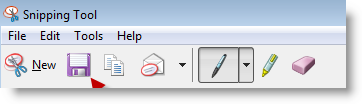
The Snipping tool is a great alternative to paid screen capturing software out there. It allows users to select different modes of capture (full screen vs. rectangle), it provides some primitive editing tools (a pen with multiple colors, an eraser, and a highlighter). I can see this as a great tool for tablet users. It doesn’t have all the bells and whistles of paid screen capture tools, but it certainly gets the job done. The guide below will show you how to use the program to make a screen capture and save it. If you have any questions or comments, feel free to post them below.
Note: I used Windows 7 RC1 for this tutorial
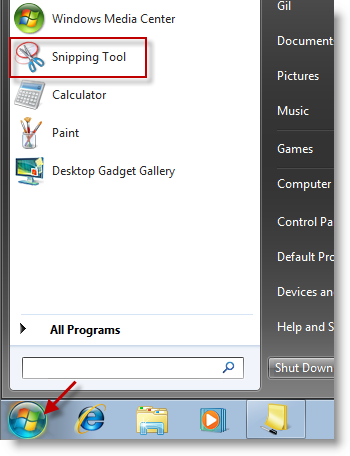
1. Click the Start Menu button (the Orb) and locate the Snipping Tool program, click to open.
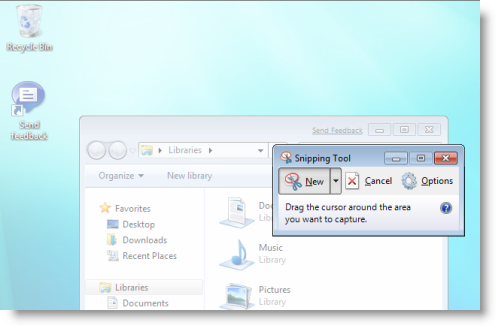
2. The Snipping Tool window will open. To capture a screen shot, click on the New button and select Rectangular Snip from the menu.
You may chose additional Snip types, the options are as follows;
- Free-form Snip: A free-form snip, the name says it all.
- Rectangular Snip: A snip enclosed in a rectangle designated by you
- Window Snip: A snip of a selected window
- Full-screen Snip: A snip of the entire screen
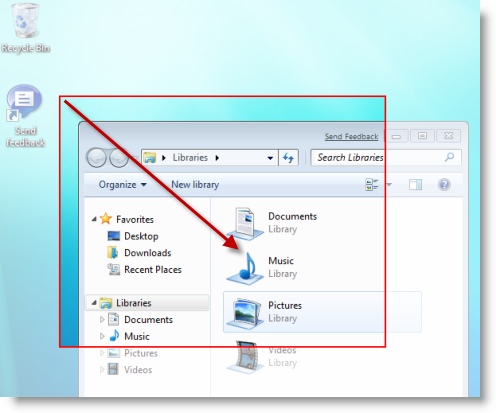
3. Click and drag (while holding down the left mouse key) a rectangle around the area you wish to capture. The red lines indicate the boundaries of the current capture. When you’re happy with your selection release the left mouse key to finalize your selection.
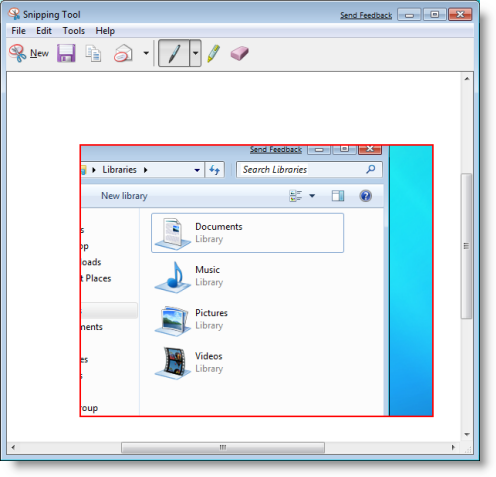
4. Your selection should now appear in the Snipping Tool window. Here you can edit the image by adding notes, highlighting, and erasing.
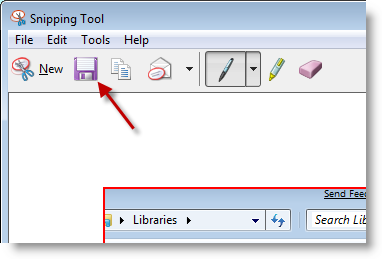
5. To save your screen capture, click on the Floppy button located on the menu bar.

6. Locate the directory you wish to save the screen capture to and click Open to access the folder.
Note: I had created a Screen Captures directory that I use for this purpose
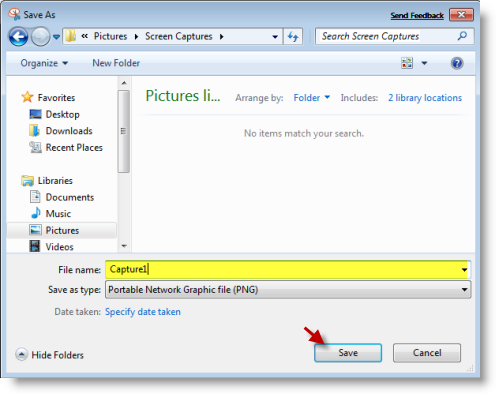
7. Name your screen capture and click Save to save the image to your desired location.

Article posted on 06 3rd, 2009


Get Daily Email Updates!
the interface of Windows 7 is great but in my opinion Windows XP is still a very solid and stable operating system. Right now, I would never give up XP for Windows 7.
Windows 7 is much better than Windows Vista when it comes to performance. i like Windows 7 just like Windows XP
We're in the same boat. Seven is amazing.
You can also get original Vista Snipping Tool on Windows XP, yeah really just like Vista and Windows 7:
http://www.wincert.net/forum/index.php?/topic/4069-get-vista-snipping-tool-sticky-notes-inkball-texas-holdem-rtm-ported-to-xp/
Thanks for the great resource.
I want to snip the Jump list that is in the Start Menu. The Start menu closes when I go to press the new dropdown list on the snip tool.
@Pockets – Have you tried using the [Print Screen] button?
1) how do you add text? I tried typing and it produced little dots. 2) can you do more than 1 capture per document? For example if I do 10 captures I want them all in the same document. I don’t want to have to save 10 documents. Thank you.
@Ellen – You would have to capture the images separately and use another program like paint or photo editor to bring those images together. Regarding the dots…what size is the text you are working with? If the text is too large the text box will only show the top of the letters (making it look like dots)…let me know if this makes sense and if you need more help. Thanks for visiting.
I don’t know ow to use that.
@Pockets – Are you referring to Print Screen? If so Print Screen is a key on your keyboard, look for a key that says PrtSc. When you hit the key it will make a copy of your entire screen and save it to the clipboard (it will seem like nothing happened)…then go to a program like Paint, Word, or other and hit Ctrl + V or Paste in order to place the screen capture from the clipboard to the document you have open. From there you can save it to your computer. Please let me know if you need a more detailed explanation I’ll be happy to help you.
So you can't actually use the Snipping Tool to capture a drop-down menu? You can only do that with the print screen button?
Cindi – I believe you are correct. You can always use the Print Screen button and open it in paint or Photo Gallery to edit. Hope this helps.
