See More About: , , ,

Live Writer Beta Gets the Ribbon and More

by

Last week, Microsoft announced the availability of Windows Live Essentials Beta to the public. This suite of applications contains a slew of useful programs that will turn any Windows PC into a movie editing, blog posting, picture editing, and media sharing powerhouse. In this article I will go over the changes and additions to Windows Live Writer, the blog publishing application created by Microsoft (which I use daily for this blog). Consider this a screenshot tour of the features included in the latest version of this easy to use application.

You can download your own copy of Windows Live Writer along with all of the other Windows Live Essentials applications from the Windows Live site.

Note: I used Windows Live Writer Beta for this article.

If you already use Windows Live Writer to compose your blog posts you will find that the upgrade will be seamless and all of your drafts, blog accounts, and preferences will all be saved.
windowslivewriterbeta thumb Live Writer Beta Gets the Ribbon and More

Windows Live Writer Beta Ribbon

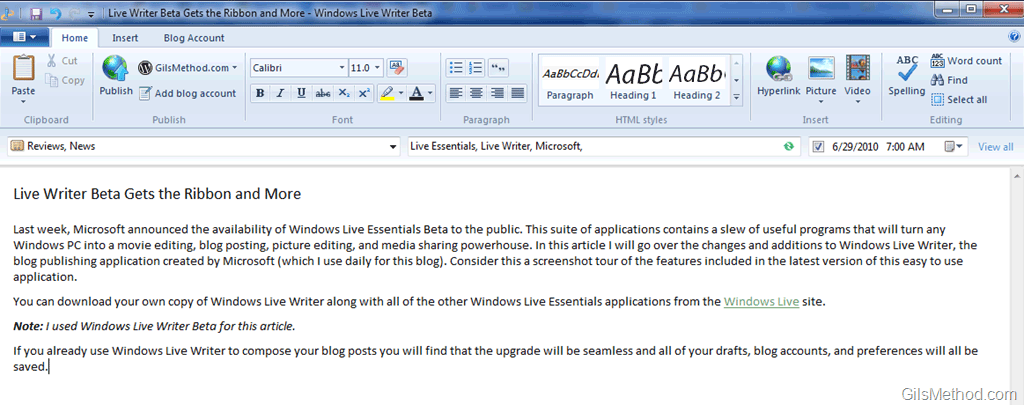
One of the biggest changes to Windows Live Writer Beta from the previous version is the inclusion of Ribbon we have grown accustomed to in Office 2007 and Office 2010. As a long time Live Writer user I was a bit disappointed by this change because I am so used to having the tools pane on the right of the screen. It takes some getting used to, but I still liked the ability to edit picture dimensions, add a watermark, etc. without having to go through another menu. With the beta version of the application, you have to select the image you want to edit and then click on the Format tab in the Ribbon…this tab should automatically appear when the picture is selected at all times, this only occurs if you have done it before.

windowslivewriter thumb Live Writer Beta Gets the Ribbon and More

Windows Live Writer Previous Version

Don’t get me wrong, using the Ribbon across all Microsoft products makes it easy for users from one application to jump to another and not feel lost. I was able to pick up the menu real quick and find what I was looking for right away…thanks to my experience with Office 2007 and Office 2010 applications. The four menus found in the previous application have been condensed to one.

They have also changed the location of the Category, Tags, and Publish Date from the bottom of the application window to directly below the Ribbon, which makes a ton of sense…I don’t know how many times I have hit Publish without using categories or tags because it simply did not stand out. I think the location is perfect and it has certainly helped me categorize and tag my posts before even getting started with the article.

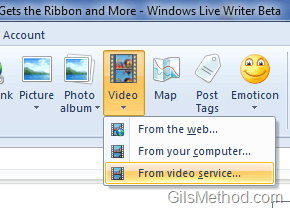
One of the most useful and exciting features introduced in this version of Live Writer is native video support. When you click on the Video button in the Home or Insert tab you will have three options:
windowslivewriterinsertvideo thumb Live Writer Beta Gets the Ribbon and More

From the web – A link to any video online.

From your computer – This will allow you to select a video from your computer to upload to YouTube.

Form video service – It looks like YouTube is the only video service that is natively supported by Live Writer, would be great if Video Jug, Vimeo, and others made it on the list.
fromweblivewriter thumb Live Writer Beta Gets the Ribbon and More

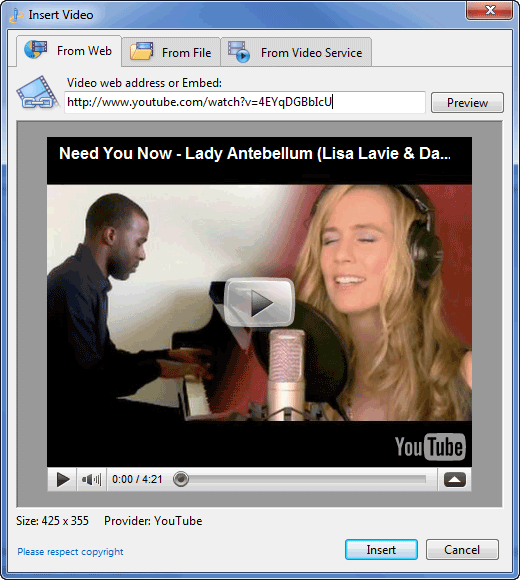
Inserting videos from the web is as easy as copying and pasting a link. Live Writer takes care of everything else.
fromfilelivewriter thumb Live Writer Beta Gets the Ribbon and More

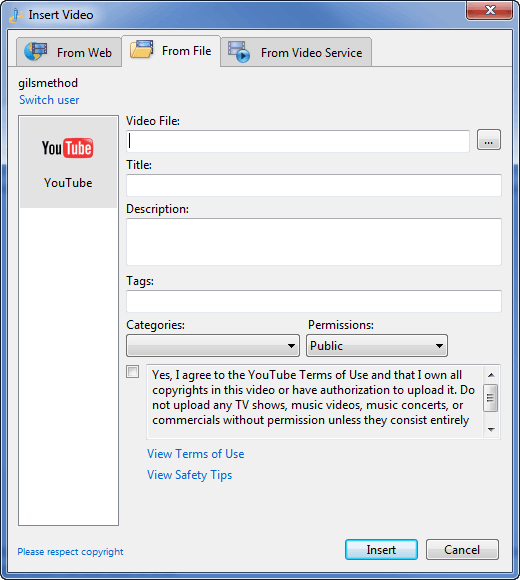
If you want to use a video file from your computer, you must sign in to your YouTube account, select the file and enter the video details just as you would when using YouTube via the browser.
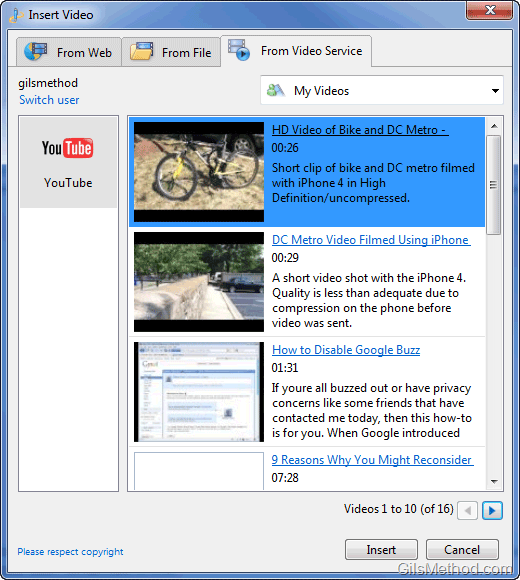
fromvideoservicelivewriter thumb Live Writer Beta Gets the Ribbon and More

You also have the option to use videos directly from your video service account (in this case YouTube).

Aside from videos, Windows Live Writer will allow you to use Emoticons within your posts, simply click on the Insert Tab and select the Emoticon you wish to include. You can also type the short code for the emoticon and it will automatically appear.
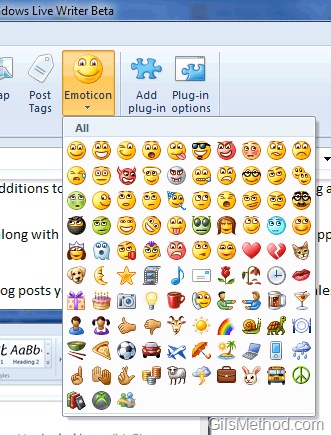
emoticonslivewriter thumb Live Writer Beta Gets the Ribbon and More

Emoticon menu in Windows Live Writer Beta.

Microsoft Are You Listening?

In case the Live Writer Development Team is listening…

Here are a couple of things that would make this a killer blog publishing platform for anyone running a blog.

1. Add floating menus similar to those found in Office applications for media and text.
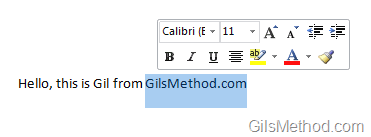
livewriterwishlist thumb Live Writer Beta Gets the Ribbon and More

This would be a great option when editing picture dimensions, adding watermarks, and choosing styles.

2. Allow me to change the default location for Drafts and Saved blog posts. Right now I can use hard links to modify this so that all of the files are on the server, but I would like to be able to use a cleaner option.

3. Add more video providers so that we have a choice when uploading videos.

4. Give me more options with Photo Albums, I don’t want to pollute my SkyDrive with stuff from my blog. Can the album be generated using a Windows Photo Gallery and then added as a video?

5. Ribbon customization a la Office 2010.

Closing Thoughts

I think that the Windows Live Writer Team has a great product, WLW always has been and they are taking it to the next level. The addition of video upload and native video support were long overdue. The inclusion of the Ribbon will make Offfice users more comfortable and long time Live Writer users annoyed, but don’t worry we’ll get over it quick wlEmoticonwinkingsmile Live Writer Beta Gets the Ribbon and More. Incorporate some of the suggested features, integrate it with WordPress even further (the largest blogging platform in the Word) and you will have a hard time finding competition.


Originally posted Jun 29, 2010

We close comments after 30 days on GilsMethod.com and ask that you post questions and issues on our Answers website.

This helps us better serve you by allowing us to keep track of unanswered questions that are usually hidden in long comment threads.

Answers.GilsMethod.com is a community-powered support website where you will be able to post questions, and other users including us will respond with expert advice.

So if you are having trouble with your PC, Mac, iPad, iPhone, or other piece of technology, head over to Answers.GilsMethod.com and ask away.

  • Jake Grey

    Great review! I’m going to have to give Live Writer a try :)

  • http://www.windowsobserver.com Richard Hay

    Nice work Gil. I need to reinstall Wave 3 just to compare clicks to various commands to see the added work with Wave 4.

    Don’t get me wrong – I like Wave 4 and will get use to the changes that have occured. I just hope they make the Ribbon editable so I do not need to use the Quick Access Toolbar for creating shortcuts to my most used commands.

  • http://www.windowsobserver.com Richard Hay

    Nice work Gil. I need to reinstall Wave 3 just to compare clicks to various commands to see the added work with Wave 4.

    Don’t get me wrong – I like Wave 4 and will get use to the changes that have occured. I just hope they make the Ribbon editable so I do not need to use the Quick Access Toolbar for creating shortcuts to my most used commands.

  • http://www.gilsmethod.com Gilberto J Perera

    Richard,

    I too hope that they allow us to edit the Ribbon, would be a really nice feature.

  • http://www.gilsmethod.com Gilberto J Perera

    Richard,

    I too hope that they allow us to edit the Ribbon, would be a really nice feature.

  • http://www.gilsmethod.com Gilberto J Perera

    Glad you found the review useful…more Live Writer how-to’s on their way ;)

  • http://www.gilsmethod.com Gilberto J Perera

    Glad you found the review useful…more Live Writer how-to’s on their way ;)

  • http://www.windowsobserver.com/2010/07/01/windows-live-writer-wave-4-keyboard-shortcuts/ Windows Live Writer Wave 4 Keyboard Shortcuts « WindowsObserver.com

    [...] the Windows Live Writer (WLW) Wave 4 beta and my good friend Gil at GilsMethod.com wrote about the incorporation of the Ribbon Toolbar in this beta version and provides a great walk through of the WLW Ribbon itself through screenshots.  It certainly [...]

  • http://www.andrewkantor.com Andrew Kantor

    Ditto on hoping we can customize the Ribbon. Right now, the old version is, frankly, more streamlined.

    When I click an image in the current version, the appropriate tools appear on the sidebar. With this new version, I need to use the separate (and oddly colored) “Picture Tools” menu.

    And I see that nothing has changed in the rather clunky ‘open an existing post’ process, either.

    Bottom line, there appear to be a handful of new features, but a significant step back in terms of usability. (Seriously — who at Microsoft thinks we need to have a font settings dialog so prominent? How often do you fill your posts with typefaces?)

  • http://www.andrewkantor.com Andrew Kantor

    Ditto on hoping we can customize the Ribbon. Right now, the old version is, frankly, more streamlined.

    When I click an image in the current version, the appropriate tools appear on the sidebar. With this new version, I need to use the separate (and oddly colored) “Picture Tools” menu.

    And I see that nothing has changed in the rather clunky ‘open an existing post’ process, either.

    Bottom line, there appear to be a handful of new features, but a significant step back in terms of usability. (Seriously — who at Microsoft thinks we need to have a font settings dialog so prominent? How often do you fill your posts with typefaces?)

  • http://www.andrewkantor.com/2010-07/review-of-the-new-windows-live-writer-microsoft-blows-it/ Andrew Kantor’s Place

    [...] GilsMethod [...]

  • http://www.gilsmethod.com Gilberto J Perera

    Andrew,

    Thanks for your input, I’d have to say that after a couple of weeks using WLW4 it does feel like it has slowed down my workflow for some of the reasons you mention. It’s getting better now that I know where stuff is located, but you’re right I think that they have to work a little more on the usability….but hey, that’s why it’s beta, we can let them know what sucks and works…Microsoft has been listening quite a bit lately. Thanks for the comment.

  • http://www.gilsmethod.com Gilberto J Perera

    Andrew,

    Thanks for your input, I’d have to say that after a couple of weeks using WLW4 it does feel like it has slowed down my workflow for some of the reasons you mention. It’s getting better now that I know where stuff is located, but you’re right I think that they have to work a little more on the usability….but hey, that’s why it’s beta, we can let them know what sucks and works…Microsoft has been listening quite a bit lately. Thanks for the comment.