See More About: , , , ,

Use PDF to Word Converter to Unlock and Edit All of Your PDF’s

by

Isn’t it frustrating when someone sends you a PDF file that contains information you would like to edit in word, but you don’t know how? If you have a full version of Acrobat you could do this, but who wants to spend $300 to modify the contents of a PDF file? Fortunately there are a number of applications free and paid that allow you to convert PDF files to Word documents. AnyBizSoft’s PDF to Word Converter is one of these applications, it is a paid application, but they are running a Facebook promotion and they are giving away free licenses for now. In the how-to below I will show you how I converted a PDF to a Word document with this easy to use application.

PDF to Word Converter Features

  • Batch Conversion of multiple PDF files
  • Convert, copy, and print restricted files
  • Convert PDF’s with open password
  • Convert entire PDF or selected pages
  • Preserve original layouts
  • Convert scanned PDF’s

The best part is that you can get a free copy of this great application by “liking” them on Facebook, so head on over to their Fan page and get yourself a free copy of PDF to Word Converter.

Note: I used AnyBizSoft 3.0 for this tutorial.
pdftowordconverter thumb Use PDF to Word Converter to Unlock and Edit All of Your PDFs

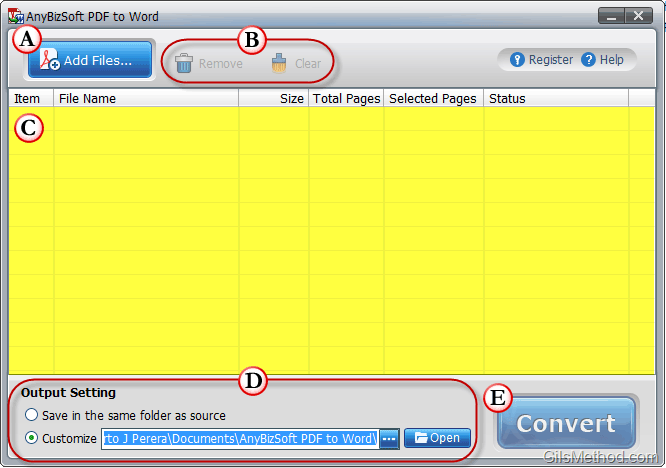
As you can see from the screenshot above, the application is fairly simple to use. Here’s an overview of the application window.

A. Add Files – By clicking on this button you will be able to add PDF files to the list.

B. Remove and Clear – If you are working with multiple files you can Remove them from the list individually or Clear the list entirely.

C. Listing of files that will be converted, the queue.

D. Output Setting – The application gives you the option of choosing the destination of the output files (converted Word documents).

E. Convert – When you are ready to convert the PDF files in queue click on the Convert button.

Convert a PDF to a Word Document
pdftowordconvertera thumb Use PDF to Word Converter to Unlock and Edit All of Your PDFs

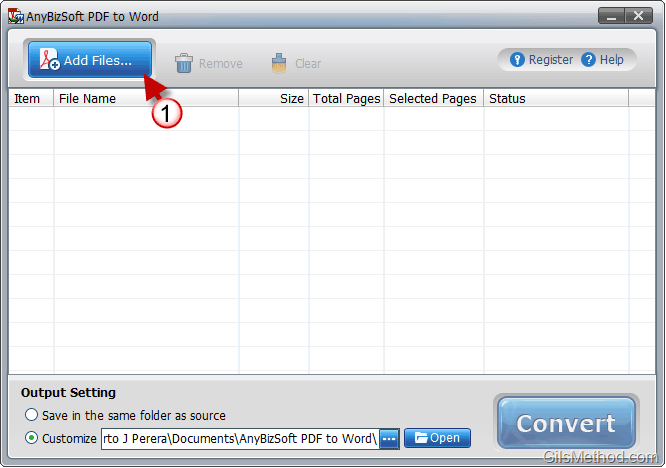
1. Click on the Add Files button.

pdftowordconverterb thumb Use PDF to Word Converter to Unlock and Edit All of Your PDFs

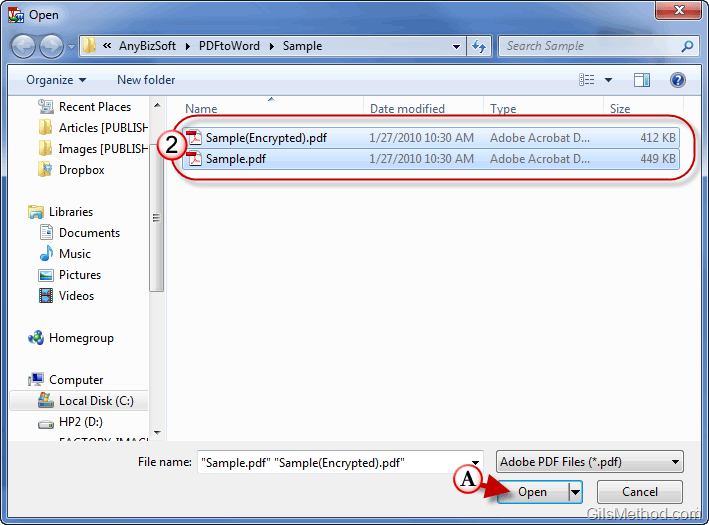
2. Locate and select the files you wish to convert.

A. Click Open to add them to the list.

pdftowordconverterc thumb Use PDF to Word Converter to Unlock and Edit All of Your PDFs

3. Specify whether the application should convert the entire document or specific pages. Pages can be specified as follows: 1, 3, 5, 7-10.

A. Click on the Browse button to specify a destination folder for converted files.
pdftowordconverterd thumb Use PDF to Word Converter to Unlock and Edit All of Your PDFs

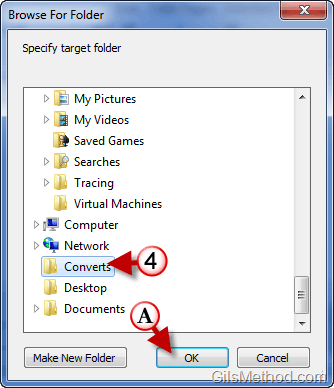
4. Select a destination folder and A. click OK.
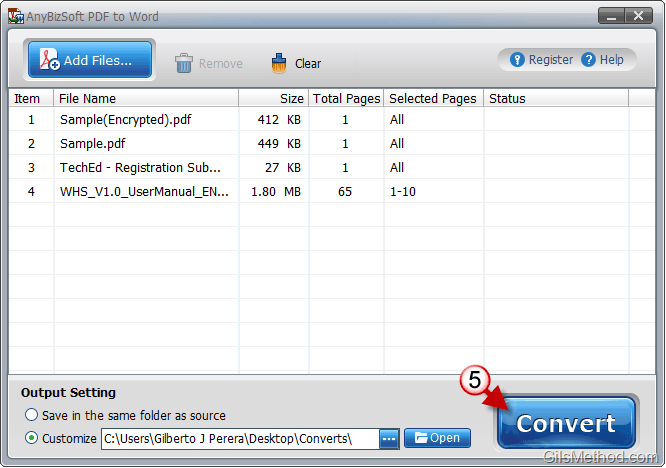
pdftowordconvertere thumb Use PDF to Word Converter to Unlock and Edit All of Your PDFs

5. When you are ready to proceed with the conversion, click on the Convert button.
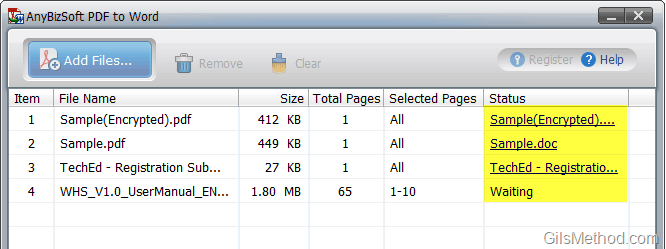
pdftowordconverterf thumb Use PDF to Word Converter to Unlock and Edit All of Your PDFs

The files will be converted one by one and the conversion status will be listed in the Status column.
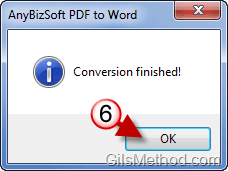
pdftowordconverterg thumb Use PDF to Word Converter to Unlock and Edit All of Your PDFs

6. When conversion is completed, click OK.

pdftowordconverterh thumb Use PDF to Word Converter to Unlock and Edit All of Your PDFs

7. To view the converted files you have two options, you can click on the blue link in the Status column for individual files or the Open button to open the destination folder containing all the files.

You will find that the conversion results are phenomenal, in the example below there aren’t any noticeable differences between the original PDF and the converted Word document.


pdftowordconverteri thumb Use PDF to Word Converter to Unlock and Edit All of Your PDFs

See More About: , , , ,
Originally posted Jul 07, 2010

We close comments after 30 days on GilsMethod.com and ask that you post questions and issues on our Answers website.

This helps us better serve you by allowing us to keep track of unanswered questions that are usually hidden in long comment threads.

Answers.GilsMethod.com is a community-powered support website where you will be able to post questions, and other users including us will respond with expert advice.

So if you are having trouble with your PC, Mac, iPad, iPhone, or other piece of technology, head over to Answers.GilsMethod.com and ask away.

  • http://topsy.com/www.gilsmethod.com/pdf-word-converter-unlock-edit-pdfs?utm_source=pingback&utm_campaign=L2 Tweets that mention Use PDF to Word Converter to Unlock and Edit All of Your PDF’s — Topsy.com

    [...] This post was mentioned on Twitter by Richard Hay. Richard Hay said: Use PDF to Word Converter to Unlock and Edit All of Your PDF’s – http://clkon.us/aEgknE [...]

  • http://www.ocrworld.com Lilly

    There are free programs that convert from PDF to Word and other formats. For example this one is completely free – http://www.free-pdf-to-word-converter.com. It was created as a free alternative to Smart PDF Converter which is a professional tool for converting PDF to other formats as well as creating PDFs – http://www.pdftodocconverterpro.com

  • http://www.ocrworld.com Lilly

    There are free programs that convert from PDF to Word and other formats. For example this one is completely free – http://www.free-pdf-to-word-converter.com. It was created as a free alternative to Smart PDF Converter which is a professional tool for converting PDF to other formats as well as creating PDFs – http://www.pdftodocconverterpro.com

  • http://www.ocrworld.com Lilly

    There are free programs that convert from PDF to Word and other formats. For example this one is completely free – http://www.free-pdf-to-word-converter.com. It was created as a free alternative to Smart PDF Converter which is a professional tool for converting PDF to other formats as well as creating PDFs – http://www.pdftodocconverterpro.com