
See More About: , , ,

How to Place the Recycle Bin on the Taskbar in Windows 7

by

If you’re like me and you like to keep a clean Desktop free of clutter, you may feel that the Recycle Bin will never leave the Desktop. You can remove it, but then how will you access it? By following the instructions below you will be able to place a shortcut to the Recycle Bin on your Taskbar so that you can remove it from the Desktop and keep your screen free of clutter.

Note: I used Windows 7 Ultimate for this tutorial.

placerecyclebinontaskbar thumb1 How to Place the Recycle Bin on the Taskbar in Windows 7

1. Right-click on the desktop to open the menu. A. Place your cursor over New and B. click on Shortcut from the list.

placerecyclebinontaskbara thumb1 How to Place the Recycle Bin on the Taskbar in Windows 7

2. When the Create Shortcut window opens, enter the following text string in the location text box.

%SystemRoot%explorer.exe shell:RecycleBinFolder

A. Click Next to proceed.
placerecyclebinontaskbarb thumb1 How to Place the Recycle Bin on the Taskbar in Windows 7

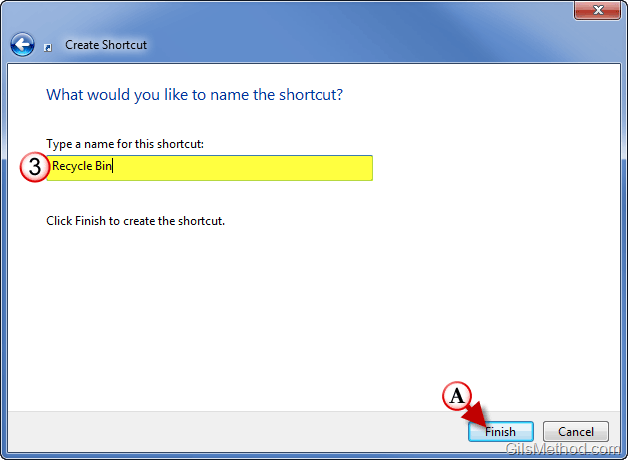
3. Name the shortcut the A. click Finish.

placerecyclebinontaskbarc thumb1 How to Place the Recycle Bin on the Taskbar in Windows 7

4. Right-click on the new shortcut and A. click on Properties.

placerecyclebinontaskbard thumb1 How to Place the Recycle Bin on the Taskbar in Windows 7

5. When the Properties window opens, click on the Change Icon button.

placerecyclebinontaskbare thumb1 How to Place the Recycle Bin on the Taskbar in Windows 7

6. Choose the icon you wish to use for the Recycle Bin and A. click OK.
placerecyclebinontaskbarf thumb1 How to Place the Recycle Bin on the Taskbar in Windows 7

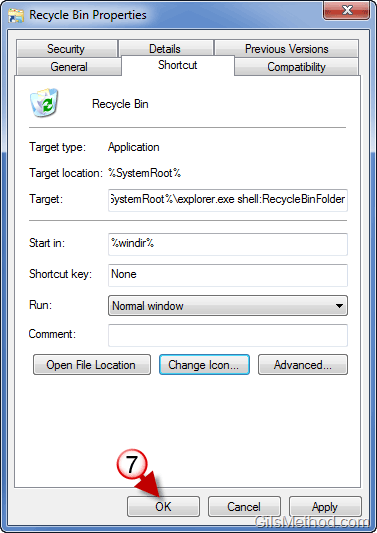
7. Click OK to close the Properties window.
placerecyclebintaskbarf2 thumb1 How to Place the Recycle Bin on the Taskbar in Windows 7

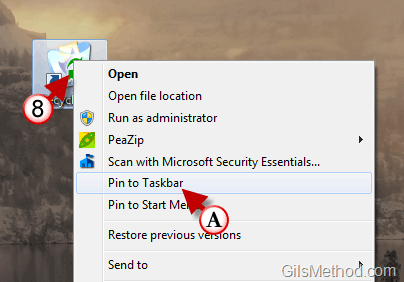
8. Right-click on the new shortcut and A. click on Pin to Taskbar.

placerecyclebinontaskbarg thumb1 How to Place the Recycle Bin on the Taskbar in Windows 7

The shortcut will appear on the Taskbar, feel free to remove the Recycle Bin from the Desktop.

Adapted from Tech-Recipes.com

See More About: , , ,
Originally posted Jul 06, 2010

We close comments after 30 days on GilsMethod.com and ask that you post questions and issues on our Answers website.

This helps us better serve you by allowing us to keep track of unanswered questions that are usually hidden in long comment threads.

Answers.GilsMethod.com is a community-powered support website where you will be able to post questions, and other users including us will respond with expert advice.

So if you are having trouble with your PC, Mac, iPad, iPhone, or other piece of technology, head over to Answers.GilsMethod.com and ask away.

  • http://topsy.com/www.gilsmethod.com/place-recycle-bin-taskbar-windows-7?utm_source=pingback&utm_campaign=L2 Tweets that mention How to Place the Recycle Bin on the Taskbar in Windows 7 — Topsy.com

    [...] This post was mentioned on Twitter by Richard Hay. Richard Hay said: How to Place the Recycle Bin on the Taskbar in Windows 7 – http://clkon.us/aElmwv [...]

  • http://WindowsObserver.com Richard Hay

    Gil – this is very handy. As someone who likes to keep his desktop un-cluttered like you are it allows me to remove one more icon :-)

    Thanks!

  • http://WindowsObserver.com Richard Hay

    Gil – this is very handy. As someone who likes to keep his desktop un-cluttered like you are it allows me to remove one more icon :-)

    Thanks!

  • http://WindowsObserver.com Richard Hay

    Gil – this is very handy. As someone who likes to keep his desktop un-cluttered like you are it allows me to remove one more icon :-)

    Thanks!

  • http://yourstreet.at.ua mumu

    Thanks for this article! It helped me.

  • http://yourstreet.at.ua mumu

    Thanks for this article! It helped me.

  • http://yourstreet.at.ua mumu

    Thanks for this article! It helped me.

  • http://www.gilsmethod.com Gilberto J Perera

    Richard,

    Glad you found this tip useful, it sure does help to declutter the desktop so I can enjoy the background images ;)

  • http://www.gilsmethod.com Gilberto J Perera

    Richard,

    Glad you found this tip useful, it sure does help to declutter the desktop so I can enjoy the background images ;)

  • http://www.gilsmethod.com Gilberto J Perera

    Richard,

    Glad you found this tip useful, it sure does help to declutter the desktop so I can enjoy the background images ;)

  • http://www.gilsmethod.com Gilberto J Perera

    Mumu,

    Glad you found the article useful.

  • http://www.gilsmethod.com Gilberto J Perera

    Mumu,

    Glad you found the article useful.

  • http://www.gilsmethod.com Gilberto J Perera

    Mumu,

    Glad you found the article useful.
