
See More About: ,

Run Elevated Command Prompt in Windows 7

by

The Elevated Command Prompt in Windows 7 allows you to run the Command Prompt with administrative priviledges…that’s pretty much it. If you’re reading this, chances are you either forgot how to get to the Elevated Command Prompt or simply don’t know how. Follow the quick and easy steps below to open the Elevated Command Prompt in Windows 7.

If you have any comments please post them below or if you have any questions visit our forums.

Run Elevated Command Prompt (the Long Way)
run elevated command prompt in windows 7 Run Elevated Command Prompt in Windows 7

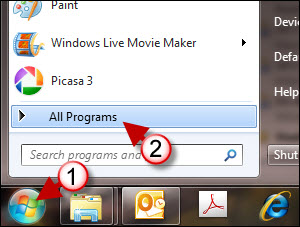
1. Click on the Orb to open the Start Menu

2. When the menu opens, click on All Programs
run elevated command prompt in windows 7 a Run Elevated Command Prompt in Windows 7

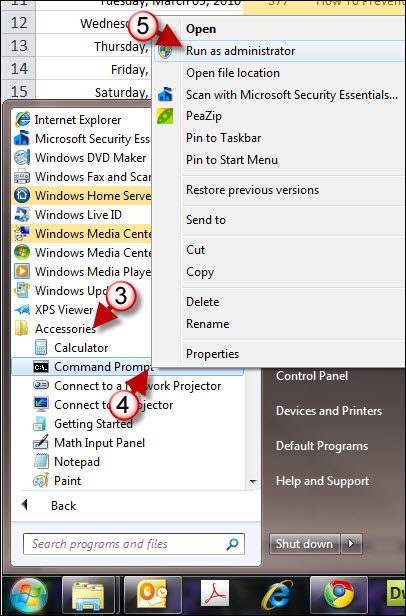
3. When the All Programs list appears, click to expand the Accessories folder.

4. Right-click on Command Prompt

5. Click on Run as administrator from the drop-down menu.

Note: You will be prompted by User Account Control about proceeding with this operation. Click on Yes to continue.

run elevated command prompt in windows 7 b Run Elevated Command Prompt in Windows 7

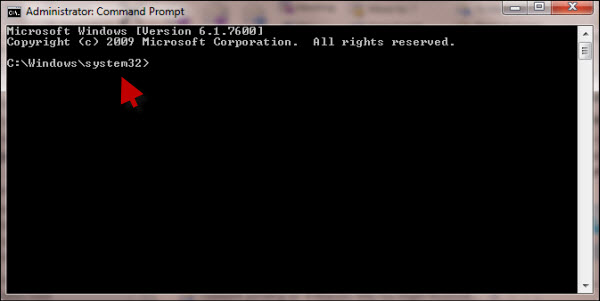
The Command Prompt window should appear. Notice that the default directory is System32 rather than UsersUserName (this confirms that you are using the elevated command prompt).

Run Elevated Command Prompt (the Quick Way)
run elevated command prompt in windows 7 c Run Elevated Command Prompt in Windows 7

As with all things there are several ways to skin a cat…in this case you can use the Windows Search box to locate the Command Prompt executable and then run it in elevated mode.

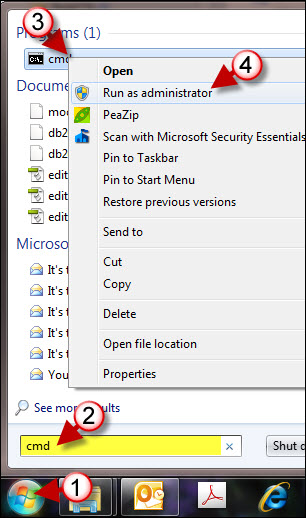
1. Click on the Orb to open the Start Menu

2. Type cmd in the search box (a list of search results will appear).

3. Right-click on cmd.exe (Command Prompt Executable)

4. Click on Run as administrator from the drop-down menu.

run elevated command prompt in windows 7 b Run Elevated Command Prompt in Windows 7

The Command Prompt window should appear. Notice that the default directory is System32 rather than UsersUserName (this confirms that you are using the elevated command prompt).

See More About: ,
Originally posted Mar 05, 2010

We close comments after 30 days on GilsMethod.com and ask that you post questions and issues on our Answers website.

This helps us better serve you by allowing us to keep track of unanswered questions that are usually hidden in long comment threads.

Answers.GilsMethod.com is a community-powered support website where you will be able to post questions, and other users including us will respond with expert advice.

So if you are having trouble with your PC, Mac, iPad, iPhone, or other piece of technology, head over to Answers.GilsMethod.com and ask away.

  • http://www.gilsmethod.com/disable-and-enable-hibernation-in-windows-7 Disable and Enable Hibernation in Windows 7 | GilsMethod.com

    [...] How-to Videos Customize FileZilla Settings to Quickly Reach Directories on Your Server Run Elevated Command Prompt in Windows 7 [...]

  • http://www.gilsmethod.com/create-a-shortcut-the-elevated-command-prompt-in-windows-7 Create a Shortcut the Elevated Command Prompt in Windows 7 | GilsMethod.com

    [...] Menu, or Taskbar that can be accessed at any time with a click of button. Instead of following several steps to get to the Elevated Command Prompt you can create shortcut and customize it so that [...]

  • http://www.gilsmethod.com/how-to-change-ownership-of-files-and-folders-in-windows-7 How to Change Ownership of Files and Folders in Windows 7 | GilsMethod.com

    [...] installations. In doing so it has deployed several tools like User Account Control, the need for Elevated Command Prompts, and file ownership, among other things. Having ownership over a file or folder allows users to [...]
