
See More About: , , ,

How to Save Searches in Windows 7

by

Do you have the need to locate a set of files with similar properties multiple times in a given time period? Rather than typing in the search query and choosing the location you wish to search, you can follow the steps below to learn how to save a search query in Windows 7. Search queries can be saved from searches started using the Windows Explorer search or the Start Menu search box. If you have any comments or questions please post them in the comments section below.

Note: I used Windows 7 Ultimate for this guide.

In the example below I will show you how to save a search that was performed in the Windows Explorer search box.
savesearcheswindows7 thumb How to Save Searches in Windows 7

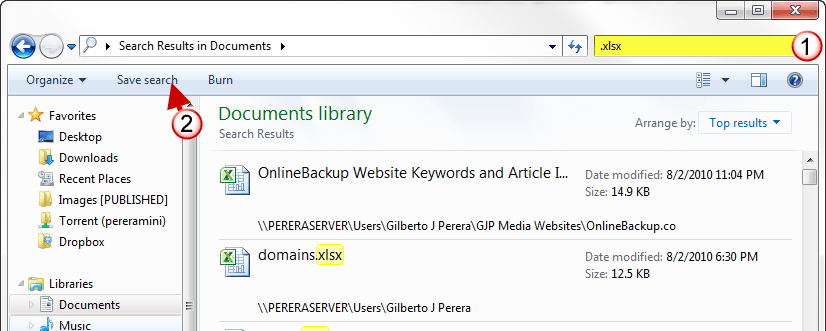
1. Perform a search using the Windows Explorer search box.

2. When the search results appear click on the Save search button.
savesearcheswindows7a thumb How to Save Searches in Windows 7

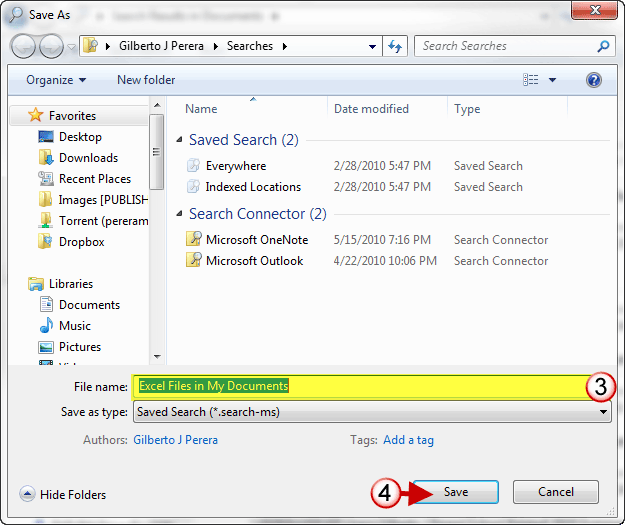
3. A Save As window will open, pick a save location and name the search.

The default location for saved searches is the Searches folder within the C: >Users > [Your User Name] directory.

4. Click OK to save the changes.

savesearcheswindows7b thumb How to Save Searches in Windows 7

If you saved the search in the default directory, the saved search should appear in Windows Explorer Favorites pane. If you’re looking for you saved searches make sure you visit the C:Users[Your User Name] directory.

See More About: , , ,
Originally posted Aug 03, 2010

We close comments after 30 days on GilsMethod.com and ask that you post questions and issues on our Answers website.

This helps us better serve you by allowing us to keep track of unanswered questions that are usually hidden in long comment threads.

Answers.GilsMethod.com is a community-powered support website where you will be able to post questions, and other users including us will respond with expert advice.

So if you are having trouble with your PC, Mac, iPad, iPhone, or other piece of technology, head over to Answers.GilsMethod.com and ask away.

  • http://WindowsObserver.com Richard Hay

    Speaking of searches – have you dabbled in Federated Searches? They can be set up and used in the OS to search other sites such as your website, Google, flickr, etc. All from within the OS.

  • http://WindowsObserver.com Richard Hay

    Speaking of searches – have you dabbled in Federated Searches? They can be set up and used in the OS to search other sites such as your website, Google, flickr, etc. All from within the OS.

  • http://WindowsObserver.com Richard Hay

    Speaking of searches – have you dabbled in Federated Searches? They can be set up and used in the OS to search other sites such as your website, Google, flickr, etc. All from within the OS.

  • http://WindowsObserver.com Richard Hay

    Speaking of searches – have you dabbled in Federated Searches? They can be set up and used in the OS to search other sites such as your website, Google, flickr, etc. All from within the OS.

  • http://www.gilsmethod.com Gilberto J Perera

    Richard,

    I haven’t tried that yet. I’ll have to look into it…thanks for the tip.

  • http://www.gilsmethod.com Gilberto J Perera

    Richard,

    I haven’t tried that yet. I’ll have to look into it…thanks for the tip.

  • http://www.gilsmethod.com Gilberto J Perera

    Richard,

    I haven’t tried that yet. I’ll have to look into it…thanks for the tip.

  • http://www.gilsmethod.com Gilberto J Perera

    Richard,

    I haven’t tried that yet. I’ll have to look into it…thanks for the tip.

