Click here to try Mozy for FREE!
Recommended: Click here repair PC errors
Click here to run a Free Registry scan
WebWatcher

How to Speed Up Your Sprint Wireless Card

by Gilberto J Perera View Comments Share

I bought my Sprint PCS EVDO card about a month ago. I loved the fact that no matter where I was I had internet connection, the only thing I noticed was that my speed was not as fast as I had expected. I did a little research online and found that the average connection speed using the  EVDO card from Sprint was about 630Kbps – I was connecting at 230Kbps, that’s close to 4X the speed of dial up! Not what I was looking for. So I called up Sprint, after being transferred to about 4 different technical departments, I finally ran into someone who knew something about my situation. He quickly asked me to check the max speed of the connection, via the connection properties; it was set at 230Kbps – the speed I was constantly connecting at. He asked me to set it at the max (921.6Kbps), after this change I have been connecting at that speed constantly.

The technician that solved my problem explained that the Sprint PCS Connection software, when installed sets the default max speed to about 230Kbps. So for those of you who have the card and have not made changes to the default connection settings; please follow the steps below to unleash your cards’ true speed potential. As always comments/suggestions are  welcome.

Click on the pic tutorial link to view the guide -> View Tutorial

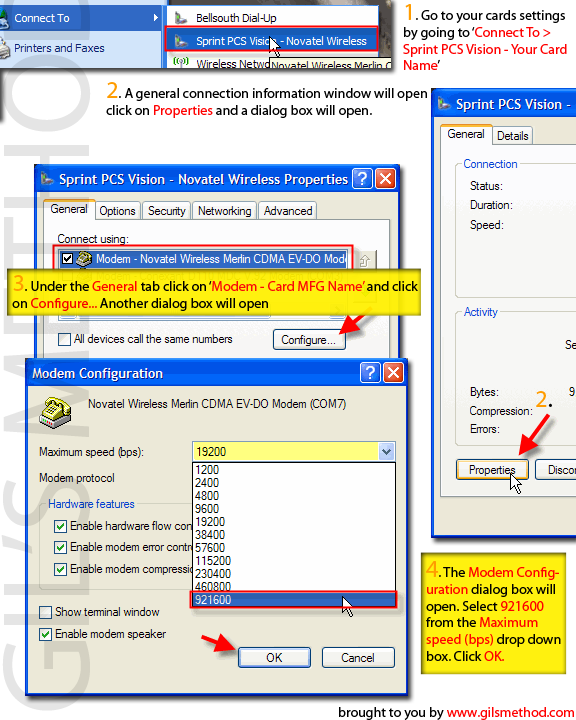
1. Go to Start > Connect To > Sprint PCS – Your Card Manufacturers Name (In my case it’s the Novatel Wireless card).

2. A dialog box will open with the current status of the connection. Click on Properties.

3. Another dialog box opens, make sure you are in the General tab, click on the Sprint card installed and click on Configure directly below.

4. A dialog box will open with several settings, click on the Maximum Speed drop-down menu and select 921600, click OK.


Do you like this article?

Related Posts

  1. How to Adjust the Speed of Your Mouse Pointer
  2. How to Speed Up your PC by Enabling DMA
  3. Speed Up Vista with These Simple NTFS Tweaks
  4. How to Speed Up Shutdowns on Your Computer Part III
  5. How to Speed Up Internet Browsing With Windows Vista
How-to

About the author

Gilbert is a Microsoft MVP, a full-time blogger, and technology aficionado. When Gilbert is away from his bike and his iPad, he's busy writing technology how-to's from his home-office in Miami, Florida on the latest programs and gadgets he can get his hands on. He's locally known as "the computer guy" and has spent the last 12 years helping family, friends, and GilsMethod.com visitors with their computer questions and problems. He was awarded the 2009 MVP award from Microsoft for his contributions in forums and blogs and is enjoying the new addition to his family.

Want more articles like this delivered for free to your inbox?

To receive the latest technology how-to's, news, and reviews, enter your email address below.

Sign up below

View Comments to “How to Speed Up Your Sprint Wireless Card”

  1. ablack says:

    PLEASE BE SO KIND AND REPOST THAT METHOD IN THE RIGHT WAY WITHOUT ALL THE SYMBOLS… I CANNOT MAKE IT OUT AND I AM DESPERATE TO FIX MY WIRELESS CARD SPEED. THANKS

    • Gilberto J Perera says:

      ablack,

      Thank you so much for catching this…it looks like the article was copied over incorrectly from the other blogging platform I used before. I have updated the article and hope that you find it useful. Have a great day.

Leave a Reply

blog comments powered by Disqus