
See More About: , , , ,

Tip: Change AutoRecovery Frequency in Word 2010 to Avoid Disasters

by

Have you ever worked on a monstrous paper only to have Word crash? Luckily the AutoRecover feature backed up the file and you are saved, but what about the work you got done in the past 10 minutes? If you haven’t changed the default value that Word uses for AutoRecover, then you might have just lost those ten minutes, but if you follow the instructions below and change it to 5 minutes or less, then that’s less work you could potentially lose should you problems.

Note: I used Word 2010 for this tutorial, but it should also apply to Word 2007.

How to Change AutoRecover Save Interval

autosaveinword2010 thumb Tip: Change AutoRecovery Frequency in Word 2010 to Avoid Disasters

1. Click on File to open the menu.

2. Click on Options.
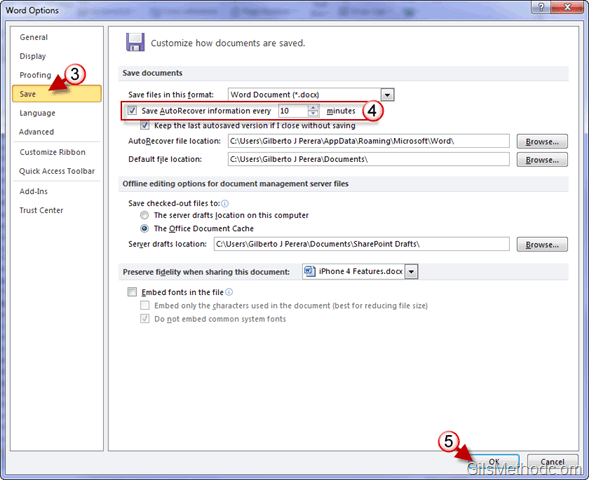
autosaveinword2010a thumb Tip: Change AutoRecovery Frequency in Word 2010 to Avoid Disasters

3. When the Word Options window opens, click on Save in the left pane.

4. Adjust the number of minutes before Word saves AutoRecover information.

5. Click OK to save the changes.

See More About: , , , ,
Originally posted Jun 25, 2010

We close comments after 30 days on GilsMethod.com and ask that you post questions and issues on our Answers website.

This helps us better serve you by allowing us to keep track of unanswered questions that are usually hidden in long comment threads.

Answers.GilsMethod.com is a community-powered support website where you will be able to post questions, and other users including us will respond with expert advice.

So if you are having trouble with your PC, Mac, iPad, iPhone, or other piece of technology, head over to Answers.GilsMethod.com and ask away.
