
Wouldn’t it be nice to be able to carry part of your movie collection on your iPhone anywhere you go? What if I told you that you could get the software to do it for free? iSkysoft, the developer of the DVD to iPhone converter is promoting this product via their Facebook page with a free copy of the application.
Once you download and install the application you will be able to convert DVD’s to a format that is compatible with your iPhone. Follow the guide below to walk you through the steps necessary to rip DVD’s and convert the movie files to format that is compatible with your iPhone.
Note: I used iSkysoft DVD to iPhone Converter for Windows, but they do have a Mac version.

iSkysoft DVD to iPhone Converter application window.
How to Transfer a DVD Movie to Your iPhone
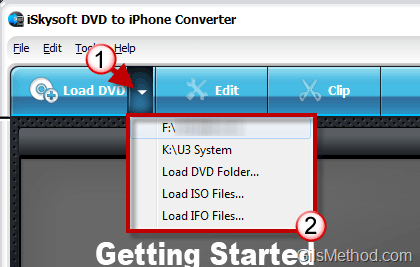
1. Click on the small arrow next to the Load DVD button.
2. Click on one of the options from the list. Depending on the number of DVD drives you have they will appear on this list. You will also have the option to load the following:
- Load DVD Folder
- Load ISO Files
- Load IFO Files
I used the Load DVD option from the list for this tutorial.
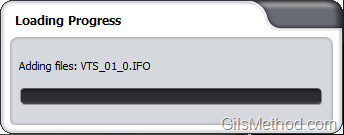
The DVD files will load.

3. When the DVD is done loading, all of the video files will be listed. Look for the title/file that is the longest (length of the movie) and select it from the list.

4. Set the options to convert the DVD.
A. Subtitle: If available this will help you choose the subtitles to include in the movie that is converted.
B. Audio Track: If the DVD has more than one language audio track you will be able to include it in the final movie.
C. Profile (see below): DVD to iPhone Converter uses profiles to help you choose the correct format for the DVD to video file conversion. Choose the one that best suits your situation.
D. Output: Set this to the location where you wish to save the converted files.
E. Merge into one file: If the movie you are converting has multiple video files you wish to combing into one, use this option to merge the files.
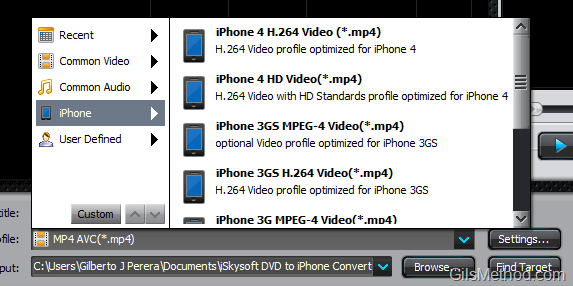
List of conversion profiles.

5. Once you have selected all of the options, click on the Start button to begin the conversion process.
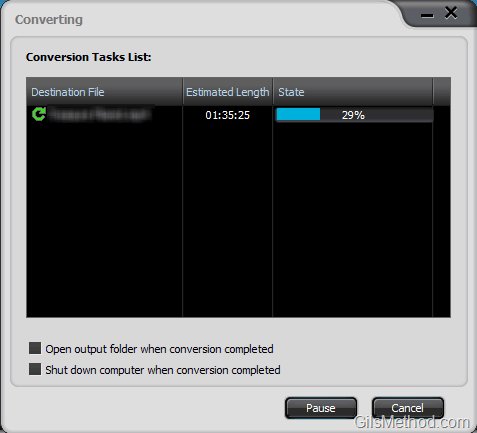
Conversion in progress.
Once the DVD rip and conversion is complete you just need to add the movie file to iTunes and sync your iPhone.



