
Click here to try Mozy for FREE!
Recommended: Click here repair PC errors
Click here to run a Free Registry scan
WebWatcher

Trim Videos Within PowerPoint 2010 and Keep Your Audiences Focused

by Gilberto J Perera No Comments Share

Do you like this article?

How many times have you found a great scene from a video online that you wanted to show an audience in PowerPoint? Of those times how many of those desired scenes were located halfway between the video? Unless you know how to edit videos you probably sat your audience through 5 minutes of meaningless footage before you got to the moment you wanted to show them. By then, interest waned and the impact of the video lost its effect. Lucky for you PowerPoint 2010 has a feature which will save you the trouble and allow you to display the portion of the video you actually want to show. Follow the instructions below to learn how to use this easy, but powerful feature.

If you have any comments please post them below or if you have any questions visit our forums.

Note: I used Windows 7 Ultimate and PowerPoint 2010 in this tutorial.
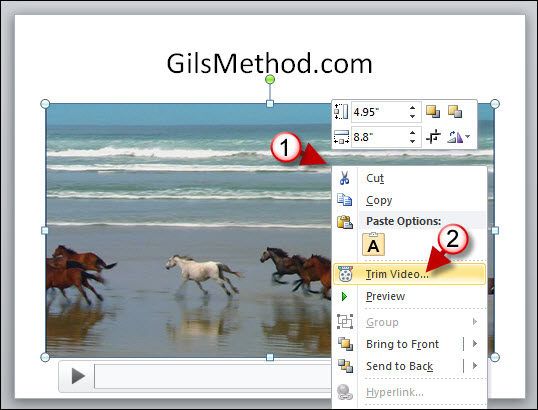
Trim Videos in PowerPoint 2010

1. Assuming that you have already placed a video on the slide, right-click on the video.

2. When the menu appears, click on Trim Video…
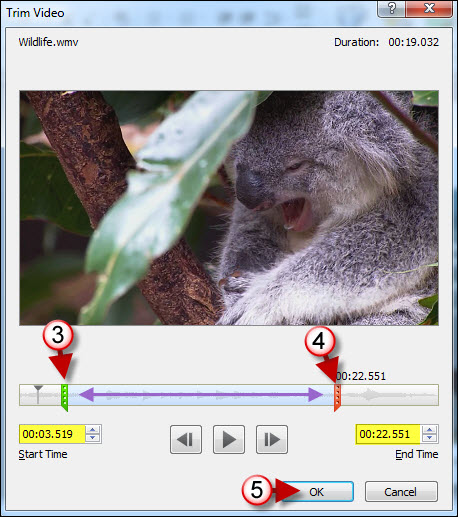

Trim Videos in PowerPoint 2010

3. The Trim Video window will open. Use the green slider on the left to adjust the location where the movie will begin.

4. Now use the slider on the right (the red slider) to adjust the location where the movie will end.

Note: You can also use the Start Time and End Time boxes to adjust the start and end times of the video.

5. Click OK to apply the changes.
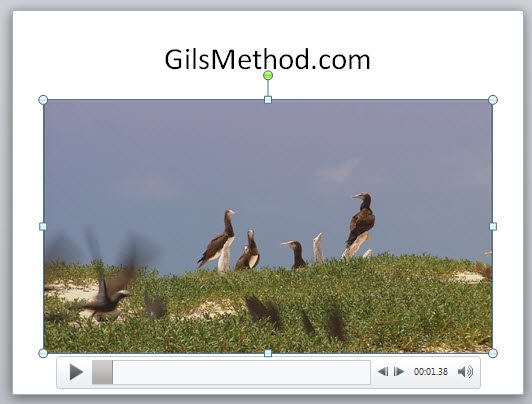
Trim Videos in PowerPoint 2010

When you return to your slide and play the video it should start and end at the time you indicated.


Published on March 10, 2010

Related Posts

  1. Create a Webcast with PowerPoint 2010
  2. Feature: The Complete Guide to Using Sections in PowerPoint 2010
  3. How to Edit Videos Online with YouTube’s New Video Editor
  4. Use Live Movie Maker’s AutoMovie Feature to Create A Photo Slide Show in Minutes
  5. How to Start YouTube Videos at a Specified Timestamp
How-to

About the author

Gilbert is a Microsoft MVP, a full-time blogger, and technology aficionado. When Gilbert is away from his bike and his iPad, he's busy writing technology how-to's from his home-office in Miami, Florida on the latest programs and gadgets he can get his hands on. He's locally known as "the computer guy" and has spent the last 12 years helping family, friends, and GilsMethod.com visitors with their computer questions and problems. He was awarded the 2009 MVP award from Microsoft for his contributions in forums and blogs and is enjoying the new addition to his family.

Want more articles like this delivered for free to your inbox?

To receive the latest technology how-to's, news, and reviews, enter your email address below.

Sign up below

No Responses to “Trim Videos Within PowerPoint 2010 and Keep Your Audiences Focused”

Leave a Reply