
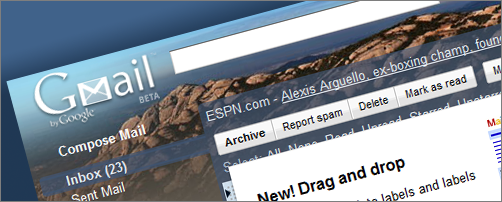
As an avid user of Gmail for all of my email needs I found that the labeling system for emails was quite inefficient. That is until the Gmail team released a much needed update to label use and management.
For those of you that don’t know what labels are, they are simply Gmail’s version of folders. You create a label (folder) and assign it to an email (place it in the folder). The neat thing about labels vs. folders is that you have the option of listing all of your emails regardless of the folder that they are in and view which label (folder) they are assigned to. In Gmail speak emails are referred to as conversations, so whenever you see me refer to conversation, I am referring to an email. If you think about it an email is a conversation so it makes a lot of sense.
The guide below will walk you through the changes and it will show you how to use the new features. If you have any comments or tips to share, please post them below.
Note if for some reason these new features do not appear try to log out of your account and log back in. This worked for me, other wise be patient it will eventually get to you.
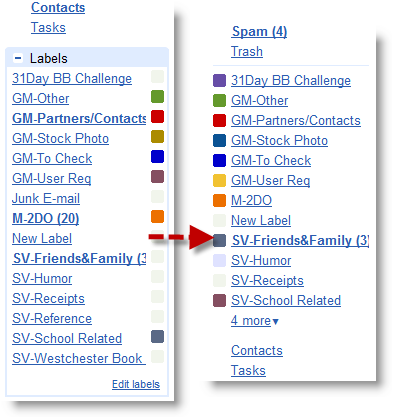
Sceenshot comparing the old (left) to the new (right)
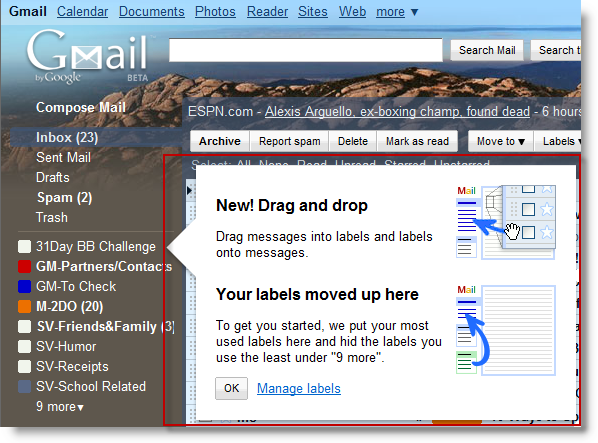
If you’ve logged onto Gmail recently (after July 1st) you will notice that this pop up box will appear highlighting the changes to the labels. You will also notice that the location of the labels shifted to the top right below the system folders.
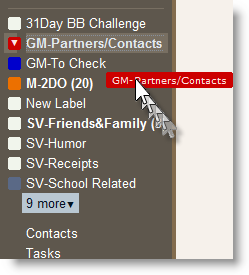
You will also notice that you now have the capability to drag and drop labels on top of conversations (emails) to assign the chosen category. You can accomplish this by clicking and holding while you drag the label over to an email..
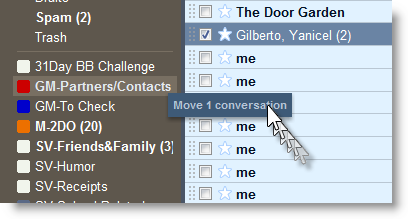
The same applies to dragging conversations (emails) to labels. This method cuts down on having to assign a label by clicking on the labels drop-down menu. Now you an simply drag and drop your emails into labels (folders).
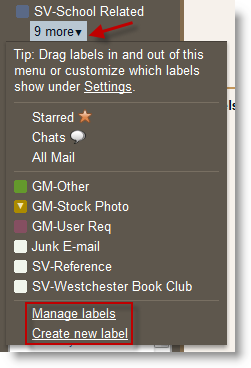
Starred, Chats, All Mail links along with your other labels can be found by clicking on the 9 more (the number varies on the number of labels hidden) drop down. In this menu you will be able to access your other labels as well as links to Manage labels and Create new label.
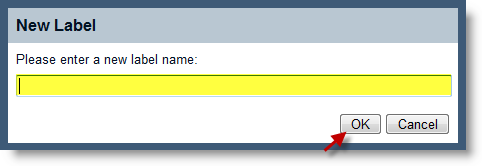
Clicking on the Create new label link will provide you with the pop up window pictured above. Choose a name for the label and click OK to proceed.
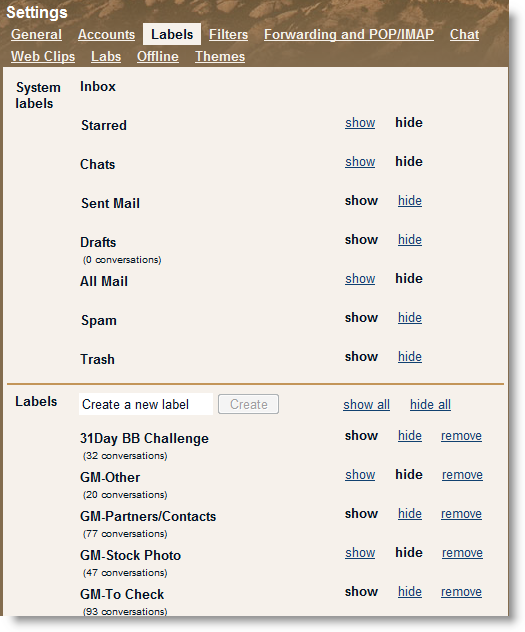
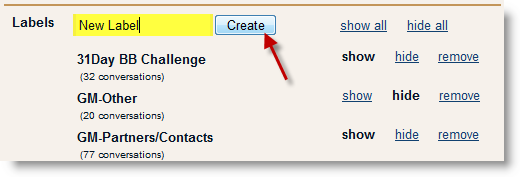
You can also make changes to your labels by clicking on the Manage labels link. When you click Manage labels you will be taken to the Labels options window in the Settings menu. Here you can specify the state of your labels, hide/show or remove altogether. You can also create new labels by entering the label name in the text box and clicking on the Create button (pictured below).
One of the features that Google has yet to provide for labels (folders) is the ability to change their order. There was a reference to this on the Official Gmail blog with the recent release of changes to labels,
"For those of you who created label names like _stuff or ++todo++ to force your most-used labels to the top of the list (come on, you know who you are, I did it too…), you don’t have to come up with clever tricks like that anymore ;)"
Maybe I’m missing something, but as far as I can tell I cannot change the order of the labels and this is something that is much needed…otherwise I’m still stuck with annexing the underscores and 0’s to work around the default sorting of labels in Gmail. If you have a different experience with this setting or have any ideas on how to overcome it, please post it below.


