
4 Ways to Add Pictures to Picasa

Import and Add Pictures to Picasa

If you use Picasa to organize your pictures you may or may not be aware of the various options available to you to add your pictures to Picasa. Below I will walk you through four scenarios to teach you how you can add pictures to Picasa from your computer, your camera, and the web. If you have any comments or questions please post them below.

Import Pictures from Your Camera, Memory Stick, and Other Removable Devices

To import photographs from your digital camera, scanner, or removable media, follow the instructions below.
Import and Add Pictures to Picasa

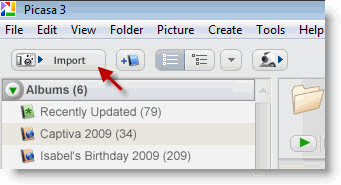
1. Click the Import button located on the top left of the screen.
Import and Add Pictures to Picasa

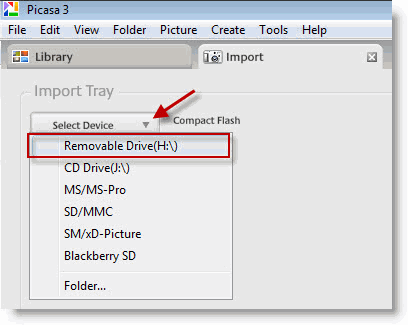
2. The Import tab will open. Click on the Select Device drop-down to choose the device to import from. In this example I will be importing photographs from a Secure Digital (SD) card.

Import and Add Pictures to Picasa

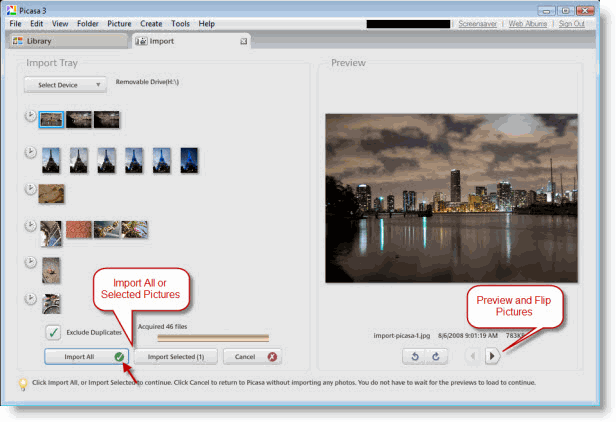
Soon after the device is selected Picasa will look at the contents of the device and list all of the pictures contained within. Picasa provides users several options when importing photographs. Users have the option of importing only selected pictures or all pictures listed. Picasa allows you to preview the photographs to be imported with the Preview pane on the right of the screen. Use the arrows to move through the pictures and the Rotate arrows to correct picture orientation prior to importing.

Another neat feature is the ability to select the photographs based on the date. Notice that Picasa segments the photographs based on the time period they were taken in. Each grouping is denoted by the clock icon. When importing pictures you can instruct Picasa to exclude duplicates by adding a check mark to the Exclude Duplicates check box.

3. When you are ready to import your pictures, click on Import All or Import Selected (#) to bring your pictures to Picasa.
Import and Add Pictures to Picasa

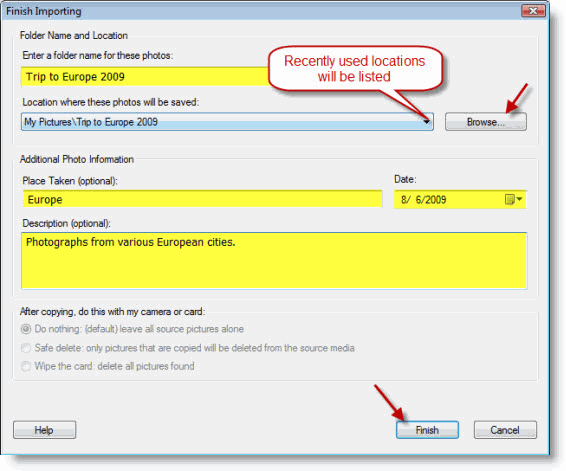
4. When you import photos to Picasa you are provided with a series of options to customize the folder the pictures you are importing will be stored in. Name the folder, select a location to copy the files to, add the location where the pictures were taken, add a date, a description and click Finish when you are done.

Note: The more details you provide for your pictures and the folder you are creating, the easier it will be to locate the pictures in the future.
Import and Add Pictures to Picasa

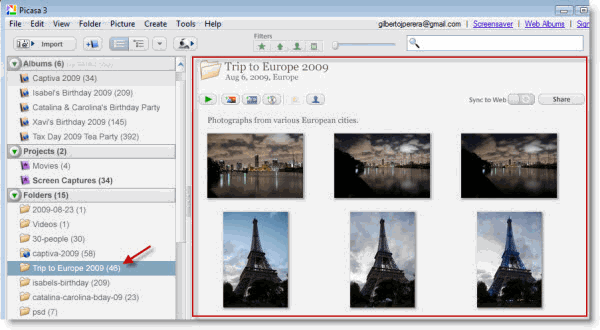
Recently imported photographs displayed in new folder.

Add Picture Folders to Picasa
Import and Add Pictures to Picasa

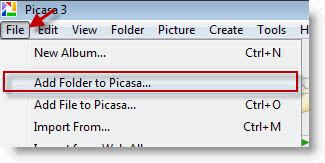
1. Click on File > Add Folder to Picasa

To add an existing folder containing pictures to Picasa follow the instructions below.
Import and Add Pictures to Picasa

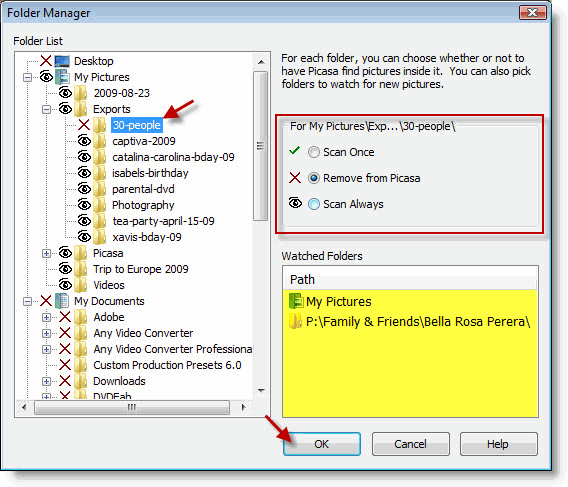
2. The Picasa Folder Manager window will open. Choose the folder you would like to add and click on Scan Once or Scan Always to add the folder to Picasa. Click OK to proceed.

Note: To get a better understanding of the Folder Manager, read the following article - How to Control Which Folders Picasa Scans Automatically
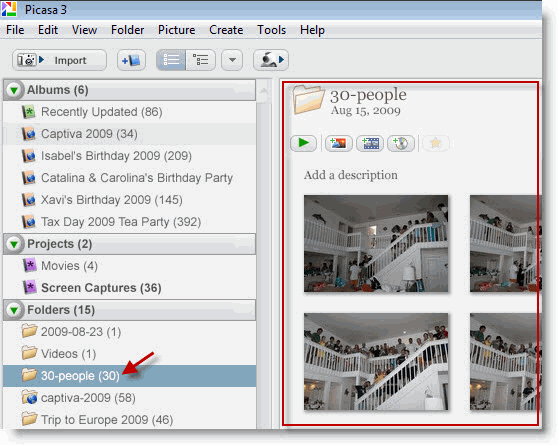
Import and Add Pictures to Picasa

The folder that was added should appear in Picasa.

Add Individual Pictures to Picasa

To add an individual picture to Picasa follow the instructions below.
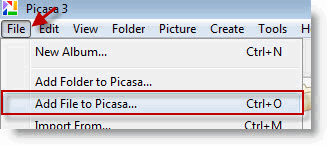
Import and Add Pictures to Picasa

1. Click on File > Add File to Picasa
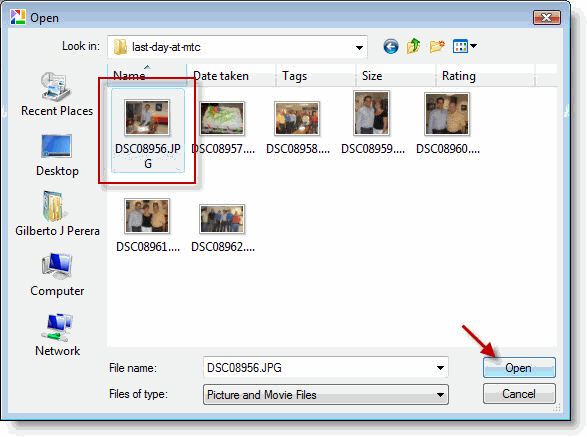
Import and Add Pictures to Picasa

2. Locate and select the picture you wish to add to Picasa and click Open.
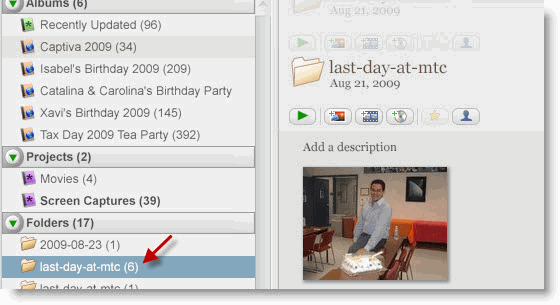
Import and Add Pictures to Picasa

Individual picture added to Picasa will appear within the folder it is physically stored.

Import Pictures from Web Albums to Your Computer

If you’ve uploaded pictures to Picasa Web Albums from other computers and would like to save those pictures to your computer, follow the instructions below.
Import and Add Pictures to Picasa

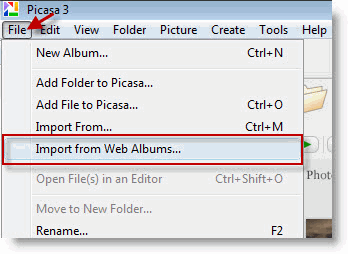
1. Click on File > Import from Web Albums
Import and Add Pictures to Picasa

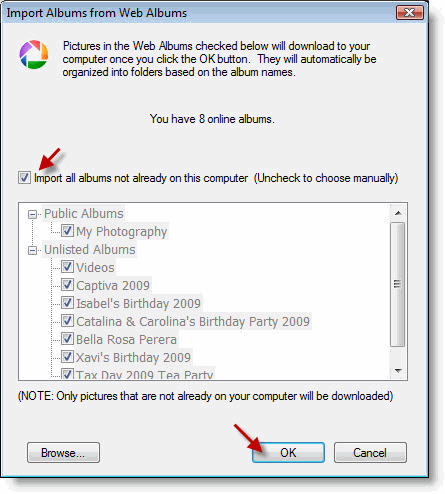
2. If you would like to import all photographs from the Web Albums website add a check mark to the Import all albums… check box. If you would like to specify which folders to import, remove the check mark. Click OK when you are done.

All or selected folders will be downloaded from Picasa Web Albums to your computer.

 

Article posted on 08 27th, 2009

Related & Suggested Posts

  1. Understanding Albums and Folders in Picasa
  2. 9 Basic Fixes to Jazz Up Your Pictures in Picasa
  3. How to Geotag Your Pictures Using Picasa
  4. How to Backup Your Pictures With Picasa 3
  5. How to Control Which Folders Picasa Scans Automatically


12 Responses to “4 Ways to Add Pictures to Picasa”

  1. Robin Collins says:

    Id like to suggest this method of saving pictures in Picasa: label each set of pictures by the year first, space, then month date, space, then subject, as in

    09 11 Venice.

    The pictures will line up neatly in order. It’s much easier to find pictures this way. If you have two different subjects in one month, add the day date after the month date, before the subject title.

    It’s best to download pictures as you go along, daily if needed, so you can keep your folders separate.

  2. gab says:

    When I get pictures in g-mail, I would like them to be saved in picasa, and not elswere in my pictures in my laptop.
    How can I associate saving all pictures from e-mail or any other source with picasa. That is the only picture program I want to use. When I right click on the picture picasa is not an option

  3. @Robin Collins: Aside from Picasa I also use Lightroom and that is one of my favorite features, the ability to automatically name files and folders based on a flexible set of parameters.

    I do agree with you that some kind of organization method is necessary in order to be able to identify pictures. Thank you for the great tip.

  4. @gab: When you say that you are saving to Picasa is not entirely an accurate statement. All Picasa does is reference the pictures stored in your computer. So I’m not sure what you are trying to accomplish. The pictures have to be saved in your computer in order for Picasa to see them.

    Please help me understand, perhaps I misunderstood your question. Thank you.

  5. Caue Rego says:

    What @gab obviously meant (and clearly without knowing deeply about what he is talking) is that he wants to press “Save” in gmail and when he opens picasa, there are the saved photos.

    That’s simple.

    You need to choose your browser’s default download location to be the one of the Picasa’s watched folders. But I won’t try to guess which browser you use or which folders you’ve got.

  6. gab (Gabriella) says:

    Hi Caue Rego, I am gab (Gabriella) I have vista home premium 64 bit. You say I need to choose your browser’s default download location to be one of Picasa’s watched folders. HOW DO I DO THAT?

    I know nothing from nothing, would you give me step by step directions, because indeed I would like to r-click on my picture in g-mail, and download it directly to Picasa. I don’t want it on the ‘my pictures’ folder. thank you for helping me. Gabriella

  7. keas says:

    Gab,
    Just save the email pictures the way you have been doing. and I assume that you know in which folder they are stored, otherwise you would not be able to view them again. (Possibly the “my pictures” folder.)
    Then you tell picasa where they are:Open Picasa, in upper left corner…
    File-> Add folder to Picasa->: then select i.e.
    C:\Documents and settings\My Documents\My pictures\ and on that same window select that you want Picasa to always scan this folder. Then click OK.

  8. @Caue - You are correct, this is the way to save images from the web, but I thought gab wanted a way to automatically save to Picasa Web Albums and keep the files (pictures) off the computer…We’ll see what she says. Thanks for helping others.

  9. gabriella says:

    Dear Keas, thank you so much for all your help. Yes, I have been szving it in ‘my pictures’ and you thought me how to transfer it into picassa. I printed out your help. You are much appriciated. It is perfect. From picasa I can edit, e-mail, and have no more problems. I feel lucky for finding you. Gabriella

  10. R. Michael Gard says:

    My Granddaughter has posted some awesome photos of my Great-Grand Kids (her babies) on her Facebook page. I would like to capture those images into Picasa 3, if there is a method. You seem to be rather more knowledgeable of Picasa than most people to whom I have mentioned this; please advise !!

    Thank You

  11. @R. Michael Gard - The best thing to do is right-click on the image from within your browser and save it to a directory on your computer. I’m not familiar with a plugin or application that will automatically allow you to download pictures from Facebook. I would also suggest getting a hold of your granddaughter to see if she can upload the pictures to http://picasaweb.google.com/home using this website you can automatically download to Picasa.

    Let me know if this all make sense and if you need any help. Thank you for your comment.

Leave a Comment

Note: I discourage users from using keywords in their names when posting comments, most of those are caught as spam and end up being deleted. It would be more productive and interactive if commentators use the name they go by rather than using an unrelated name. In the future I reserve the right to delete comments from users using a name other than their own.

Connect with Gil via
Connect with Gil
Facebook | Twitter | Digg | SU | LinkedIn
Who's behind Gil's Method?
My Name is Gilberto J Perera and I'm the editor behind Gil's Method. I started this blog to help relatives with computer questions. Since then the blog has grown to the collection of articles you see today, I hope that you find this blog useful and that you come back again.
Read more at my about page
Other Resources

Books (Coming Soon)

Forum (Coming Soon)

Store (Coming Soon)
