
Click here to try Mozy for FREE!
Recommended: Click here repair PC errors
Click here to run a Free Registry scan
WebWatcher

Create a Shortcut to the Elevated Command Prompt in Windows 7

by Gilberto J Perera 1 Comment Share

Do you like this article?

If you’re a frequent user of the Elevated Command Prompt then it might be a good idea to create a shortcut on your desktop, Start Menu, or Taskbar that can be accessed at any time with a click of button. Instead of following several steps to get to the Elevated Command Prompt you can create shortcut and customize it so that whenever it launches the targeted application (Command Prompt) it will run it in Elevated/Administrative mode.

If you have any comments please post them below or if you have any questions visit our forums.

Note: I used Windows 7 Ultimate in this tutorial.

Create the Shortcut

Create Shortcut to Elevated Command Prompt

1. Click on the Orb to open the Start Menu

2. Type cmd in the search box (a list of search results will appear).

3. Right-click on cmd.exe (Command Prompt Executable)

4. Click on Send to from the drop-down menu.

5. Choose Desktop (Create Shortcut) from the menu.

Create Shortcut to Elevated Command Prompt

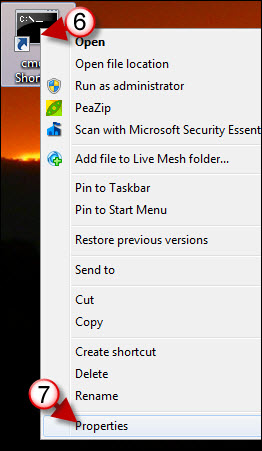
6. Right-click on the new shortcut located on your Desktop

7. Click on Properties from the menu.
Create Shortcut to Elevated Command Prompt

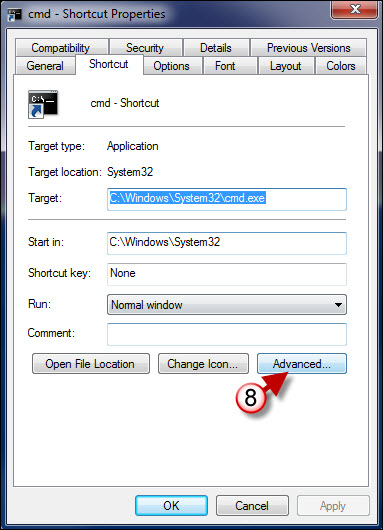
8. When the Properties window appears, click on the Advanced button.
Create Shortcut to Elevated Command Prompt

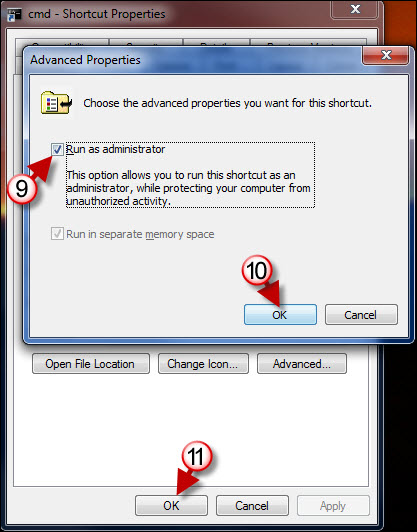
8. The Advanced Properties window will open. Add a checkmark to the Run as administrator checkbox.

10. Click OK to close the window.

11. Click OK to close the Properties window.

Rename the Shortcut

Now that we’ve customized the shortcut, lets rename it so that it can be identified as the Elevated Command Prompt.
Create Shortcut to Elevated Command Prompt

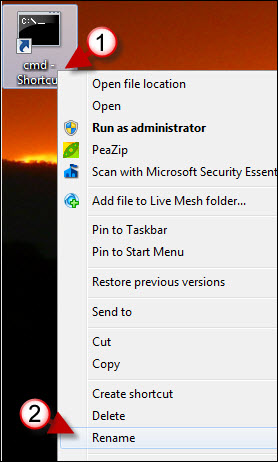
1. Right-click on the shortcut

2. Click on Rename from the menu.
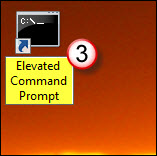
Create Shortcut to Elevated Command Prompt

3. Name the shortcut whatever you wish.

Published on March 11, 2010

Related Posts

  1. Run Elevated Command Prompt in Windows 7
  2. How to Access the Command Prompt
  3. How to Create a Shortcut to All Control Panel Tasks in Windows 7
  4. How to Create and Customize Shortcuts in Windows 7
  5. How to Change Ownership of Files and Folders in Windows 7
How-to

About the author

Gilbert is a Microsoft MVP, a full-time blogger, and technology aficionado. When Gilbert is away from his bike and his iPad, he's busy writing technology how-to's from his home-office in Miami, Florida on the latest programs and gadgets he can get his hands on. He's locally known as "the computer guy" and has spent the last 12 years helping family, friends, and GilsMethod.com visitors with their computer questions and problems. He was awarded the 2009 MVP award from Microsoft for his contributions in forums and blogs and is enjoying the new addition to his family.

Want more articles like this delivered for free to your inbox?

To receive the latest technology how-to's, news, and reviews, enter your email address below.

Sign up below

One Response to “Create a Shortcut to the Elevated Command Prompt in Windows 7”

  1. Ismail says:

    Thanks a million ton. :D

Leave a Reply
