
So you’ve just downloaded a program, game, or other media from the internet and discover that it is formatted as a .UIF file. When you try to run it, Windows doesn’t know what to do with it and asks you for some help in deciding which program to use to open this unknown .UIF file, luckily you’ve come to the right place. Before we proceed I want you to be aware about some stuff that could affect you with a UIF file.
1. Ensure you trust the source of this file. At times people maliciously insert viruses and other files that may damage and compromise your PC’s security.
2. In order for you to use these files you have to go through several steps before you can even view the contents.
Now that we got that out of the way we can proceed with getting the contents out of the UIF file into something your computer will udnerstand. The how-to below will list step-by-step what it is that you need to do in order to use these files.
If you have any comments, post them below or if you need help visit our forum and post your question there.
Note: Before proceeding with the method below, if you have a file that is over 300MB then you might want to check out a new how-to I posted to convert UIF files to ISO’s with a free application.
Decompressing the UIF File
1. If you do not have MagicISO or MagicDisc please download and install the programs.
You will need these two programs to decompress [MagicISO]the UIF file and then mount it[MagicDisc]. MagicISO is trial software with a 300MB limit, anything below 300MB you don’t need to buy the software, as for MagicDisc it is free.
MagicISO Download – MagicDisc Download
2. Alright assuming you have installed these programs, launch MagicISO.
3. Click on Tools > Decompress UIF Image…
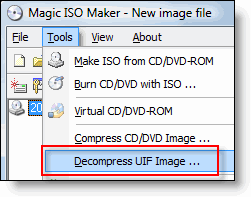
4. Browse to the directory where the UIF file resides, then select a directory where you would like to place the decompressed ISO file. Click Decompress.
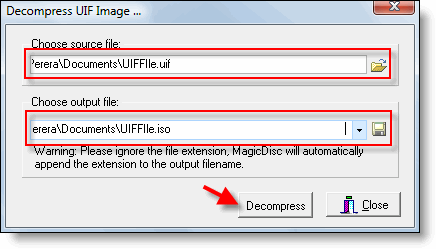
5. Once the decompression process has completed you can now either mount the ISO file onto a virtual drive [MagicDisc] and/or burn it using your favorite program.
For purposes of this tutorial we will only cover the mounting of the ISO file.
Mounting the ISO File
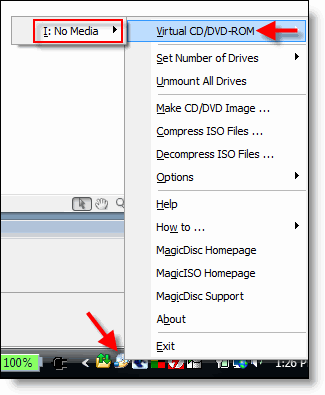
1. Right-click on the MagicDisc icon on your taskbar. Click on Virtual CD/DVD-ROM > “Drive Letter:” No Media > Mount…
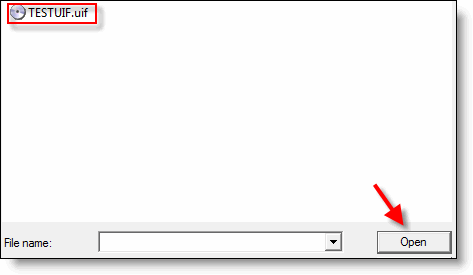
2. Locate your decompressed ISO file, click Open
3. You should now be able to go to your Virtual drive and browse the contents of your CD/DVD.
In case you wanted to burn your ISO, simply follow your CD/DVD burning software instructions on how to burn ISO’s or you can drop me a line and I’ll be happy to help you.
Further Reading
So why use UIF files?
UIF files offer the same advantages of creating ISO’s and other CD/DVD images with the addition of providing compression and encryption of your files. UIF’s are ideal for transferring large files over peer2peer networks, encrypting important files, and reducing the size of CD images you create.


