
Log On, Log Off, and Shut Down Windows 7

The guide below will walk you through the process of logging on to Windows 7 and the various options available to users when they are done working with their computers.

The following is part of a series of articles that will mirror an electronic book that I’m set to release in December of this year. The eBook’s main focus will be helping new and old Windows users become familiar with the new version of Windows 7 that will available to the public in December. I hope that you find this series useful and informative and that you enjoy it so much that you will purchase my eBook when it is released.

This article is part of Chapter 1 of Windows 7 Basics How-to Guides for the Rest of Us™. To access other how-to’s from the book head on over to the Books section of this site.

Log on to Windows 7

To log on to Windows 7, first you must turn on your computer and follow the steps below.
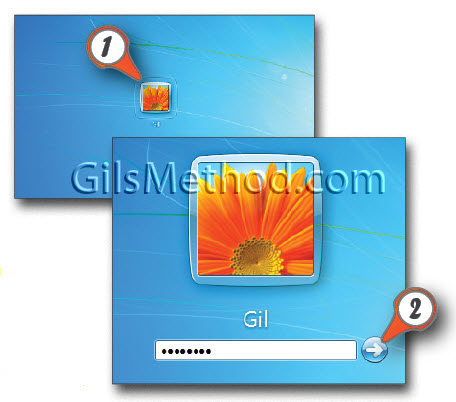
Open Start menu


1. Click on the User icon in the Welcome Screen.

Note: If you have not assigned a password to the account you will automatically sign on without having to go through step 2.

2. Enter the password used to access the computer, hit the Enter key on your keyboard or click on the arrow button located to the right of the password input box.

When you log on to your
computer you will be
taken to the Windows Desktop.

Log off, Shut Down, Switch User, Lock, and Restart Windows 7

When you are done working with your computer Windows 7 provides users with multiple options to exit their computers for use at a later time. The options are described in detail below.

  • Shut down Completely powers down computer .
  • Switch User Allows logged on user to remain logged on while another user logs on to the computer via a different account.
  • Log off Completely logs off user and returns computer to Welcome Screen.
  • Lock Locks down system while computer remains powered on. User must provide password in order to regain entry to machine.
  • Restart Powers down computer and reboots it. Usually done for updates or if system is experiencing problems.
  • Sleep A power-saving state that allows the computer to quickly resume full-power operation within a few seconds. Very useful when you want to get on your computer right away.
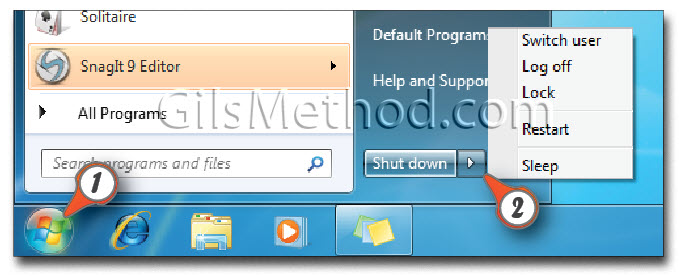
Open Start menu

1. Click on the Start button to open the Start Menu.

2. To shut down, click on the Shut down button. If you wish to log off instead of shutting down, click on the small arrow to the right of the Shut down button to expand the menu and choose Log off from the list. You may also select any of the options listed above.


 

Article posted on 08 20th, 2009

Related & Suggested Posts

  1. How to Customize the Windows 7 Shut Down Button
  2. Get Around the Windows 7 Start Menu
  3. Use Windows Search to Locate Your Files and Applications
  4. Pin Up Application Shortcuts to the Start Menu in Windows 7 and Save Time
  5. Getting Around the Windows 7 Taskbar


10 Responses to “Log On, Log Off, and Shut Down Windows 7”

  1. Joanna says:

    I haven’t installed Windows 7 yet. I’ll be backing up all of my files and reformat my pc then that would be the time to go for W7. I’ll be bookmarking this. Thanks.

  2. @Joanna: Thanks for the positive feedback. I look forward to having you as a guest on my blog. Thank you.

  3. Mike says:

    Been running Windows 7 for about 2 months with good performance. Waiting for release on 10-22 ……

  4. @Mike - I too am looking forward to the release, so far I am very happy with Windows 7. I think that Microsoft got it right this time.

  5. Eesti Tuvi says:

    I have installed Windows 7 with no problems. It is an HP processor. In the instruction manual, it advises not to shut down Windows 7 unless absolutely necessary for repair or installation of hardware. Log off feature is to be used always.
    Is this correct? I don’t understand why.

  6. linda jolsen says:

    using win 7 but when i leave the computer for a few minutes it logs off and shuts down.

    i have to turn on log in and go to website again.

    how to i keep everything ON

    thanks

  7. Celeste says:

    D’oh! I’m a long-time Windows user, but couldn’t find the Shut-Down option in Windows 7. Thanks for the easy instruction with picture!

  8. @Celeste - My pleasure. I’m glad you found the guide useful. I will be adding more of this guides in the weeks to come. Thanks for stopping by.

  9. @Linda Jolsen - It sounds to me like you have an auto shut-down or hibernate option enabled. This is most likely a default setting that requires customization. Please let me know if you still need help with this so that I can write up a quick how-to for you to help you customize this setting. Thanks for passing by.

  10. @Eesti Tuvi - The reason they ask you not to turn off is because the computer will automatically enter into a period of “sleep” after a set interval of time without use. This also helps with the perception that the computer starts up much faster than if you were to boot it up. Microsoft has made a lot of improvements in the operating systems ability to sleep and resume from sleep with Windows 7. Try it out and see what works best for you. If the computer goes into a sleep mode when you leave it on and you don’t mind then leave it that way, otherwise turn it off. It’s really a preference. Hope I answered your question and thank you for passing by.

Leave a Comment

Note: I discourage users from using keywords in their names when posting comments, most of those are caught as spam and end up being deleted. It would be more productive and interactive if commentators use the name they go by rather than using an unrelated name. In the future I reserve the right to delete comments from users using a name other than their own.

Connect with Gil via
Connect with Gil
Facebook | Twitter | Digg | SU | LinkedIn
Who's behind Gil's Method?
My Name is Gilberto J Perera and I'm the editor behind Gil's Method. I started this blog to help relatives with computer questions. Since then the blog has grown to the collection of articles you see today, I hope that you find this blog useful and that you come back again.
Read more at my about page
Other Resources

Books (Coming Soon)

Forum (Coming Soon)

Store (Coming Soon)