
Click here to try Mozy for FREE!
Recommended: Click here repair PC errors
Click here to run a Free Registry scan
WebWatcher

Transfer Your Outlook Emails to Gmail

by Gilberto J Perera View Comments Share
Transfer Email to Google

This is the fourth part of a larger series that I will be publishing in the coming weeks covering my switch from Outlook to Google’s online services. The intent of this series is to help others who have found themselves wanting more out of their email and calendar applications. This guide specifically covers how to transfer all of your Outlook messages to Gmail. A lot of us find ourselves switching to Google and wishing we could access all our saved messages from Outlook or other email applications online.

Unless you are an individual with access to Google Apps via your company or school, you will need to follow the steps below to transfer your messages from Outlook to Gmail. This method is kind of a work around which I have confirmed to work (I trasferred over 600MB of messages with attachments). It is a great alternative that keeps me from having Outlook around just for old messages. If you have any tips to share, please post them below.

Note: I used Outlook 2007 and a standard Gmail account to write this article. If you use Google Apps you can use this free tool to transfer your emails.

To view the how-to describing the process for transferring appointments from Outlook to Google Calendar, follow this link.

PLEASE NOTE before proceeding make sure you enable IMAP in Gmail by following these instructions.

Configuring Outlook
Transfer Email to Google

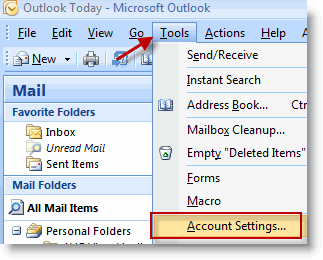
1. With Outlook open, click on Tools > Account Settings…
Transfer Email to Google

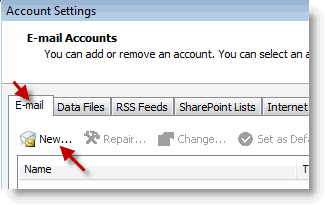
2. Click on the E-mail tab and click on the New… button.

Editing Task Details
Transfer Email to Google

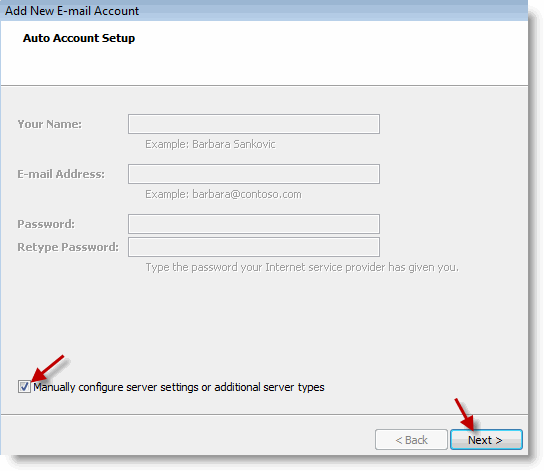
3. When the Add New E-mail Account wizard opens, add a check mark to Manually configure server settings… Click Next to proceed.

Transfer Email to Google

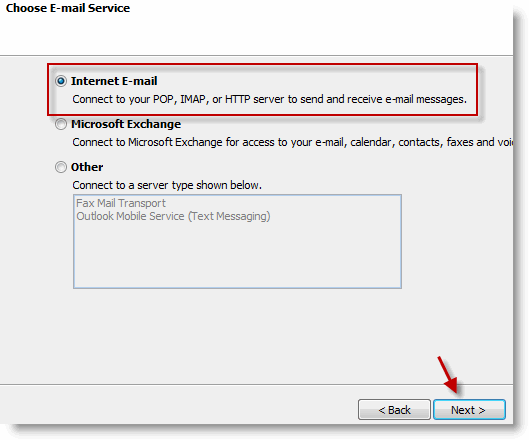
4. Select the first option, Internet E-mail, click Next.

Enable Your Tasks List in Gmail
Transfer Email to Google

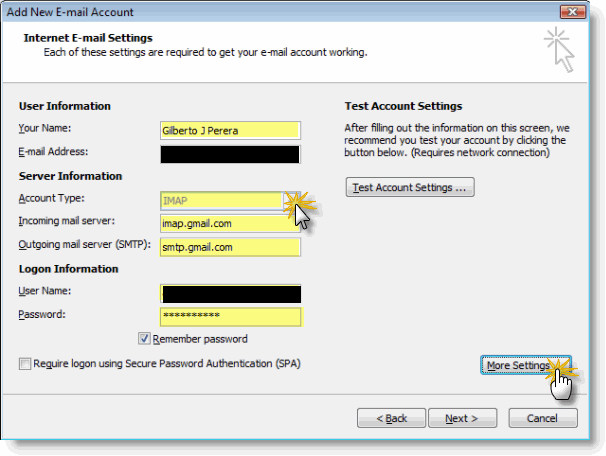
5. Fill out the form and make sure to select IMAP from the Account Type drop-down. Click on More Settings when form is complete.

Note: When filling out the form make sure that you use the following information;

  • Incoming mail server: imap.gmail.com
  • Outgoing mail server (SMTP): smtp.gmail.com
Transfer Email to Google

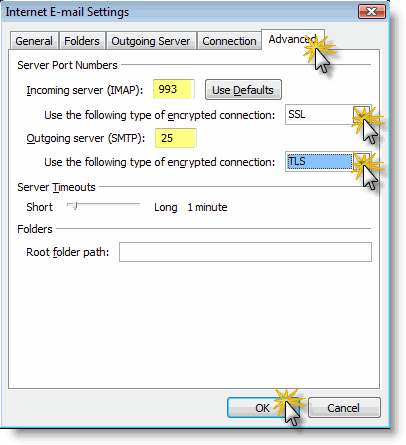
6. When the Internet E-mail Settings window opens, click on the Advanced tab. Set the following port numbers and settings, then proceed to the next step.

  • Incoming server (IMAP): 993 – use SSL for the encrypted connection type
  • Outgoing server (SMTP): 25 – use TLS for the encrypted connection type
Transfer Email to Google

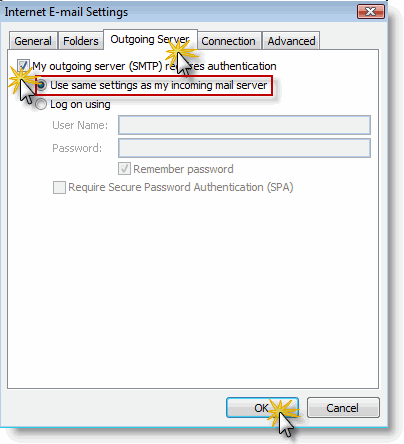
7. Click on the Outgoing Server tab and add a check mark to My outgoing server (SMTP) requires authentication. Make sure that Use same settings… is selected. Click OK to close the Window. Click Next on the Wizard screen.
Transfer Email to Google

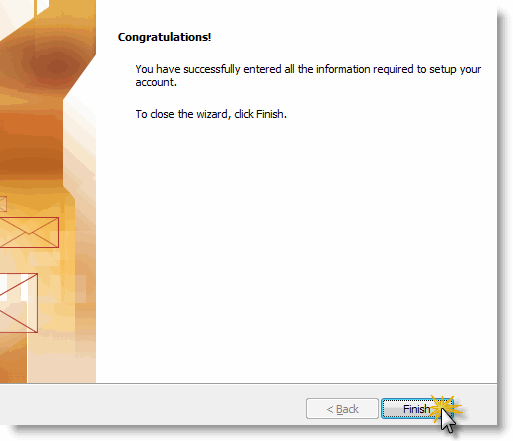
8. Congratulations you have set up the Gmail account in Outlook. Click Finish to exit the wizard.
Transfer Email to Google

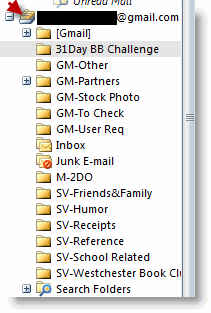
9. Wait a couple of seconds as Outlook fetches the Gmail folder list and starts making emails available within Outlook. The screen shot above shows how the Gmail account is listed.
Transfer Email to Google

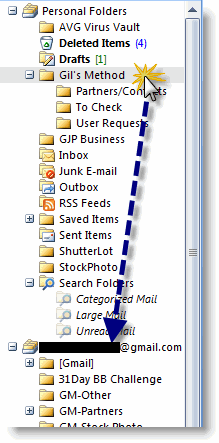
10. Once the folders in Outlook match those in Gmail we can start moving emails over to the Gmail folders. Click on the folder containing emails from your Outlook file, select the emails within the folder (or the entire folder) and drag it over to the yourid@gmail.com folder list. This will start the transfer of e-mails from your Outlook files to Gmail’s servers.
Transfer Email to Google

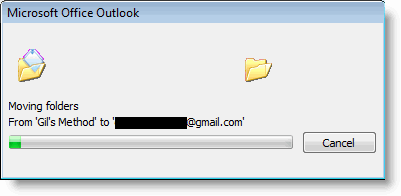
11. In some instances you may see the dialog box above. Depending on the size of your Outlook folders transfers could take seconds to hours.

Once the file transfers are completed you will have access to all of your e-mail from Outlook on Gmail.

Tips

  • Make sure your folder names do not use slashes (/) you will receive an error, there are other characters that I have not confirmed.
  • Unless you specify that your are copying the items over, the operation will move the files from your computer (the original.pst file) to Google’s servers and they will no longer be accessible from the ‘original’ .pst file. They will be accessible via Outlook but through the Gmail folder list.
  • It may seem that Outlook has locked up at times during the transfer, this is normal, it will happen if you have a lot of emails and/or large attachments, or your connection is slow.


Do you like this article?

Related Posts

  1. Transfer Your Outlook 2003 Emails to Gmail
  2. How to Add a MobileMe Account to Outlook 2010
  3. Enable IMAP Using Gmail
  4. Transfer Your Outlook Contacts to the Cloud
  5. Force Outlook 2010 to Download All Messages and Attachments with IMAP
How-to

About the author

Gilbert is a Microsoft MVP, a full-time blogger, and technology aficionado. When Gilbert is away from his bike and his iPad, he's busy writing technology how-to's from his home-office in Miami, Florida on the latest programs and gadgets he can get his hands on. He's locally known as "the computer guy" and has spent the last 12 years helping family, friends, and GilsMethod.com visitors with their computer questions and problems. He was awarded the 2009 MVP award from Microsoft for his contributions in forums and blogs and is enjoying the new addition to his family.

Want more articles like this delivered for free to your inbox?

To receive the latest technology how-to's, news, and reviews, enter your email address below.

Sign up below

View Comments to “Transfer Your Outlook Emails to Gmail”

  1. Dennis Palmer says:

    Yes, the pst I added was from Exchange. Hopefully Google will fix it in an update.

  2. Gilberto J Perera says:

    @Dennis Palmer: Interesting I didn’t encounter that issue when I transferred the emails over. It looks like it is an Exchange to Gmail issue, is this what you are using? Exchange?

    Doesn’t look like there is a solution as of yet. I’ll keep you posted via this comment thread should anything come up. Please do the same. Thank you.

    I’d urge you to Star this issue so that Google can hopefully take notice;

    http://code.google.com/p/google-email-uploader/issues/detail?id=40

    Might want to subscribe to this thread to see if someone posts a solution;

    http://groups.google.com/group/Gmail-Help-POP-and-IMAP-en/browse_thread/thread/6c6801dd433de1f0

  3. Dennis Palmer says:

    Gil,

    This method works well but I have a problem – many of my emails show as “unknown sender” in gmail after transfer. I’ve read elsewhere that others also have this problem – how can this be corrected?

    Thanks,

    Dennis

  4. Gilberto J Perera says:

    @Neal M Hoffman: The article to help you transfer your Outlook 2003 emails to Gmail is live. Thanks for the feedback, I hope you find the article easy to use and helpful.

    http://www.gilsmethod.com/transfer-your-outlook-2003-emails-to-gmail

  5. Neal M Hoffman says:

    Thanks Gil.
    The reason I sent two messages is because the first one seemed to disappear from my monitor screen. I eagerly await your response.

    Neal

  6. Neal M Hoffman says:

    Hi: I’ve been using Outlook 2003 and can only go a short distance into your explanation and instructions regarding exporting email messages to gmail. I’m reluctant to guess at similar choices, for fear of losing my email messages completely. Is there any way I can substitute certain choices in Outlook 2003 for your choices, which seem to be coming from Outlook 2007? Thanks

  7. Neal M Hoffman says:

    As somewhat of a novice using certain protocols and certain computer language, I found your instructions, lucid and easy to follow—up to a point. I have been using Outlook 2003 and some of the choices shown in your importing to gmail procedures just do not seem to exist in that program. Thus, I’m kind of stuck. I’m reluctant to make my own \comparable\ choices, for fear of destroying the messages I still have in my Outlook account. Is there any way that I can translate your instructions, apparently made in relation to Outlook 2007, to my Outlook 2003? Thanks.

    • Gilberto J Perera says:

      @Neal M Hoffman: I don’t have Outlook 2003 installed as my default client, but I can install it on one of my Virtual PC’s and try the same instructions. Once I’ve got it figure out, I’ll post the instructions here. Thanks for the feedback.

  8. 10 Gmail How-to Articles « Your Maven says:

    [...] Transfer Your Outlook Emails to Gmail [...]

  9. David H. Gelfand says:

    Is there a way to do the same thing for a personal folders.pst file from Outlook 2001 (for Mac). I have tried the MS \Pst Import tool\ and it doesn’t work to import my (personal) .pst mail folder to Entourage 2004. I have sent up a gmail account and enabled IMAP, as you suggested. In Outlook 2001, under tools/services, I can only add an Exchange Server account and not some other e-mail account as you’ve described above. I have a G4 PPC PowerBook running OA 10.4.11. I plan to get a new laptop that will come with OS 10.5, which does not support Outlook 2001 (requires Classic). I also have Windows XP Pro and Outlook on my Mac, but the Outlook XP tool for importing a .pst file also does not work for me, even after running the \Scanpst.exe\ on the personal folders file I dragged from my Mac desktop to my XP desktop to generate a (repaired)Personal Folders.pst file. Any suggestions?
    Thank you.
    dhg

    • Gilberto J Perera says:

      @David: Thanks for your question. Unfortunately I do not own a Mac and cannot attempt to duplicate your issue. I’m working on getting a Mac later this year so that I can help folks like you with Mac issues. You’re not the first to ask. Have you tried looking through Mac forums or Microsoft’s site for help? Good luck!

      Take a look at this article;
      http://support.microsoft.com/kb/311129

  10. Mihaela Lica says:

    This is one of those situations when I truly do not believe in the cloud. For me it is vital to have emails saved on my backup server – my customers’ privacy is very important. Yes, PCs can be hacked, data stolen, but not when they are offline. Google is more exposed to potential harm than a private PC. Although I don’t use Outlook (I use Thunderbird) I would not transfer emails to gmail, I would rather transfer gmail emails to Thunderbird (if these were customer emails, however I never use gmail for company communique).

    Of course, Gil, your post has nothing to do with my personal preferences. It’s very useful for those who do want to make the switch – to be honest this is actually the first compelling tutorial of the kind I read in a while.

    • Gil says:

      You are absolutely right Mihaela, that is why I urge users and make it a common practice to use as many safeguards as possible when using the cloud. With Gmail I make sure that I alsways use trusted computers to access my account, otherwise I don’t use it. When I sign on to Gmail I specify that I want to use HTTPS (secure) connection, which unfortunately is not enabled by default, and I make it a habit to change my passwords every so often and of course when I use passwords I make sure that they are strong.

      I thank you for your insight and your concerns and it is something that we all have to contend with in today’s digital world.

Leave a Reply

blog comments powered by Disqus