Feature: How to Sync Your Gmail, Google Contacts, and Calendar with the iPad
I recently posted a how-to that demonstrated how to add a Gmail account to your iPad. In this tutorial I will show you how to add your Google Account, that is Gmail, Calendar, and Contacts to your iPad using the Exchange account type on the iPad. This will allow for push notifications and over the air synchronization of your email, calendar, and contacts to Google’s servers.
Note: If you use another Microsoft Exchange account on your iPad you will need to use these links to add Gmail, Google Calendar, and Contacts to your iPad. The iPad can only sync one Exchange type account at any given time.
Do you own an iPad? You might want to look into protecting your investment with invisibleSHIELD screen protectors. If you need any help or have questions please post them below.
If you are looking for more iPad how-to’s, tips, and help visit our iPad page.
Synchronize Your Google Account to Your iPad Using the Exchange Option
To add your Google Account to your iPad using the Exchange account type follow the instructions below.
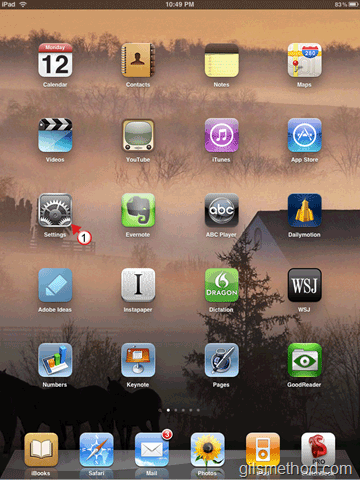
1. Tap on Settings in the Home Screen.
2. Tap on Mail, Contacts, Calendars under Settings.
3. Tap on Add Account…
4. Tap on Microsoft Exchange.
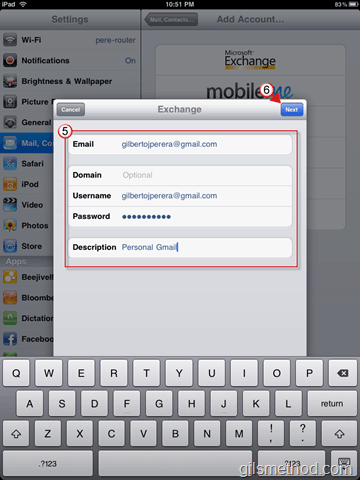
5. Enter your Google account credentials.
Note: Make sure that your Username includes @gmail.com, also leave Domain blank.
7. If the Unable to Verify Certificate pop-over appears, tap Cancel to continue.
8. When the Exchange dialog box appears, add m.google.com to the Server text box.
9. Tap on Save to continue.
10. Choose which services you wish to sync to the iPad.
11. Tap on Save once you have made your choices.
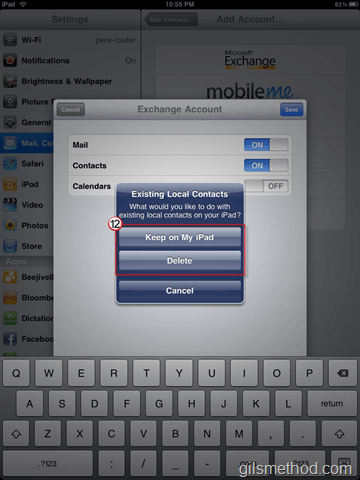
12. If you have Contacts stored on your iPad and choose to sync your Contacts you will be asked whether or not to delete the contacts stored. Make your choice, you will also be prompted if you are sure that you want to proceed with the deletion.
13. If you have Calendar entries stored on your iPad and choose to sync your Calendar you will be asked whether or not to delete the calendar entries stored. Make your choice, you will also be prompted if you are sure that you want to proceed with the deletion.
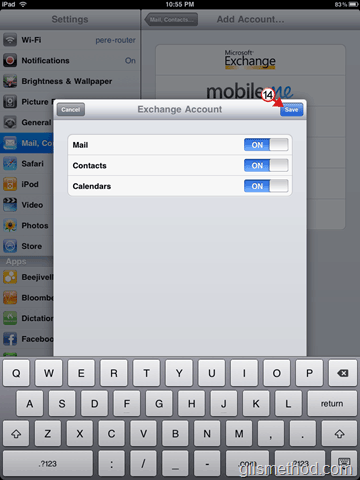
14. Once you have made all of your choices, tap on Save.
Your Google account is now synchronized with your iPad. If you have more than one calendar in Google Calendar you need to follow the instructions below to sync additional calendars, otherwise only the default calendar will sync with your device.
Synchronize Multiple Google Calendars to Your iPad
If you have more than one Google Calendar, you need to follow the instructions below to make sure that all of your calendars synchronize with your iPad.
1. Open Safari and visit http://m.google.com/sync
Note: If you are not logged in, make sure that you log in with the email account we setup above.
2. Tap on your device, in this case, the iPad.
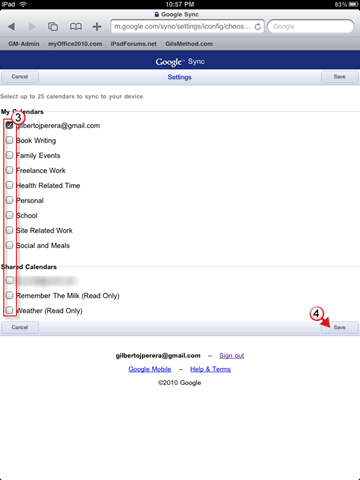
3. Select the Calendars you wish to synchronize.
4. Tap on Save.
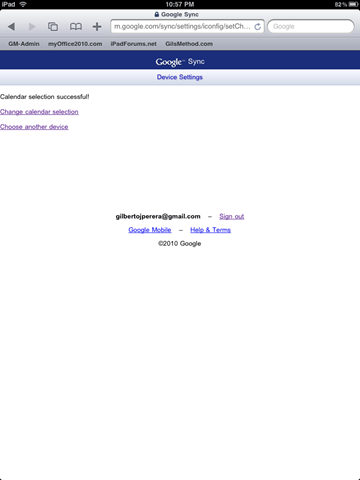
You should see the page above once the settings were saved.
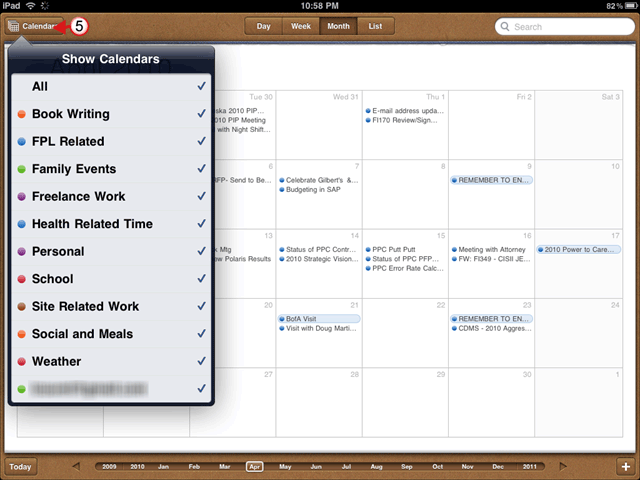
5. When you open Calendar, tap on Calendars and the list of calendars you selected should appear. You can toggle on/off the calendars you wish to appear.




Thank you for this one. I was getting desperate. However, I was unable to change to english, everytime google was localizing me to my current location.
I have found out (http://www.teachmejoomla.net/code/misc/google-international-bypass-localized-search.html) following: I went to http://www.google.com/ncr and then so sync page. It worked.
I’ve never used gmail. I do have a google account and used google calendar once (years ago). I also use some other google features using google account. I’ve never tried to use gmail so I suppose I am merely assuming that I don’t have a gmail account (but could be I have one from making a google account?)
Since I have used google calendar, it seemed the most accessible way to try to get categories set up. I just made multiple calendars and then added one event for each.
That’s correct the second part will not work unless you add the Google Account. You stated that you didn’t try the first part because you didn’t have a Gmail account, but then you state you’ve set up different categories on your calendar. I’m a bit confused…
Do you have a Google Calendar account? Please let me know if there’s something that was missing in the steps above so that I can walk you through the process. Thanks.
I didn’t do the “1st half” because I do not have a gmail account, so I don’t see how the directions apply.
I did (or tried to do) the “2nd half” of the page. This does not work (which I imagine is not a surprise.)
Believe it or not, I could care less about synching Google calendar events to my iPad.
ALL I am trying to do is get my iPad calendar to show multiple colors for different “types” of events. The people at the Apple store knew of no way to set this up, other than synching to a caledar that already has multiple calendars set up. So that is why I’m trying to synch to Google. (I set up the categories that I want there.)
So far, no good.
As you might imagine, I’m pretty fed up with this.
I expect that the next thing is that I have to create a gmail account.
Seems bizarre to put it mildly.
I
Thanks for the instructions. I still have a quandry.
I use Google Calendars via standard internet browser access, but I do not have an @gmail email address or user name. My user name with my Google Calendars is my @hotmail.com address that I’ve used for years. Now I don’t know how to sync my Google Calendars with my new iPad. I do use multiple g-calendars (work, PTA, swim team, etc.).
If I specify a domain name, will I be able to do this sync?
If I go straight to Google Calendars from a web-browser it doesn’t have a problem with the fact that my user name is an @hotmail.com address.
Thanks for your help.
Hooray! I actually did get the calendar sync to work even though I don’t use an @gmail address.
I followed your step-by-step instructions. They worked perfectly. There was a tiny worry when the “verification” step took a full minute, but patience triumphed.
Thank you very much for such clear USEFUL directions.
Hybs,
That is an interesting problem you have…I’ve looked around and the only way you can sync the calendars with your iPad is if you get a Gmail account. When you use the @hotmail address it doesn’t know how to look for Google’s servers…it looks for hotmails which of course do not have your calendar information. I ran into a similar problem with my Adsense account where I used my own domain as my email address and ended up getting a gmail account. At the end of the day it works out better for you. If you intend to go down this path you can export your calendars to the new Gmail account so that you don’t loose any of your information. If you need help with that let me know. Thanks.
Gil. Thanks for the helpful article. I have my contacts (names and phone numbers) on the desktop of my PC from my old Palm. Any suggestions on how to export these contacts to the iPad? Thanks for your hard work.
Peter,
When you say that they are stored on your PC…can you please clarify? Are they saved to Outlook? Palm Desktop Manager? Once you tell me which application you are using then I can walk you through the process. Thanks.
Hi,
thanks for the article!
I have an additional information for google-users from other countrys and the m.google.com/sync page:
When you are logged in and your language is something other than “English”, it would happen that you can’t do the sync because that page is not available for all languages. You have to switch your language to “English”… After that, the rest works fine.
Greetings,
brandjunge
brandjunge,
Thanks for the awesome tip. I’m sure others will find it useful.
Thank you very much for your help ! now all works perfectly for me !! You should have a flattr.com button to say THANK YOU !
Vectrex,
Thank you for the kind words, I’ll have to look into that. Have a great day.
Thank you, thank you! This article was immensely helpful. I just got an IPad and keep multiple calendars for each member of our family on Google Calendar. Initially, I could only see my own calendar. Your tutorial also helped me fix the number of calendars I can see on my IPhone (a couple of years ago, when I first set up my IPhone calendars, Apple limited the number to 5 — now I can see all 7) Thanks again
Glad this article has worked out for you. Make sure to check out http://www.gilsmethod.com/iPad for more iPad articles.
[...] Google account like an exchange account on the iPhone? You might find this article helpful. Feature: How to Sync Your Gmail, Google Contacts, and Calendar with the iPad I am trying it now and will report what [...]
Hybs,
I just replied to your original message…I didn’t think it would work?! How were you able to do it? Thanks for the feedback!